

Suspend, reactivate or exit a member
A member’s status says what they may do. Only a manager changes it, with the buttons at the top of the member’s form.
Who: Manager.
| Button | From | Result |
|---|---|---|
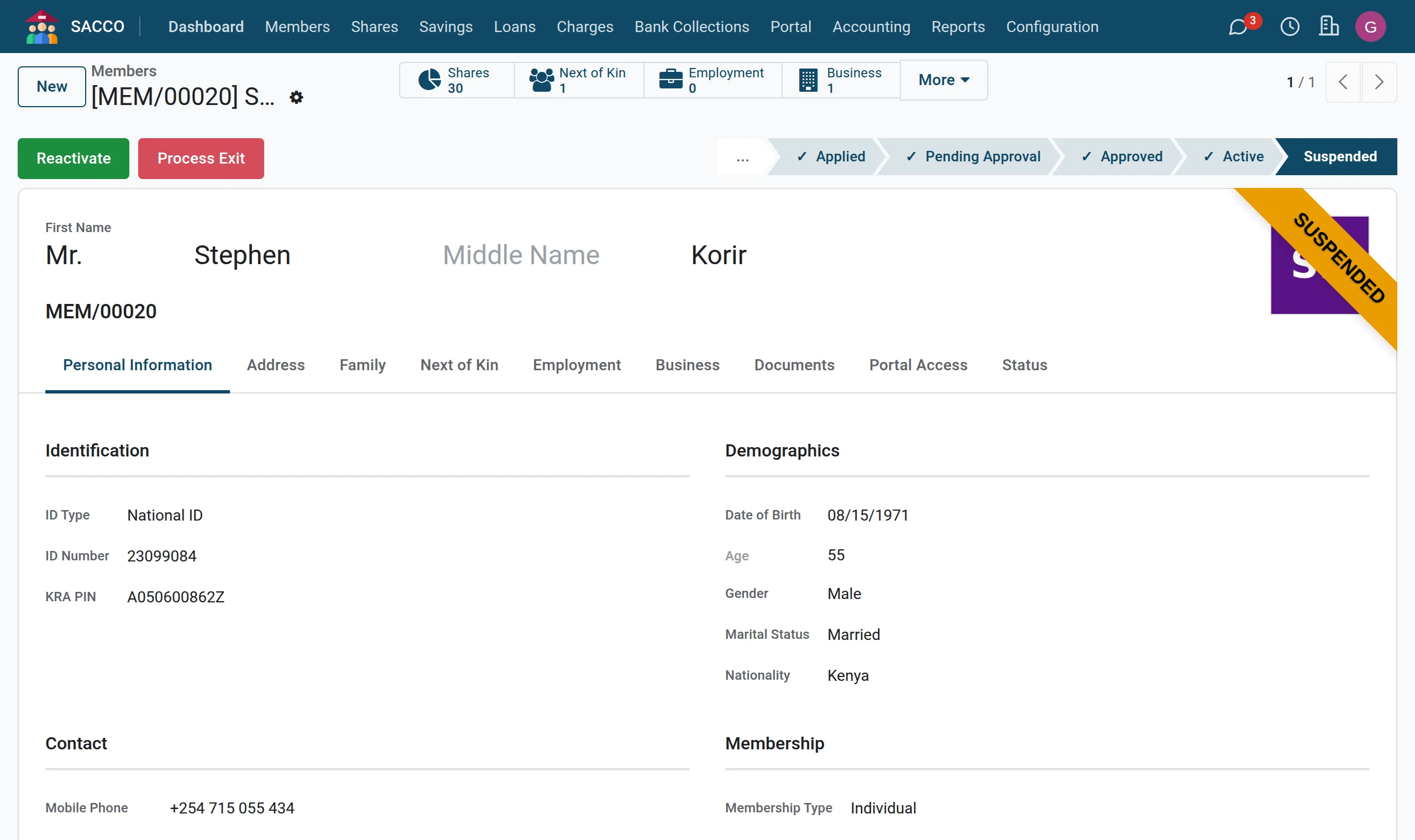
| Suspend | Active | Suspended: kept on the register with a ribbon, out of the list of active members. |
| Mark Dormant | Active | Dormant: a member who stopped transacting. |
| Reactivate | Suspended or Dormant | Active again. |
| Process Exit | Active, Suspended or Dormant | Exited: the membership is closed. |
| Reject | Applied, documents pending or pending approval | Rejected application. |
Suspend and reactivate
1Open the member
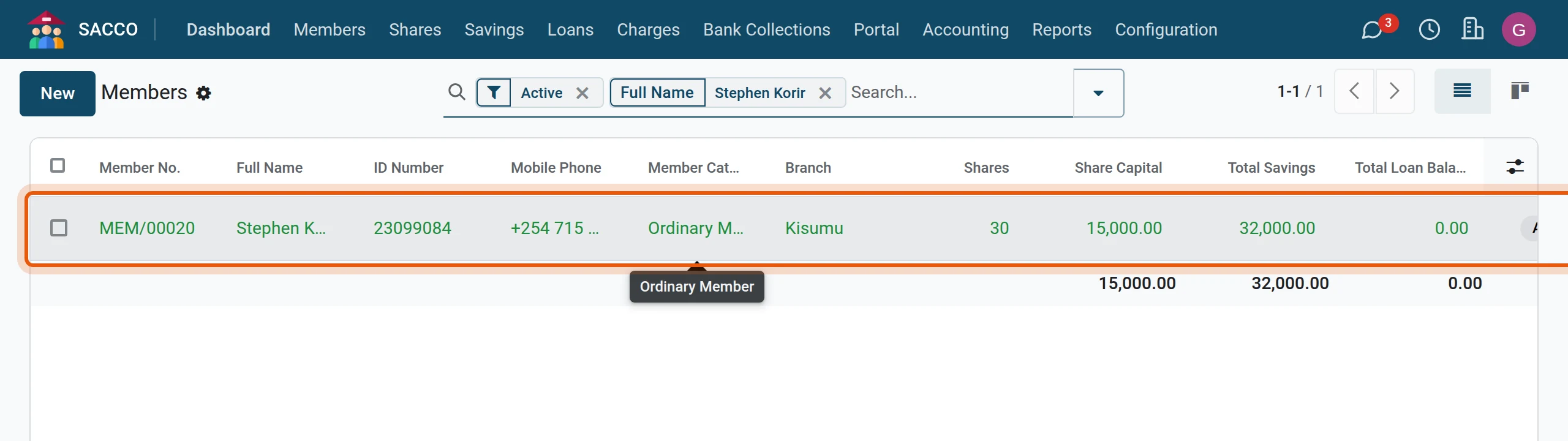
Open , find the member and click the line.
2Press Suspend
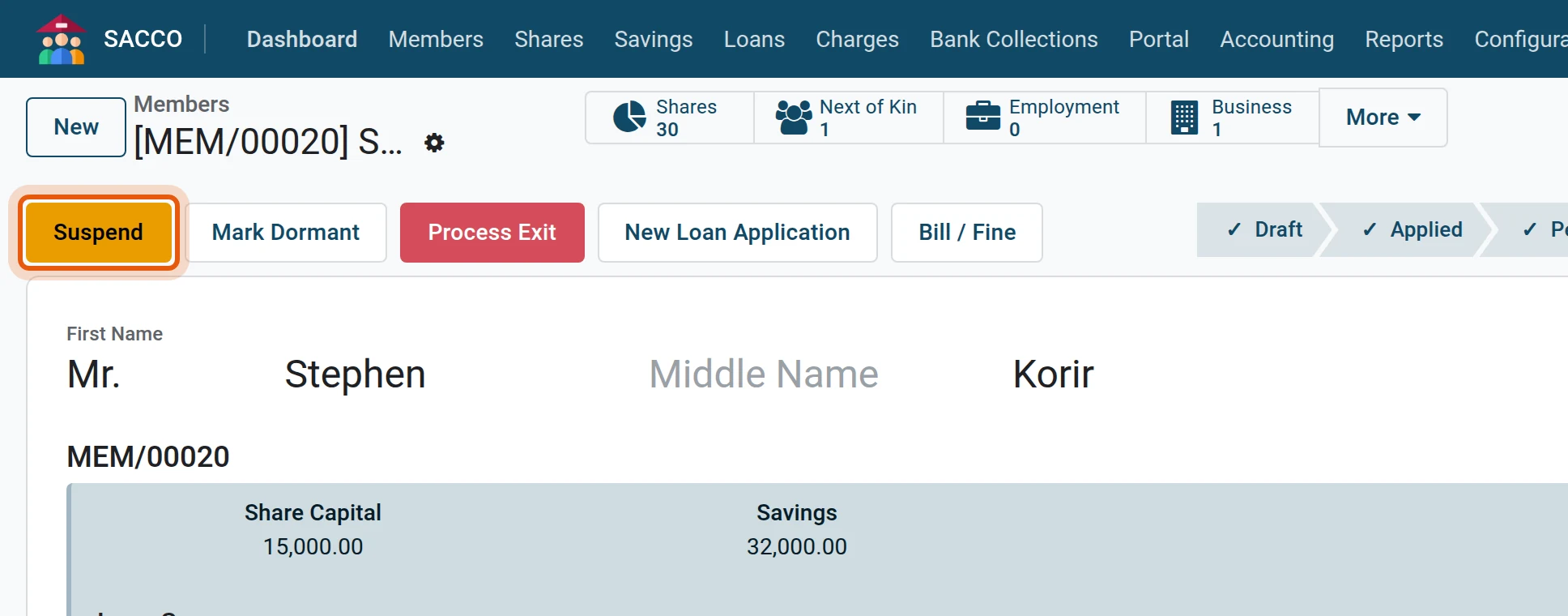
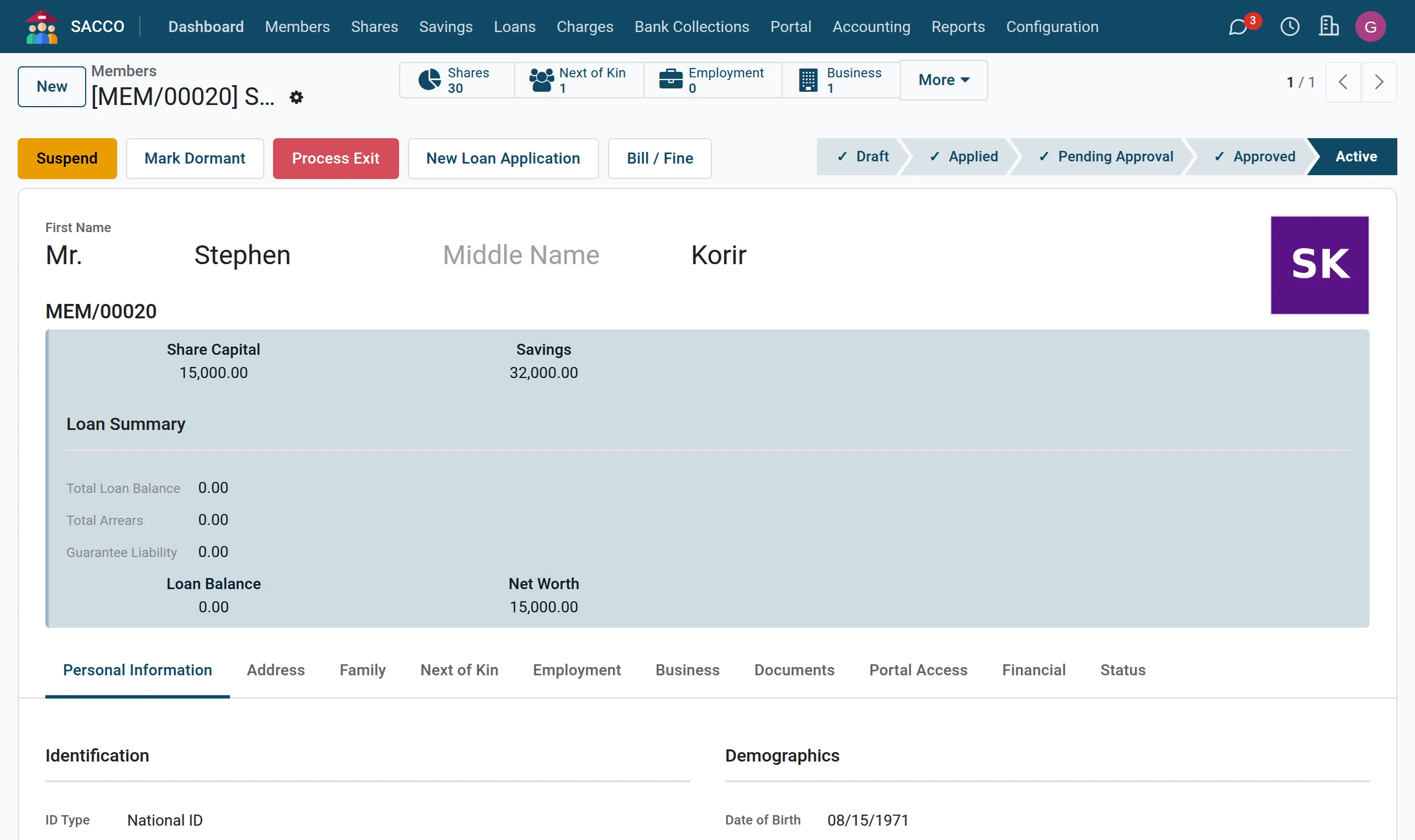
Press Suspend. The status changes at once and the history records it.
3Find suspended members later
Suspended members leave the default list, which shows Active only. Remove that filter in the search bar and tick Suspended to see them.
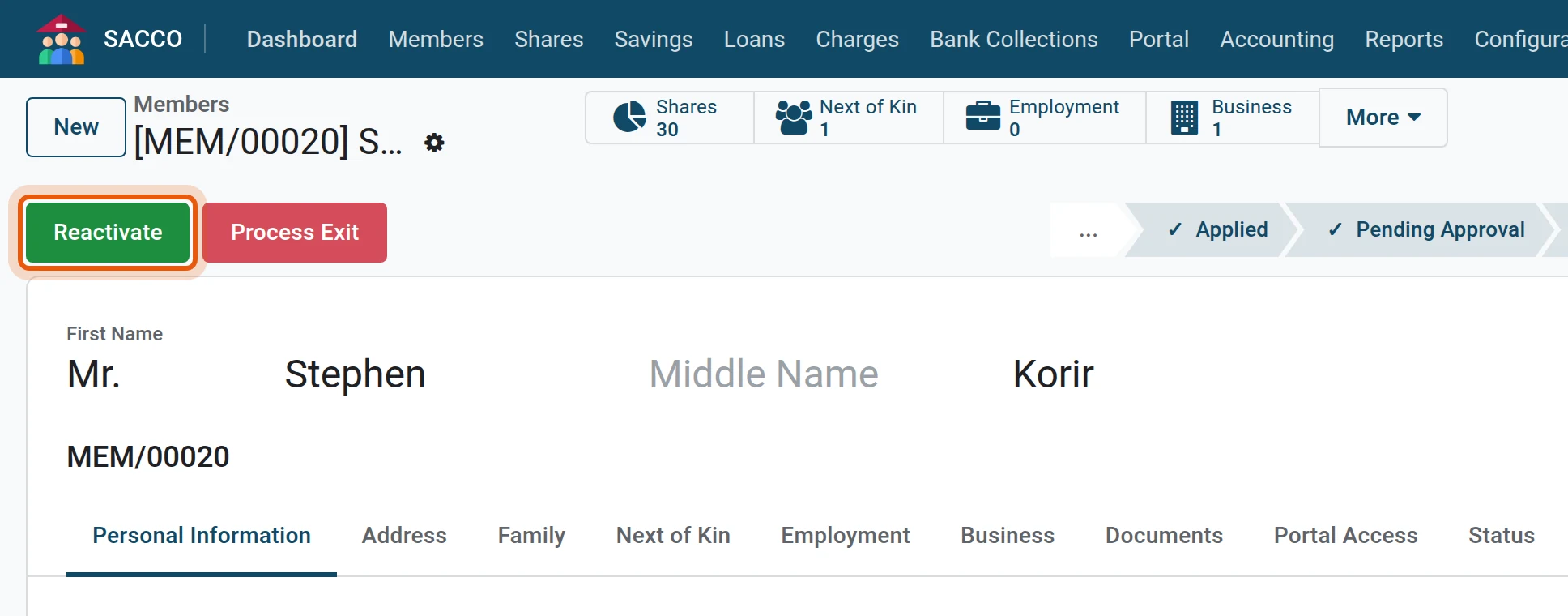
4Reactivate
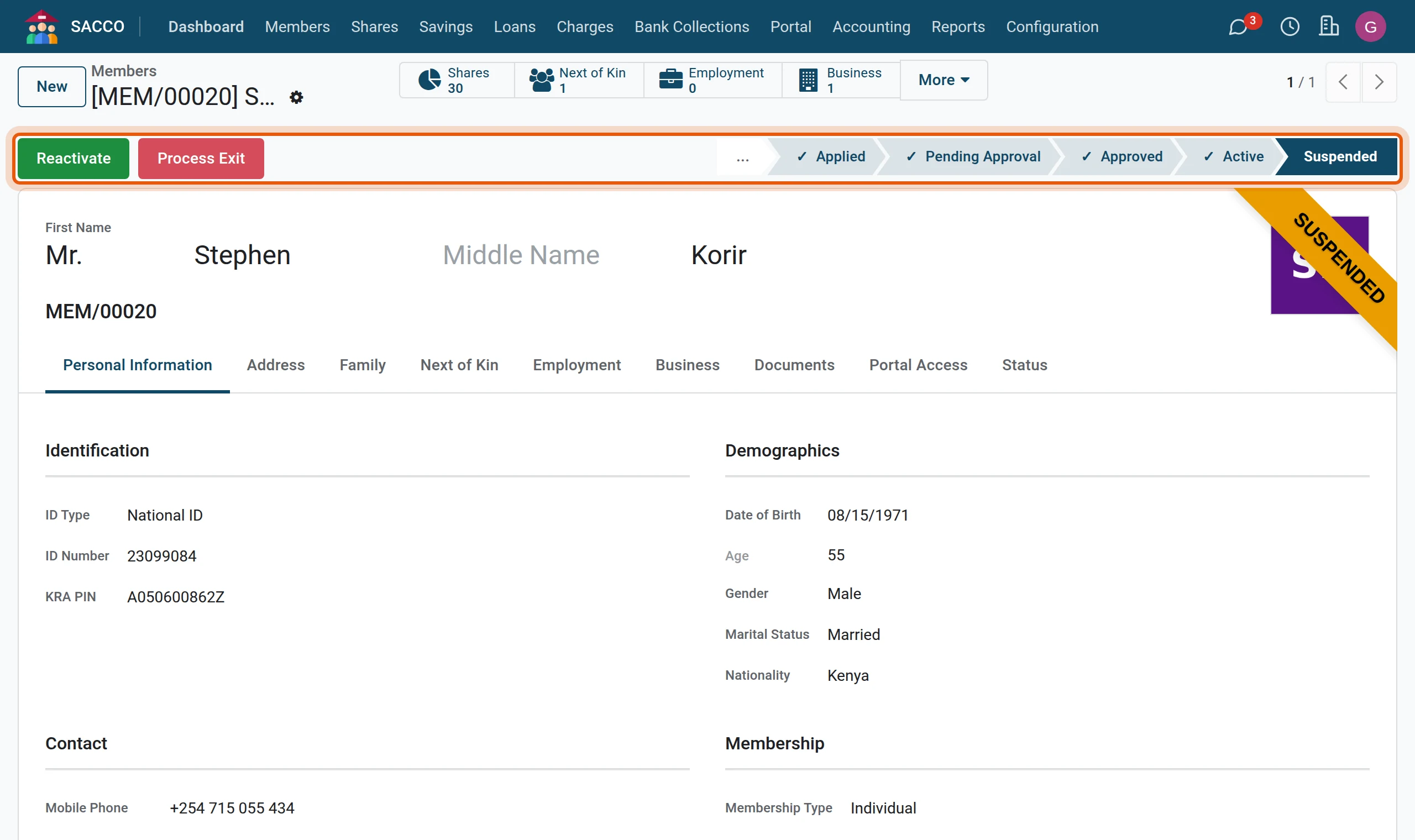
Press Reactivate to make the member active again.
A member leaves
Settle the member’s money first, then close the membership. In this order:
- Clear every loan: record the final repayment, from the member’s savings if the member agrees.
- Pay out the savings with a withdrawal and close each account.
- Refund the shares with a share transaction of the type Share Sale/Withdrawal, or transfer them to another member if your by-laws say so (share capital).
- Press Process Exit on the member’s form.
Important
A member who guarantees someone else’s running loan should not leave before that guarantee is substituted (guarantors).
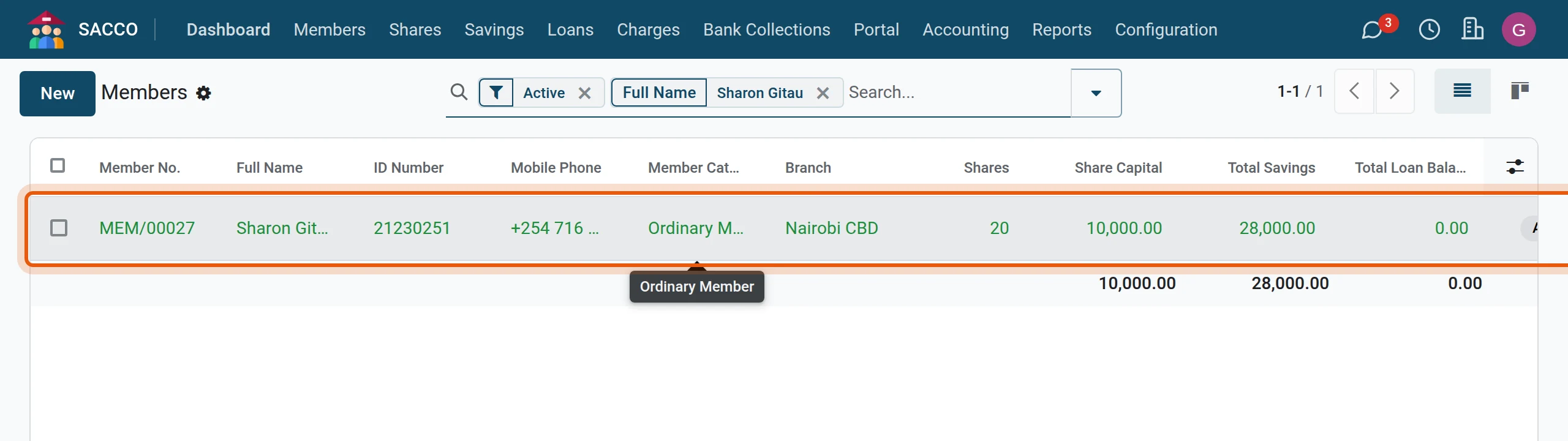
1Open the member
Open , find the member and click the line.
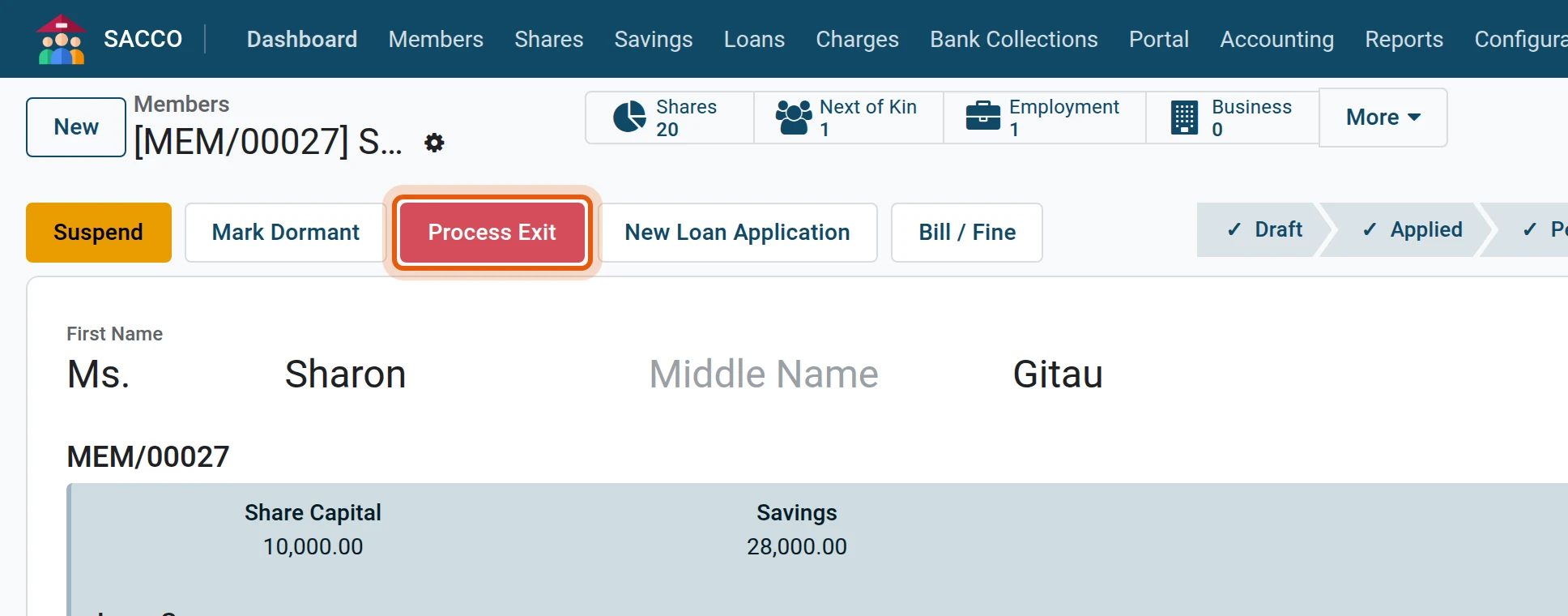
2Press Process Exit
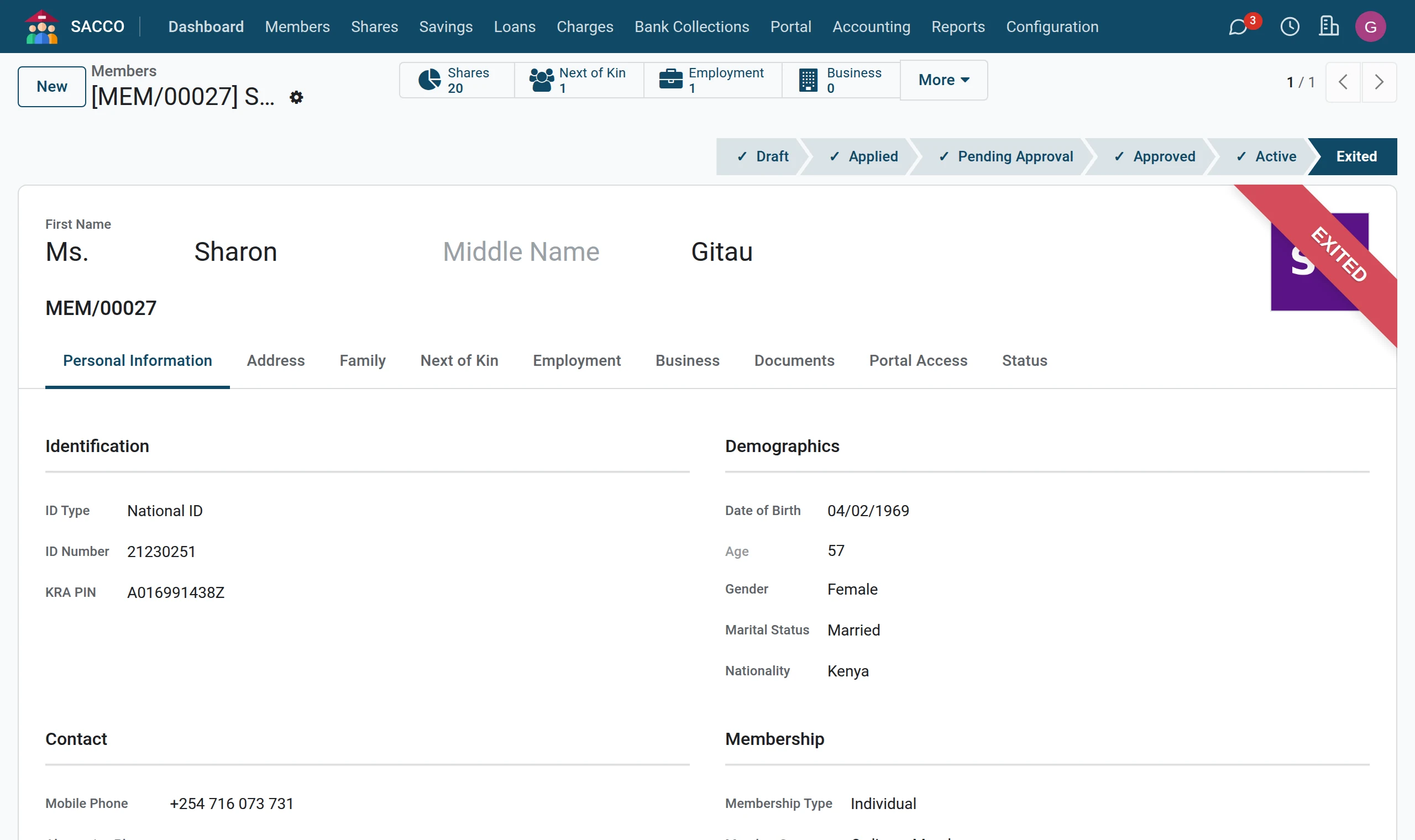
With the money settled, press Process Exit at the top of the form. The member becomes Exited, the exit date is recorded, and the history notes who did it.
Why can’t I change the status?
- The buttons show only for a manager. An officer sees the form without them.
- A button shows only in the status it applies to: Reactivate never shows on an active member.
- There is no way to type a status or to skip a step; that is what keeps the register reliable.