

Print a member card, statement or share certificate
Three documents print straight from the register: the member card, the member statement and the share certificate.
Who: Any SACCO user.
For one member
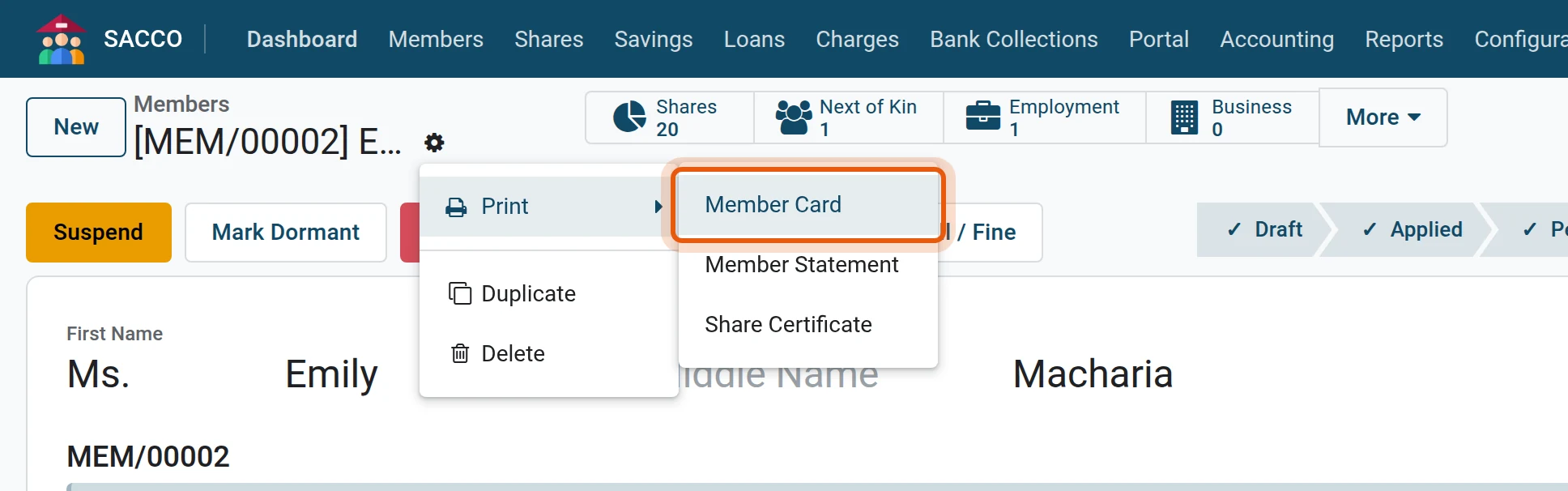
1Open the member and the gear menu
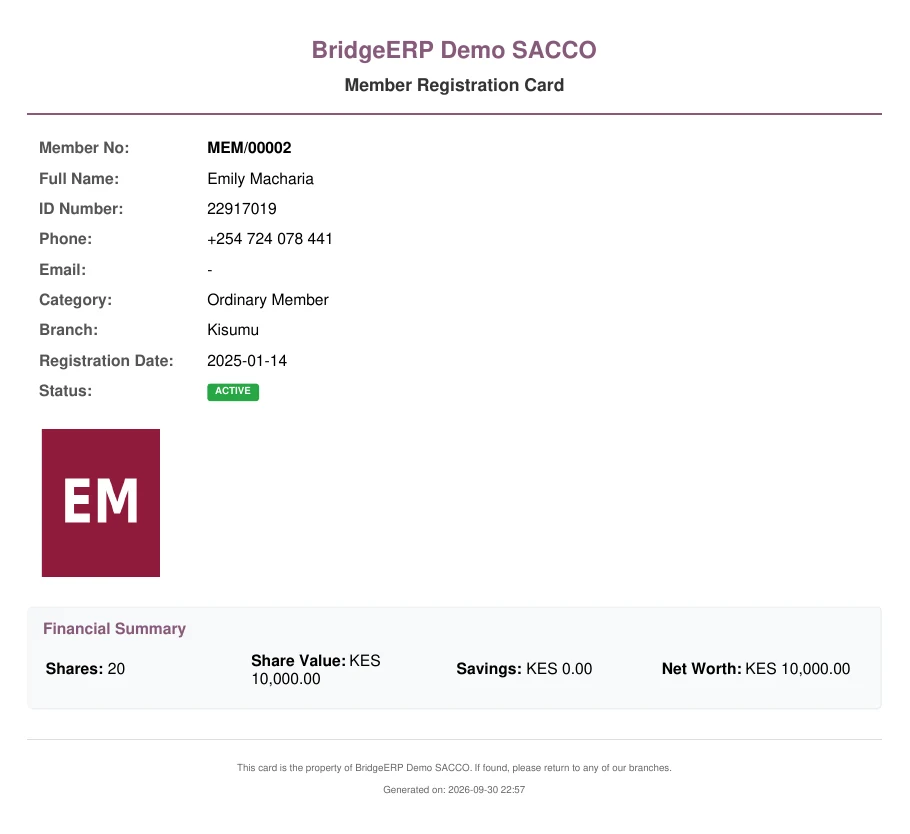
Open the member, press the gear icon next to the name and choose the document under Print.
2The share certificate
Choose Share Certificate in the same menu: it states the number of shares the member holds and their value.

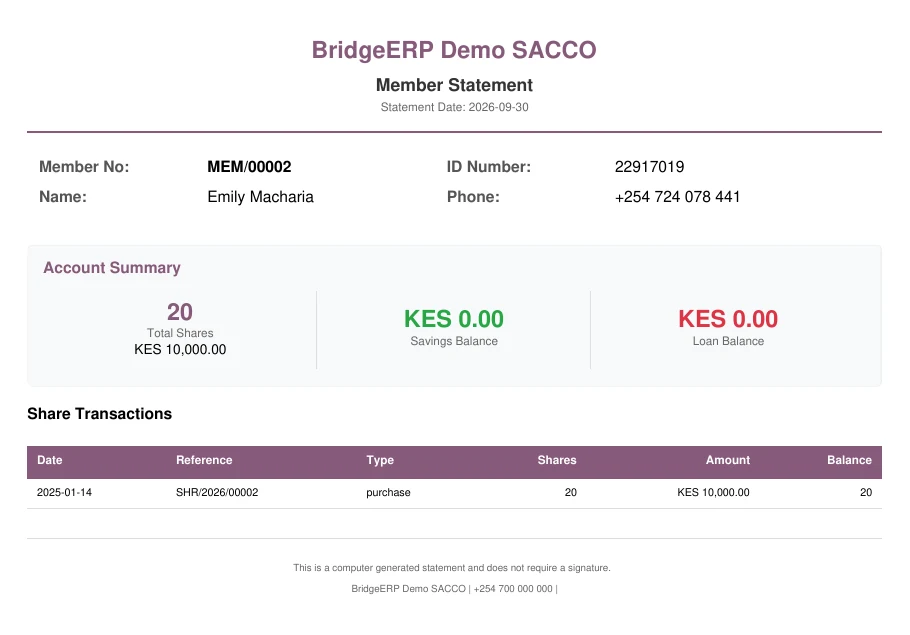
3The member statement
Choose Member Statement: shares, savings and loans on one document.
For several members at once
In tick the members (or the box in the header for all), press Print and choose the document. One PDF comes out with a page per member.
Tip
The first time anything is printed, the system asks for the document layout (logo, colours, paper). Choose one and press Continue; it is kept for every document after that.
See also
- Statements for a chosen period.
Was this page helpful?