

Approve and activate a member
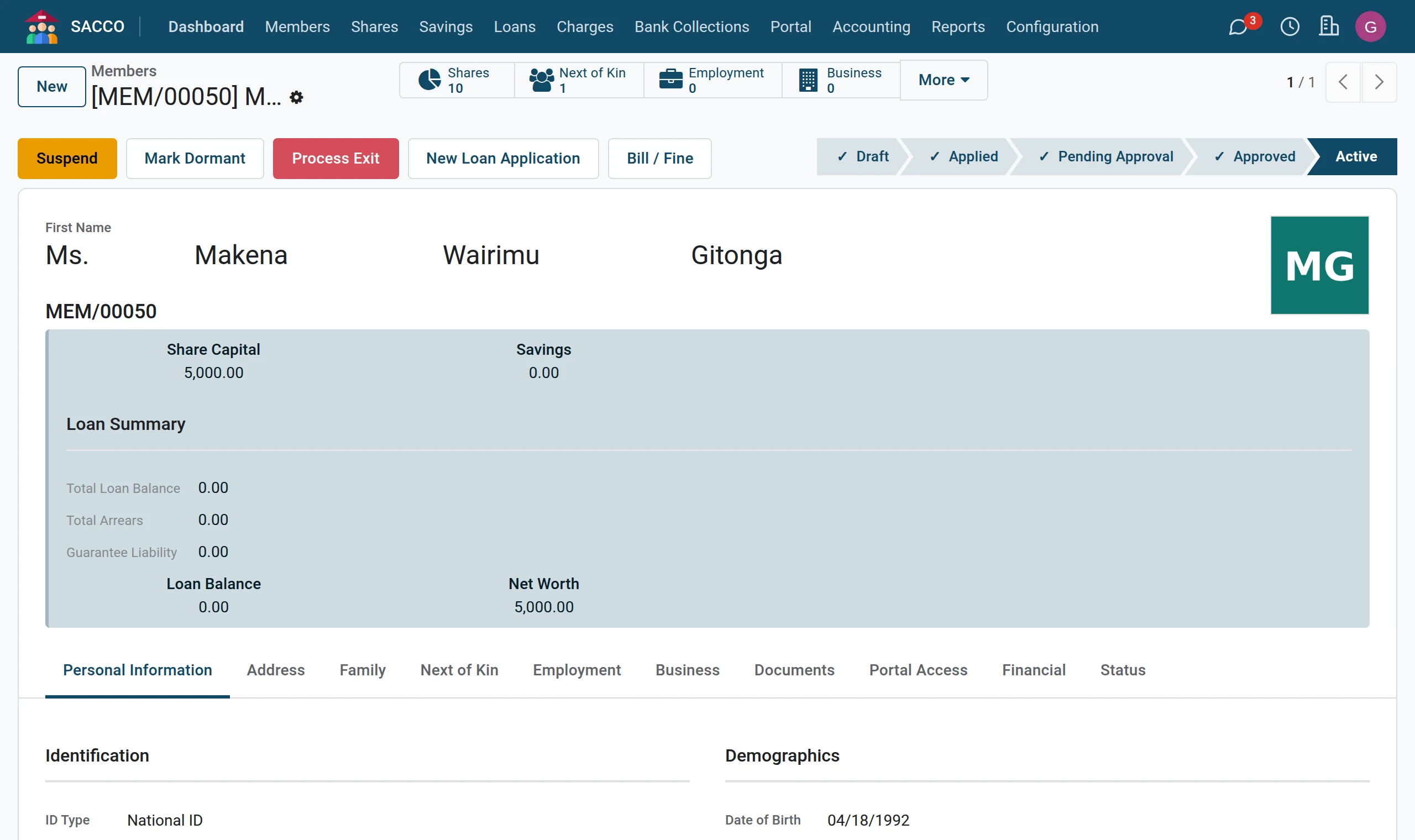
A manager approves the application, the member gets a number, and the first share purchase makes the member active.
Who: Manager approves; Officer or Accountant records the shares. Before you start: The application is in Pending Approval (register a member).
Approve the application
1Open the approval queue
Open . Only applications waiting for a decision are listed.
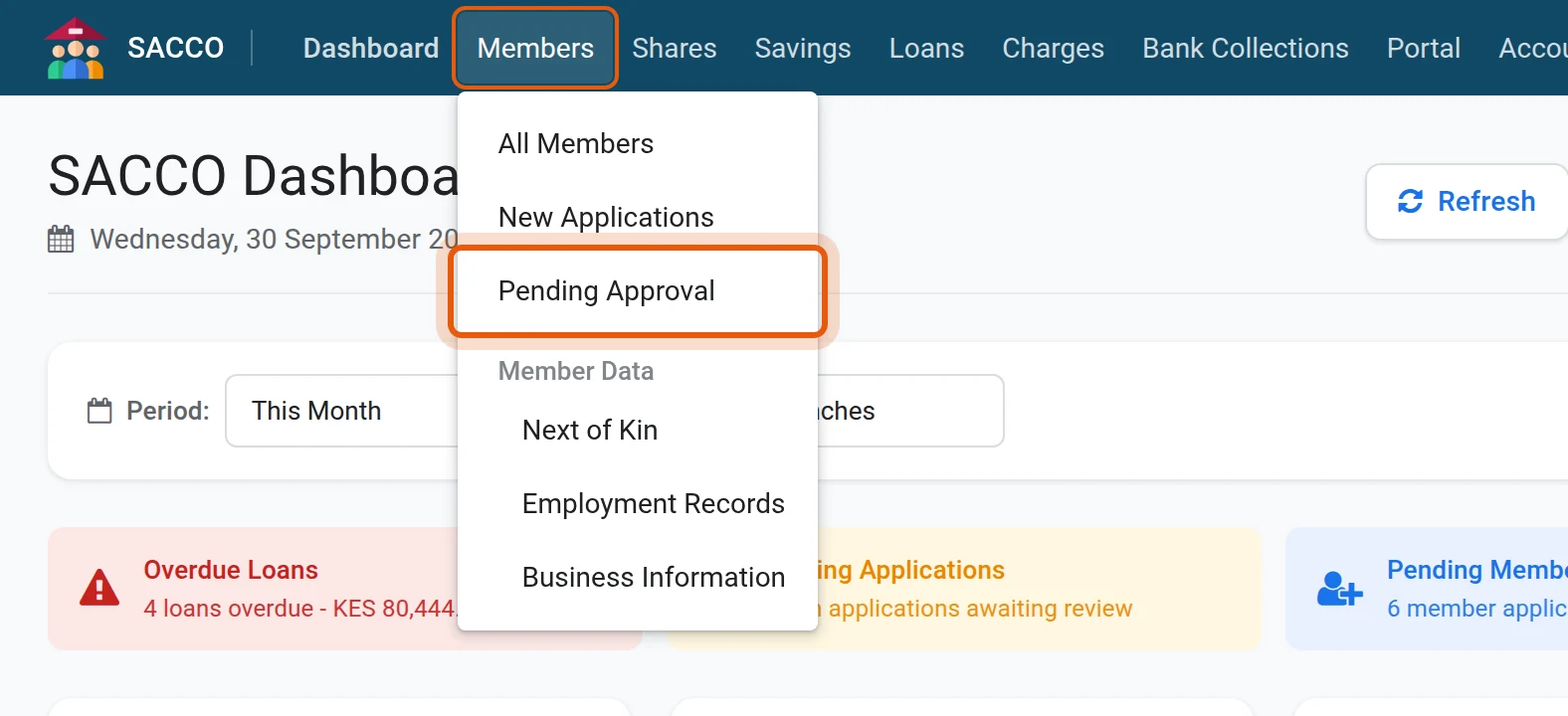
2Open the application
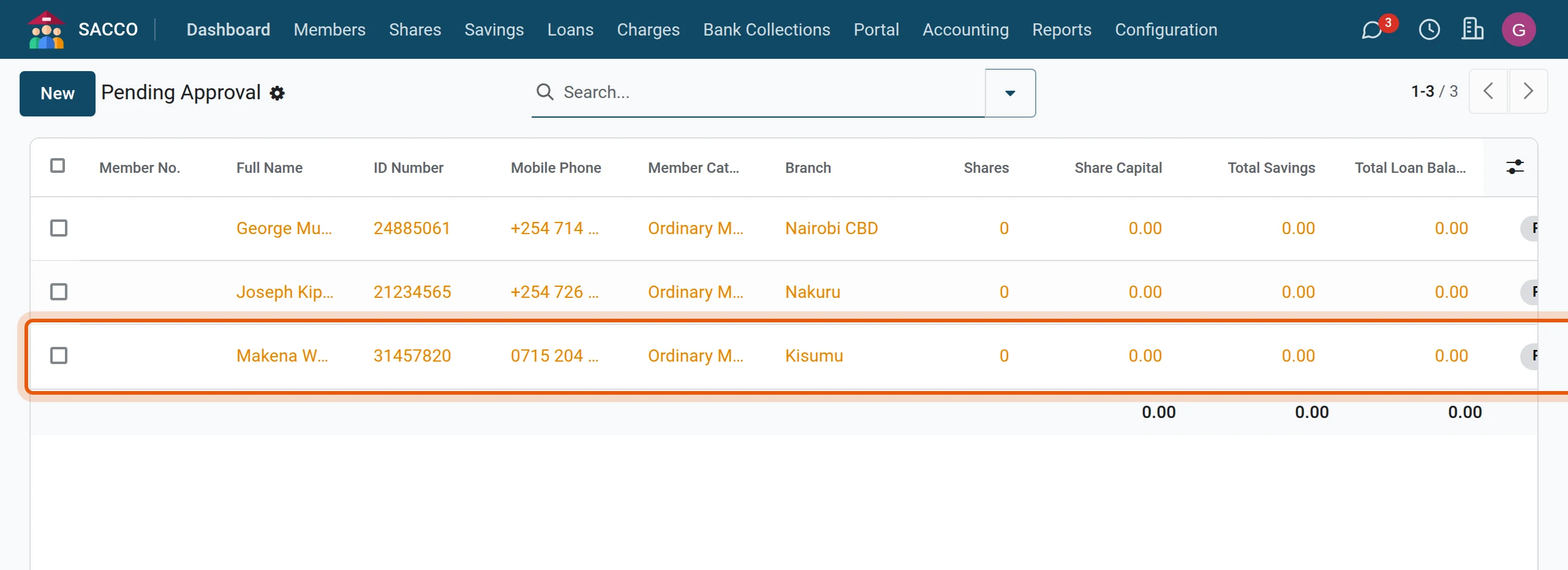
Click the line to open the member.
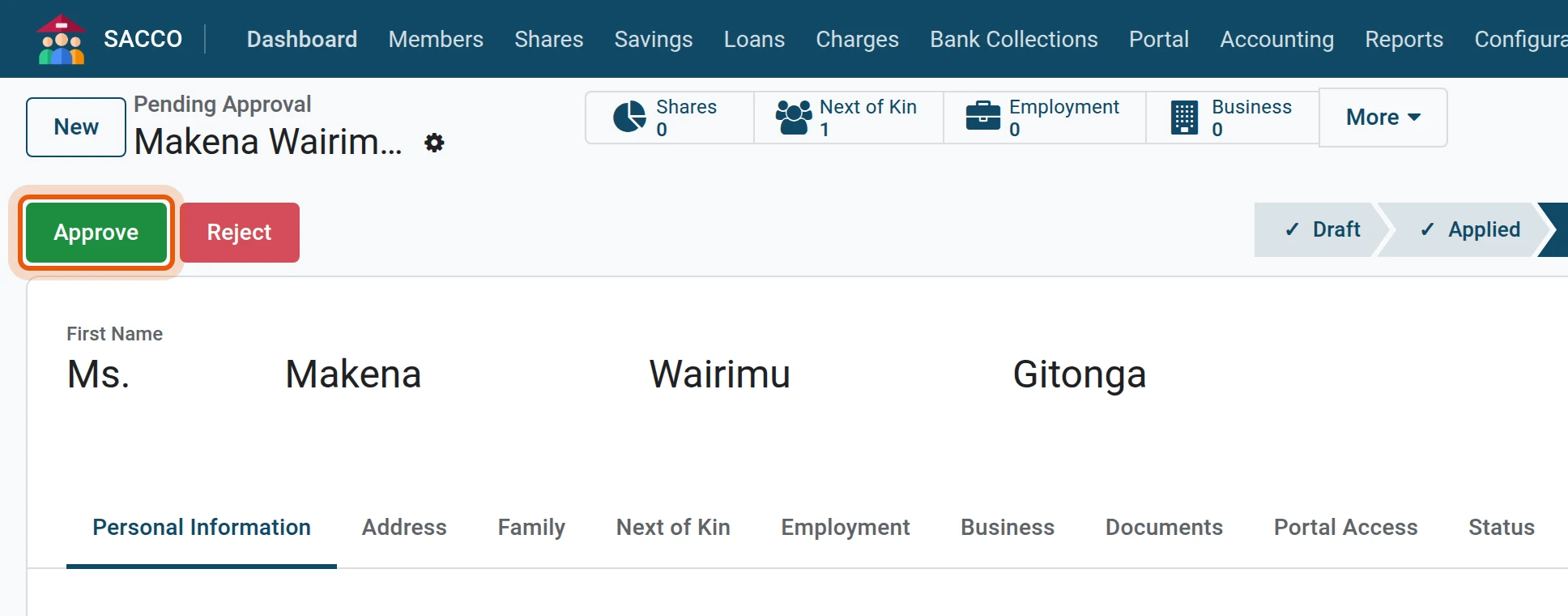
3Approve
Check the details and the documents, then press Approve. Press Reject to refuse the application.
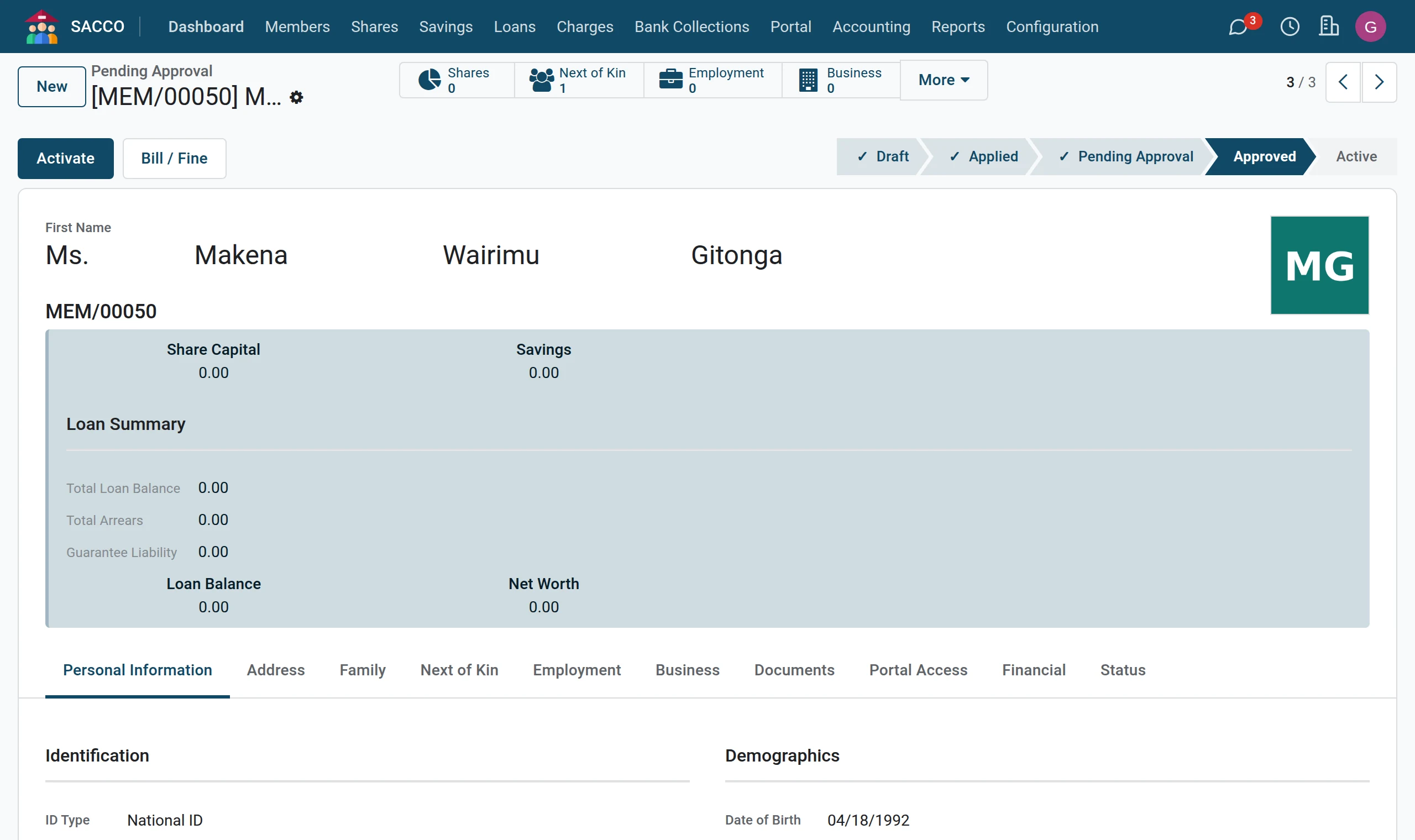
4Activation needs the minimum shares
The member is Approved and has the number MEM/00050, but is not active yet. Pressing Activate now is refused until the minimum number of shares is paid for (set in the settings).

Record the first shares
1Open the member’s shares
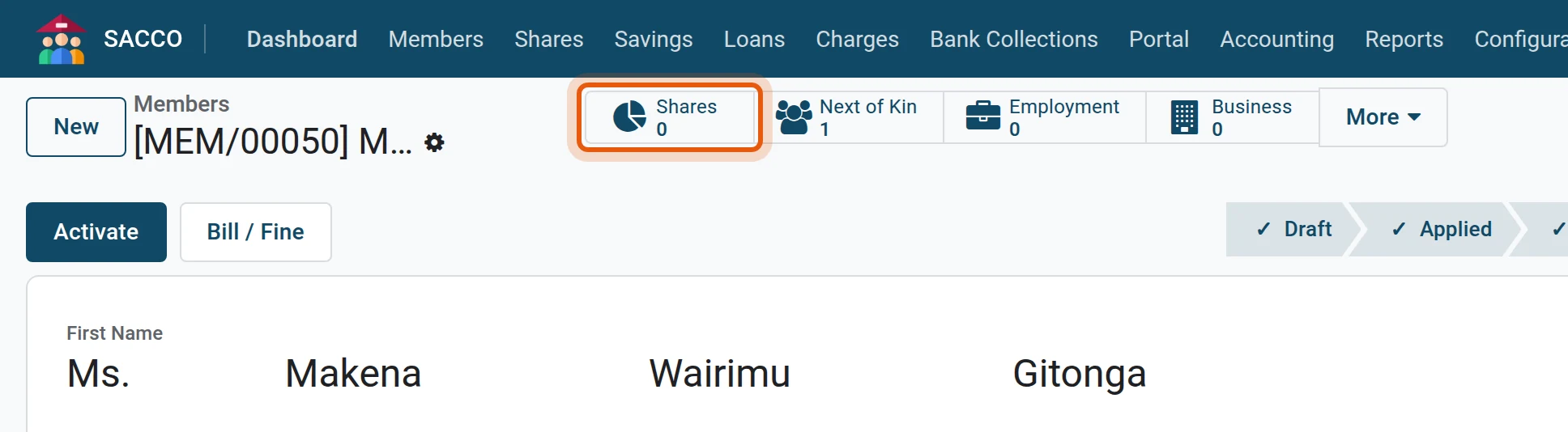
On the member press the Shares button across the top.
2Start a share purchase
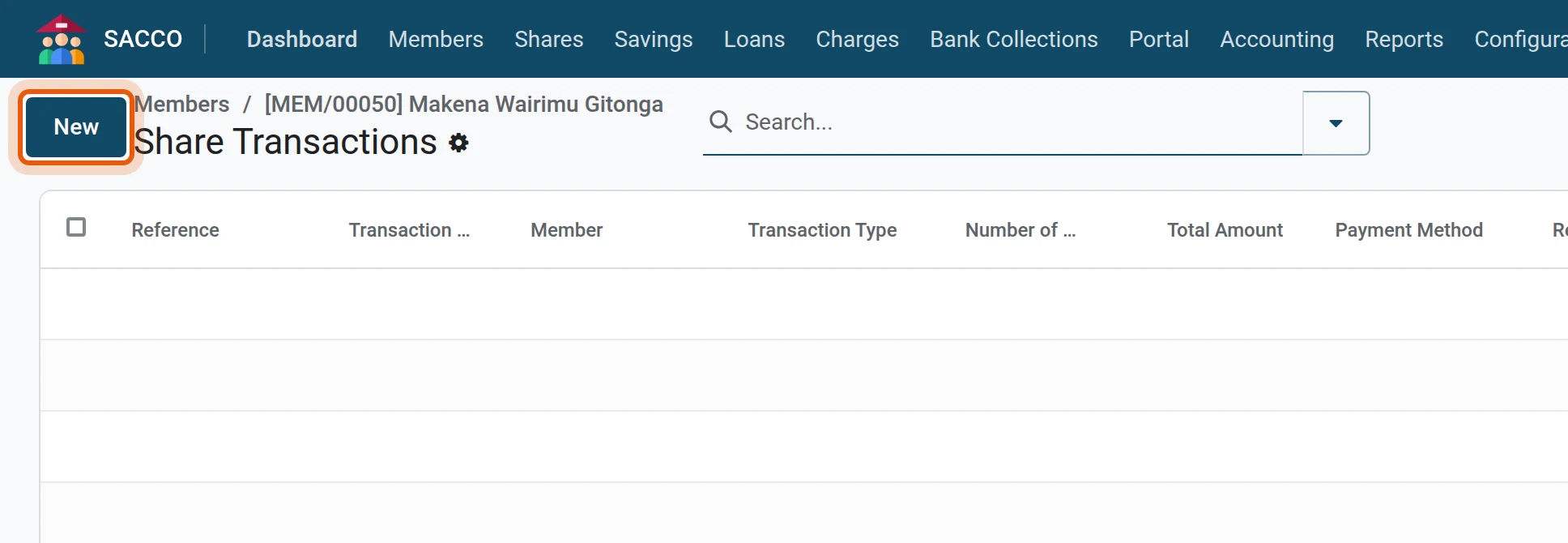
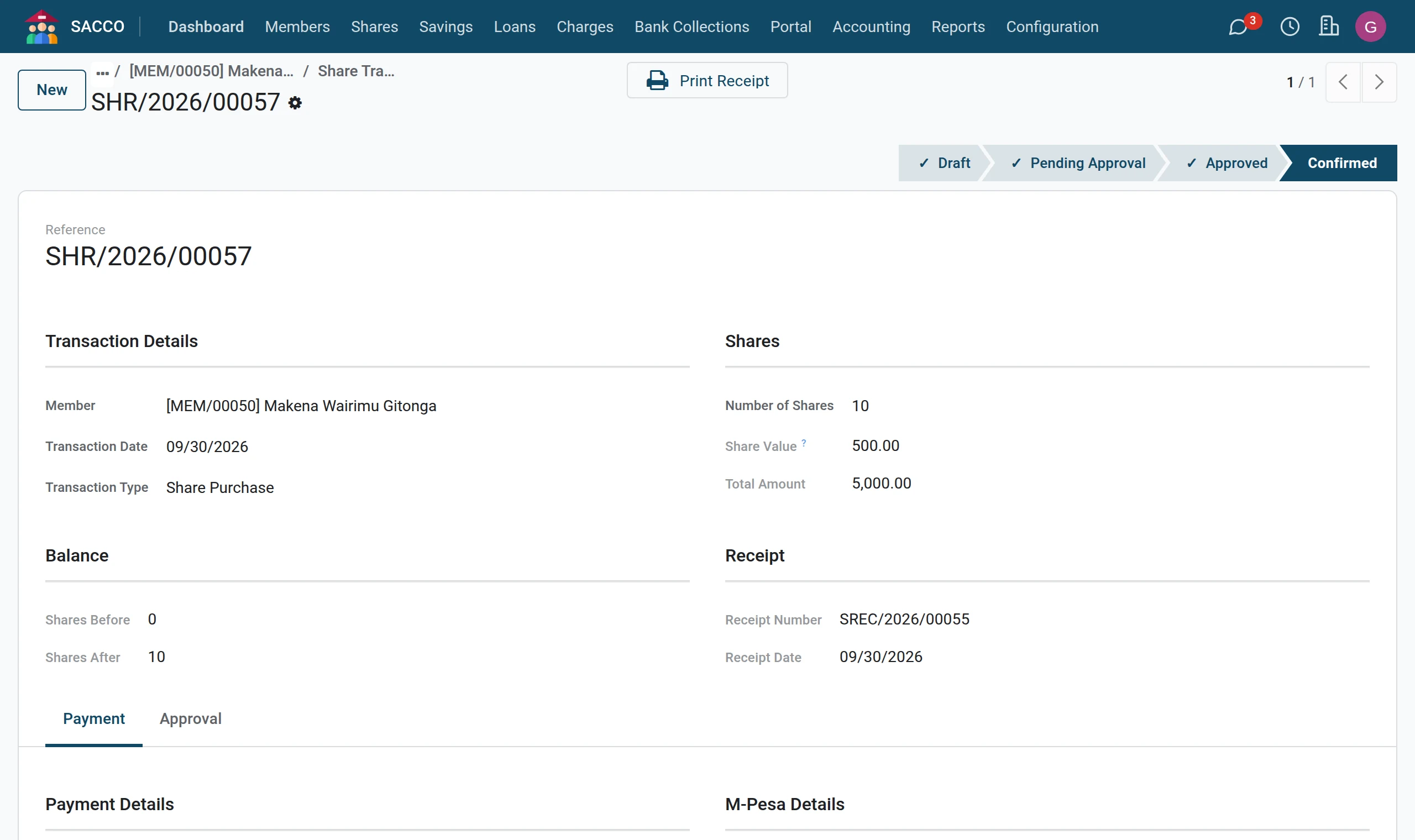
Press New. The member and the type Share Purchase are already filled in.
3Number of shares and payment
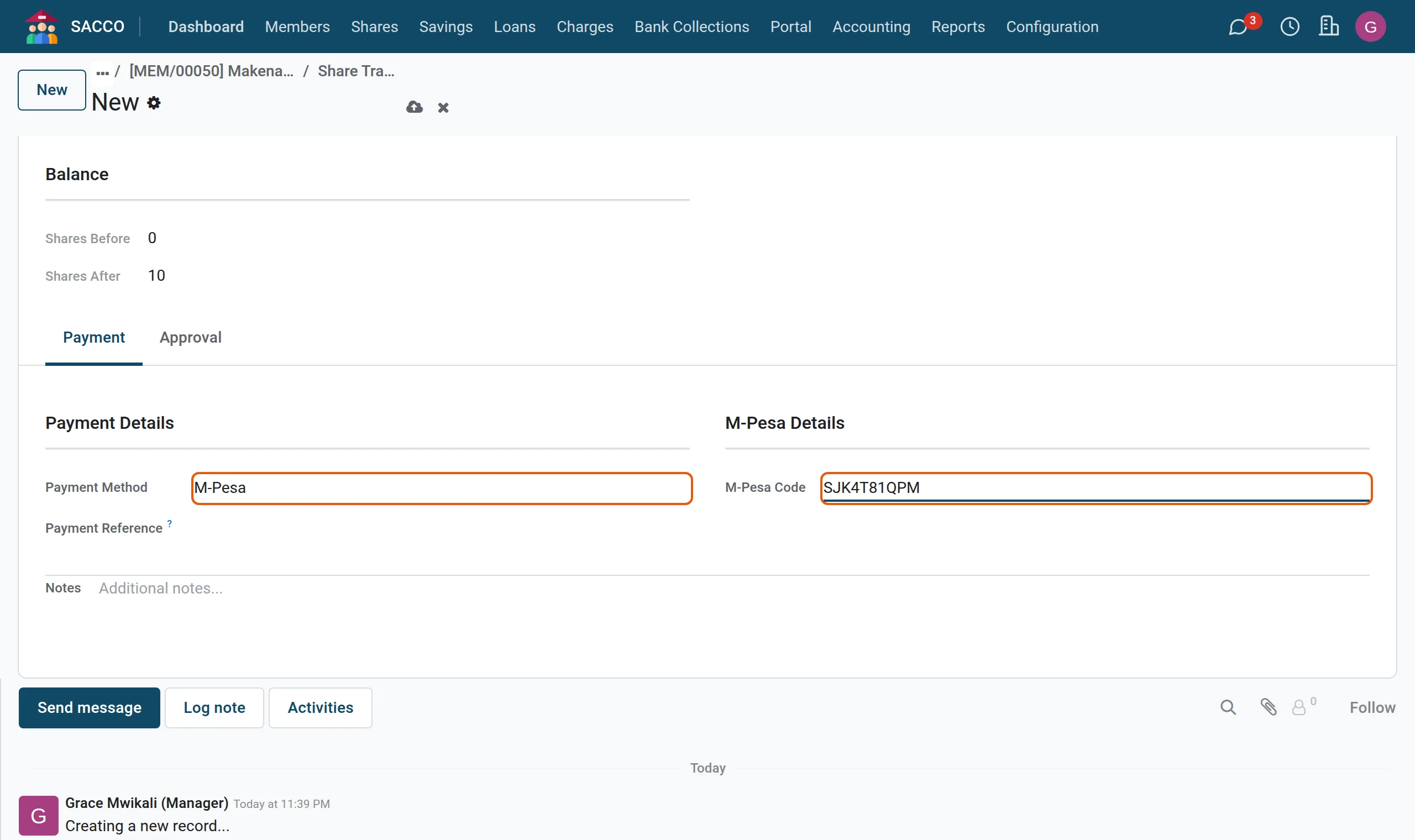
Type the Number of Shares. The amount follows from the share value. On the Payment tab pick how the member paid and type the reference.
4Confirm
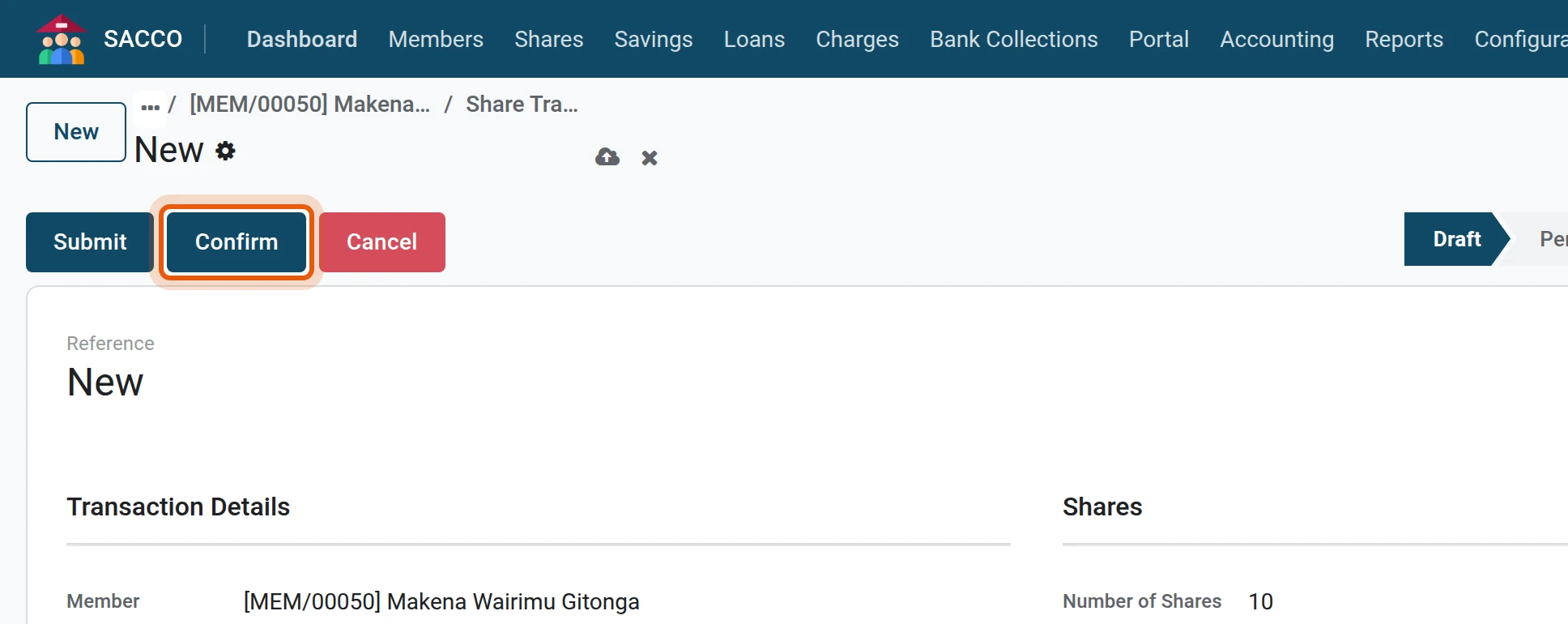
Press Confirm. The purchase gets a receipt number, the member’s shares go up, and because the minimum is now paid the member becomes Active by itself. A user who may not confirm presses Submit instead; a manager then approves and confirms it under (share capital).
What happens next
- Open a savings account for the member (open a savings account).
- Give the member access to the portal (portal access).
- With SACCO Accounting the share purchase has already posted to the ledger (what posts, and how).