

Give a member portal access
Portal access lets a member sign in on a phone or computer and see shares, savings, loans and statements, apply for a loan, accept a guarantee and pay. You give it from the member’s record; the member receives an email with a link to choose a password.
Who: Officer or above. Before you start: SACCO Member Portal is installed. The member is Active and has an Email address on the record: the email is the login.
Grant access
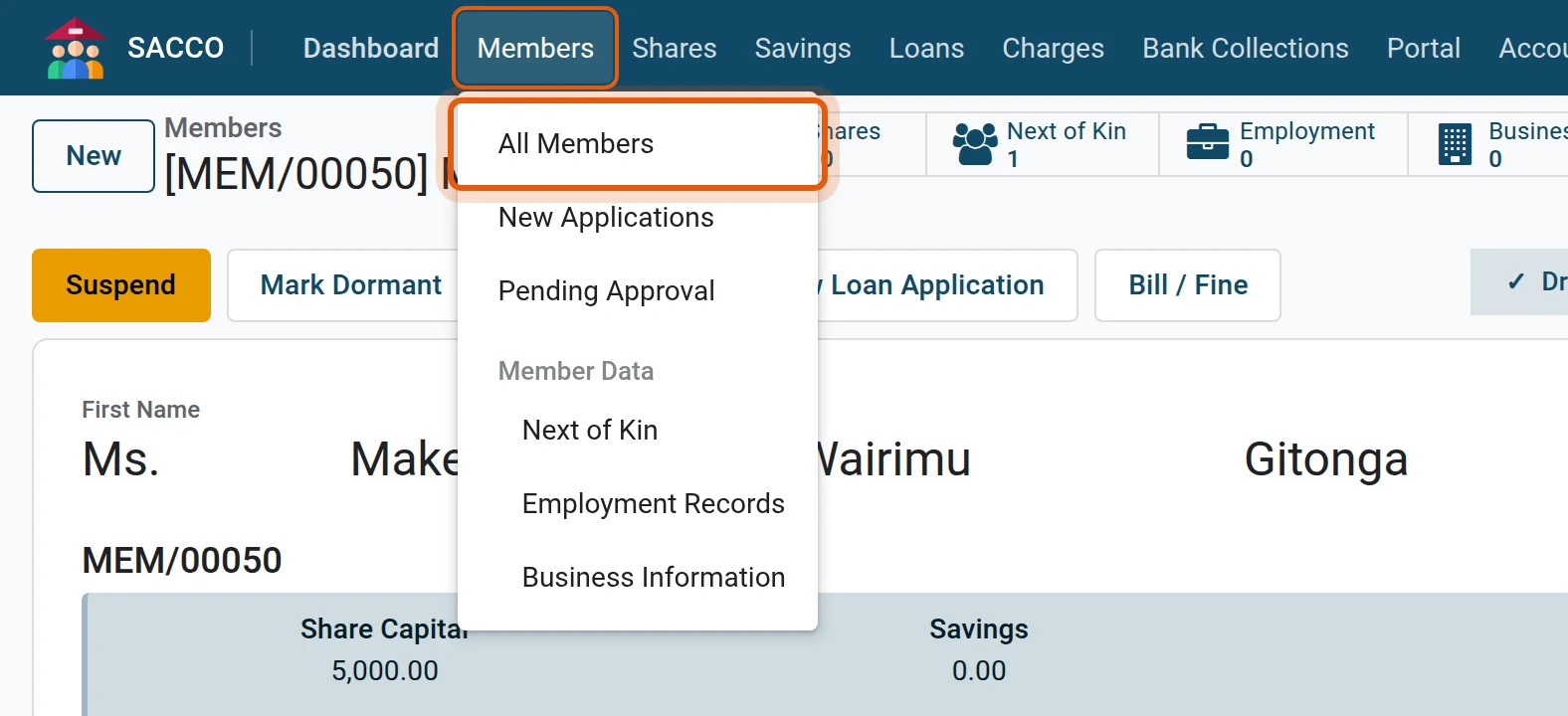
1Open the member register
Open .
2Find and open the member
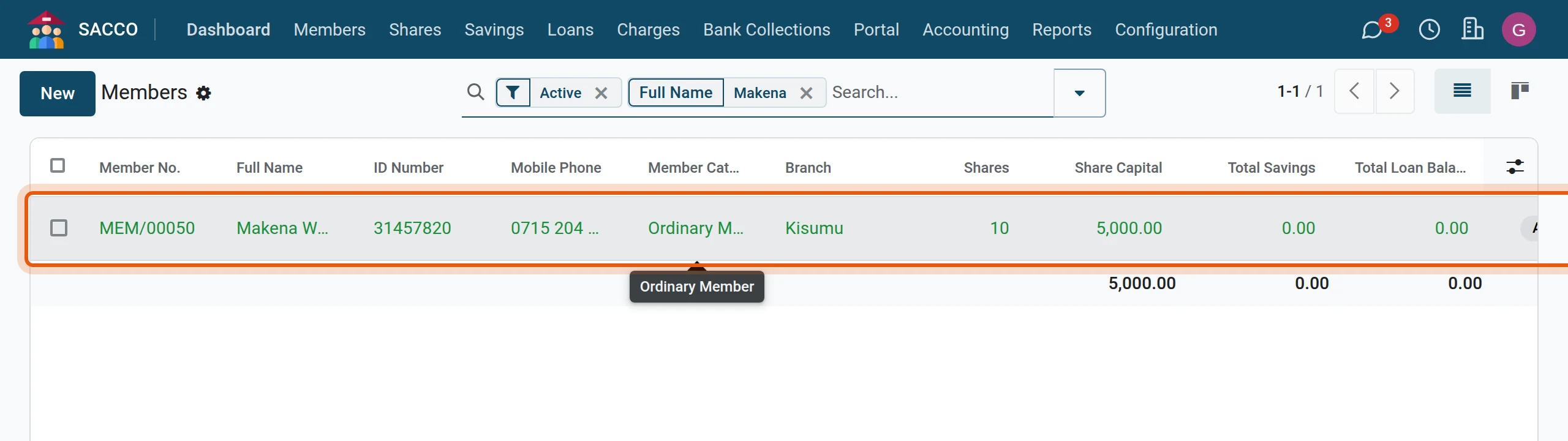
Type the name in the search bar, pick Full Name, and click the line.
3Check the email address
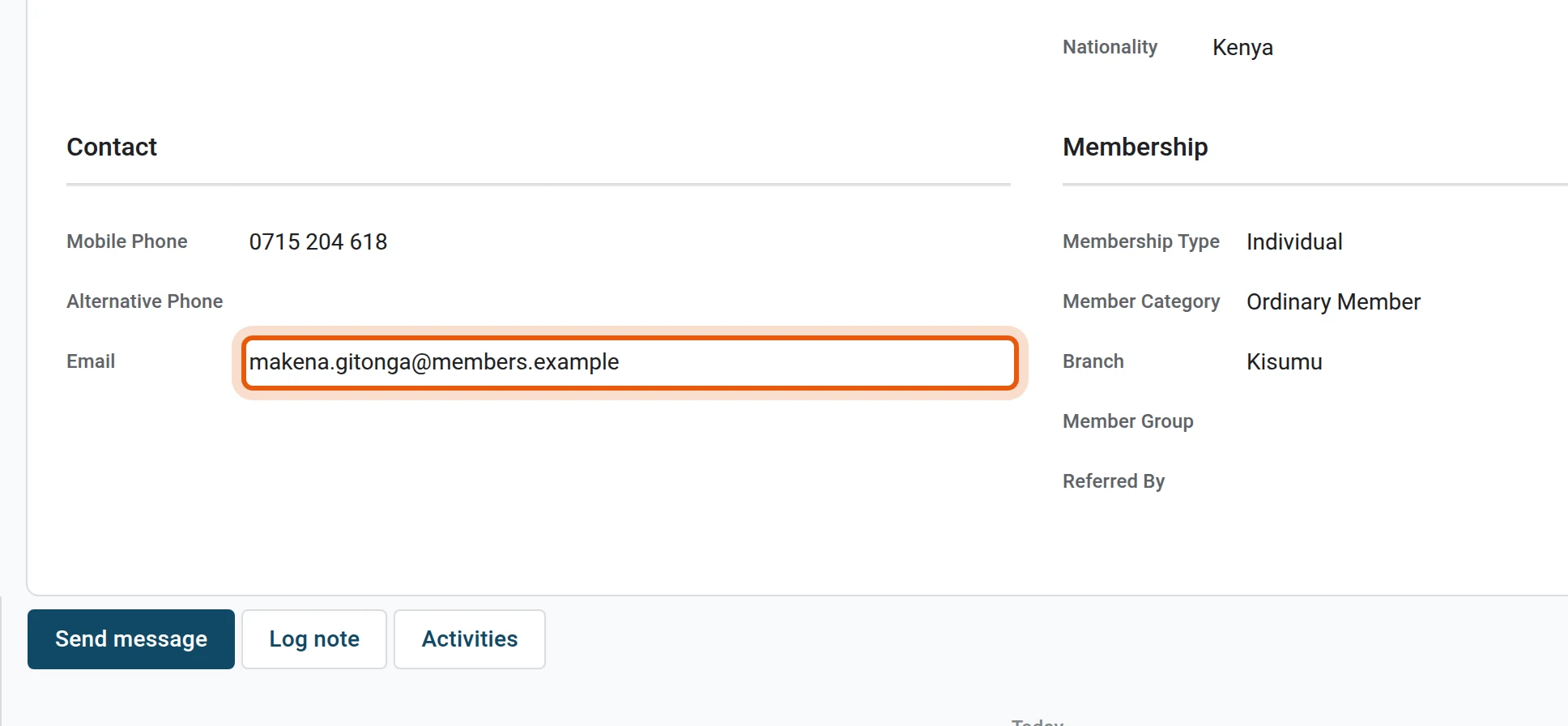
Look at Email under Contact. It must be the member’s own address, and no other user may already use it. Correct it here first if needed.
4Press Grant Portal Access
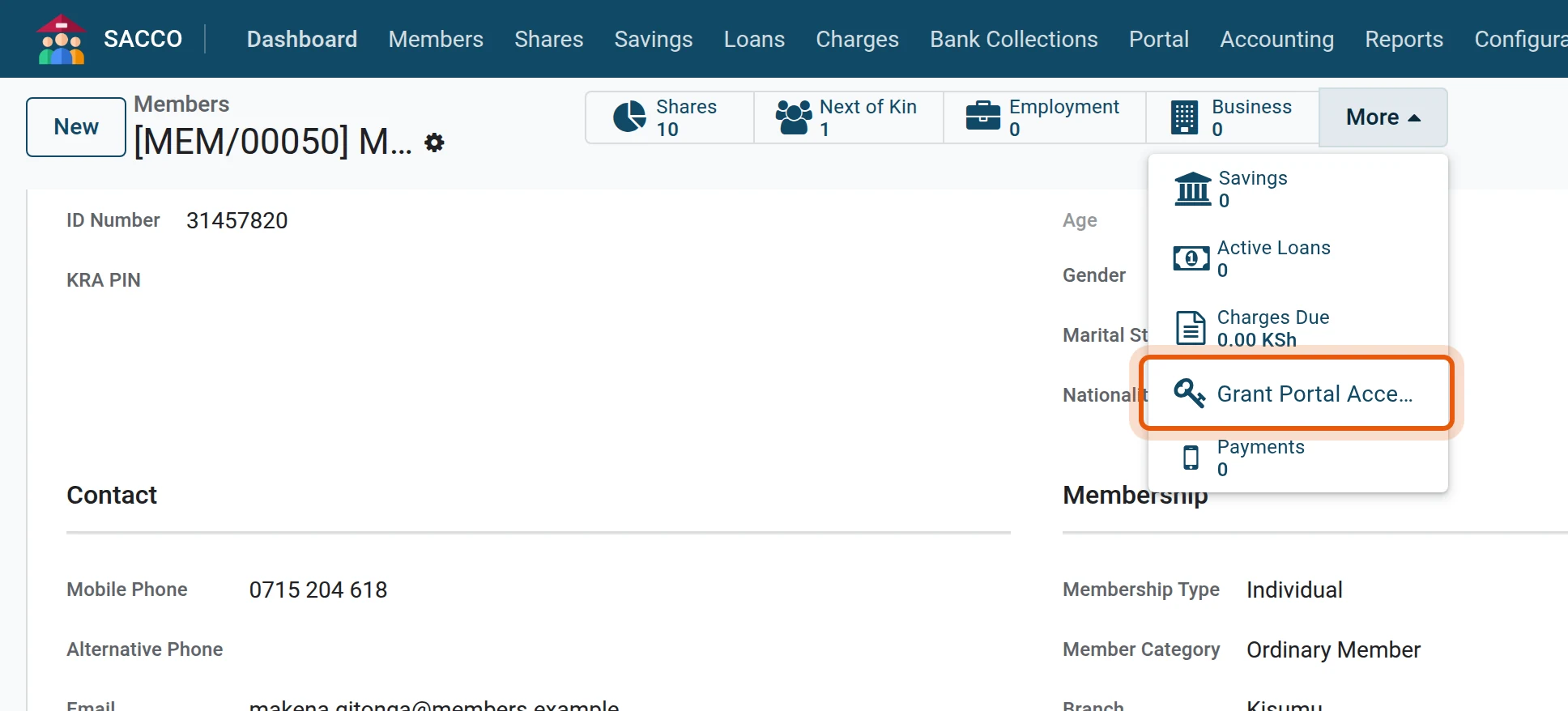
Across the top of the form press More, then Grant Portal Access.
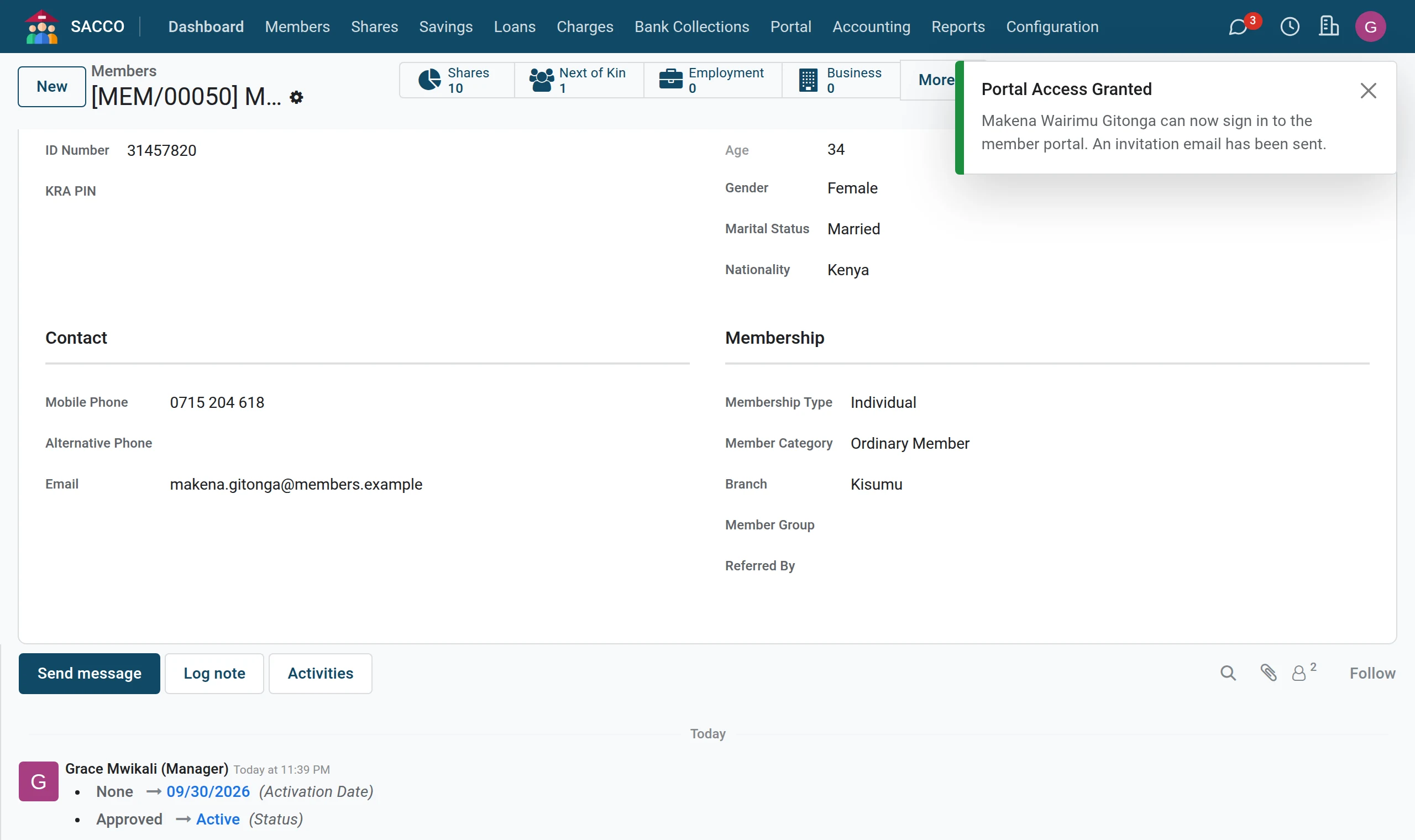
5See what was created
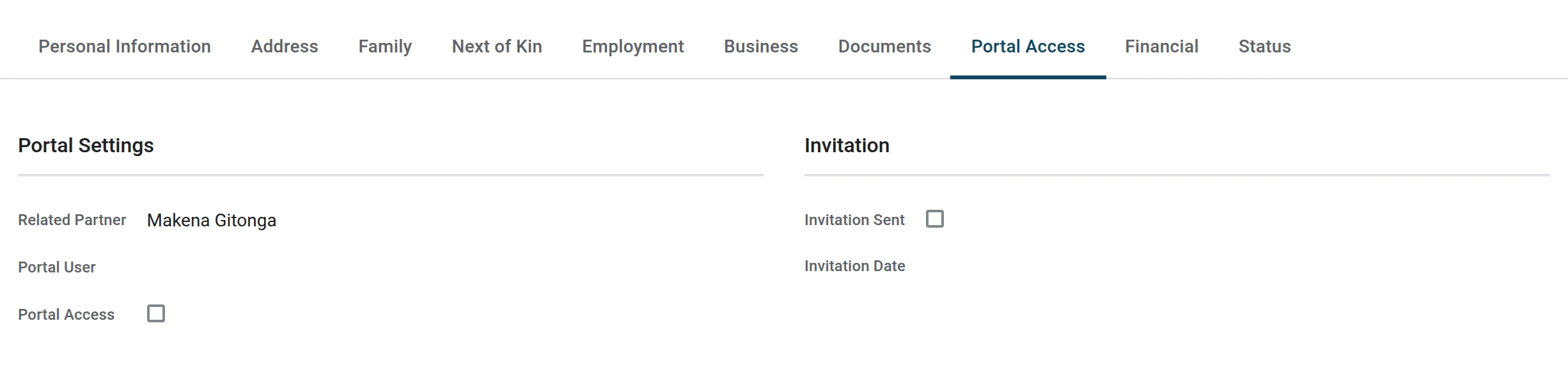
Open the Portal Access tab: the Portal User is filled in, Portal Access is ticked and the invitation date is recorded.
What the member does
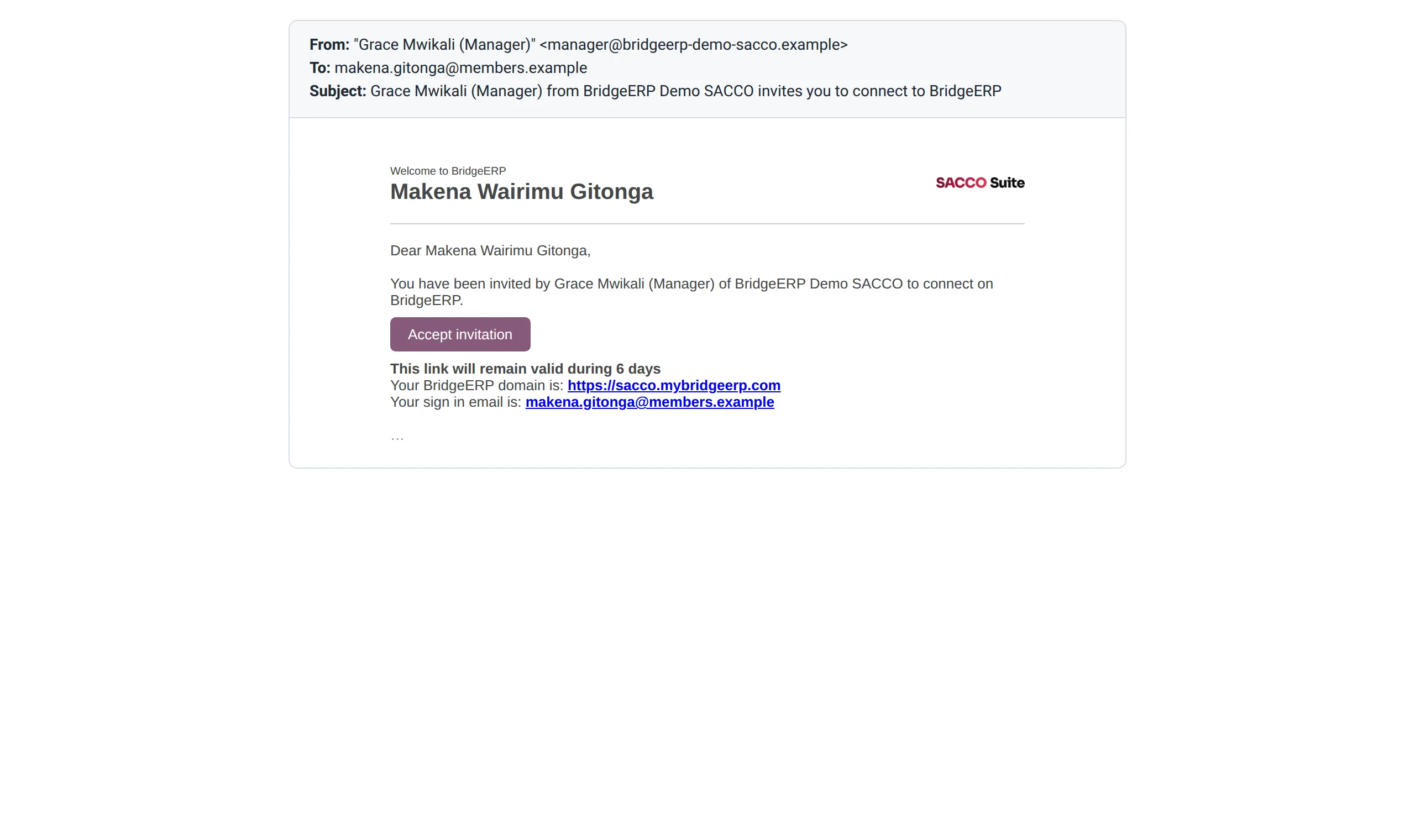
The member receives an email from the SACCO with a button that opens the page below. Nothing else is needed: no app to install, no password sent by SMS.
1The member receives this email
It comes from the SACCO’s own address and carries one button.
2The member presses the button in the email
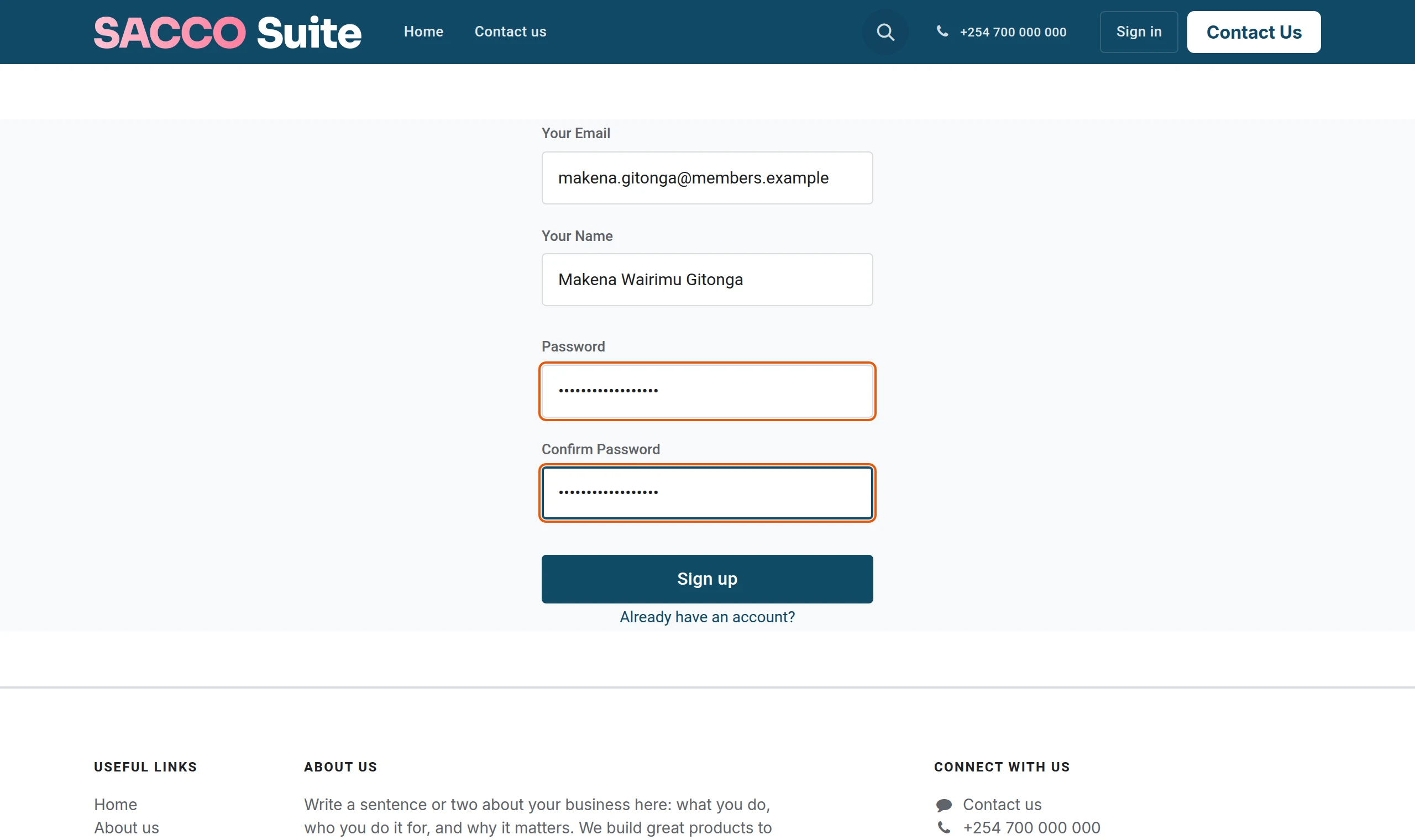
A page opens that shows the member’s email and asks for a password.
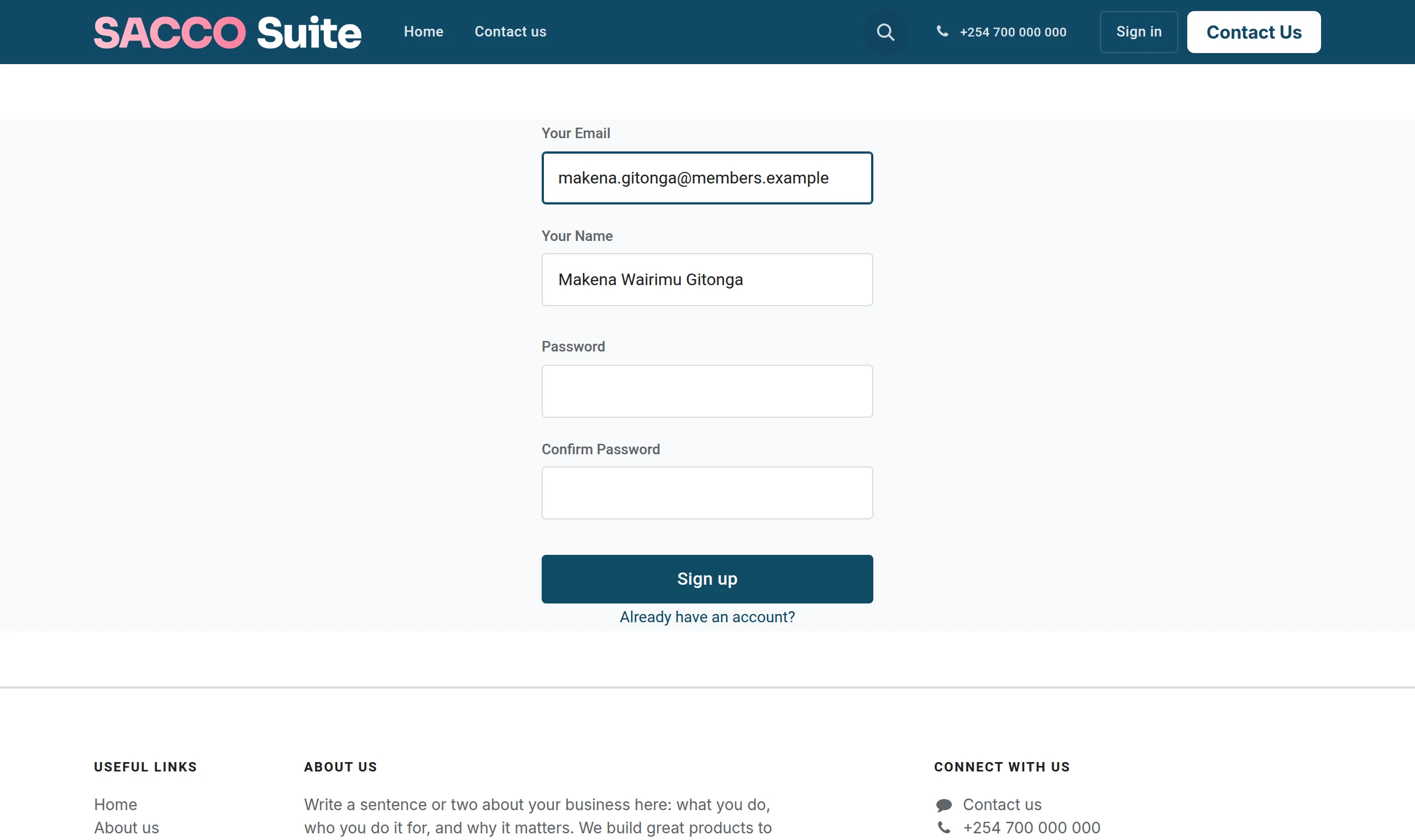
3The member chooses a password
The member types a password twice and presses the button under the form.
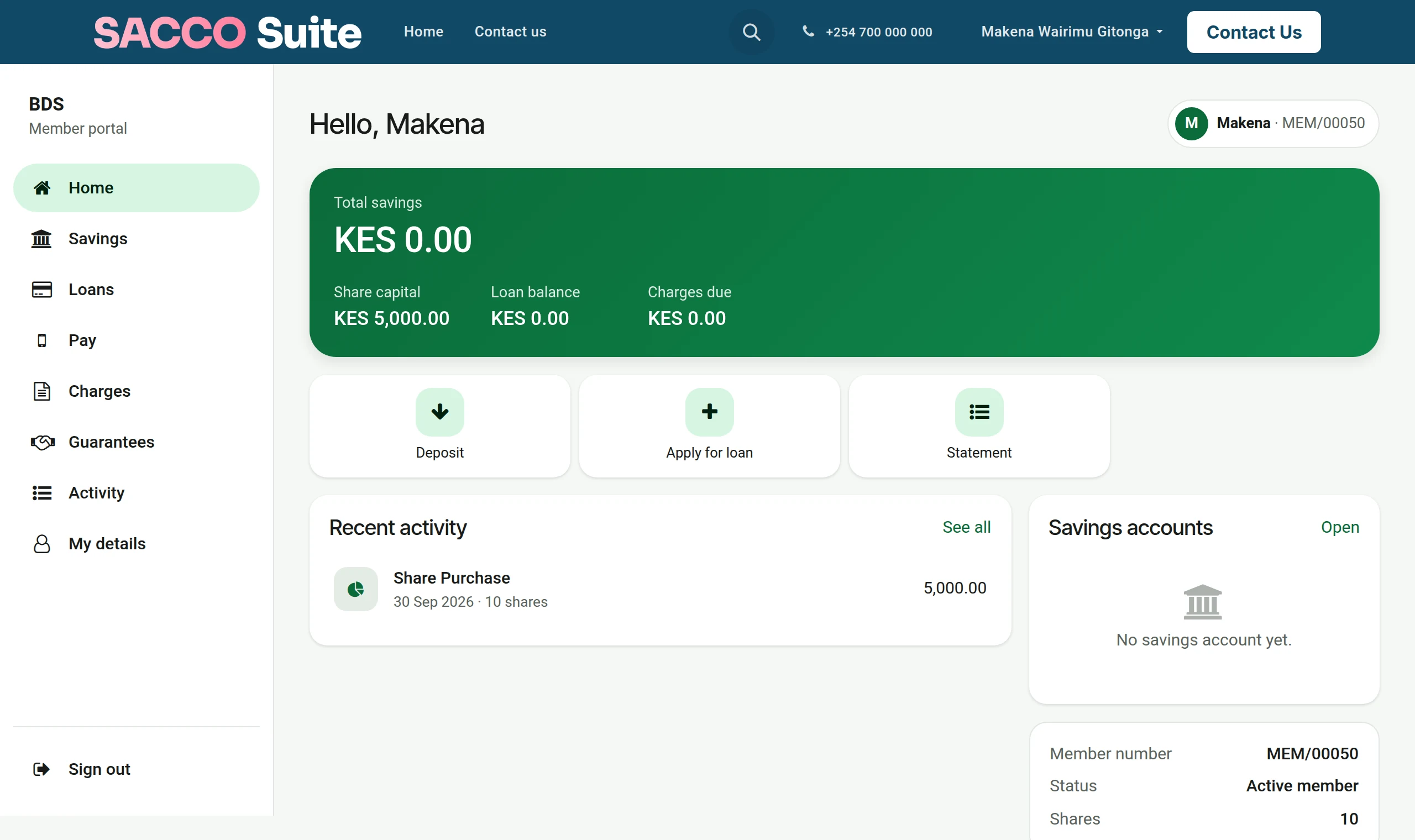
4The member is signed in
The portal opens on the member’s own page. From now on the member signs in at the SACCO’s web address with the email and this password. The portal itself is described in the member portal.
If something goes wrong
| What you see | What to do |
|---|---|
| “Add an email address first: it is the member’s login.” | Type the member’s email on the form, save, and grant access again. |
| “The login … is already used by …” | Another user already signs in with this email (often a relative who shares a mailbox). Give the member an address of their own. |
| “… is not a current member.” | Rejected, exited and deceased members cannot have access. |
| The member did not get the email | Ask the member to check the spam folder. The member can also press Reset Password on the sign-in page and type the email: a new link is sent. If no email at all leaves the system, the outgoing mail server is not set up. |
| The member forgot the password | Reset Password on the sign-in page sends a new link. |
Take access away
On the member’s form press More, then the Portal Access button. The login is switched off at once and the history notes who did it. Granting access again switches the same login back on.
Warning
There is no confirmation question: one click on Portal Access revokes it. If you pressed it by mistake, press Grant Portal Access again.
Who has access?
In open the filter list and tick Has Portal Access.
See also
- The member portal: what members see and do.
- Online joining: applicants who register themselves on the website.