

Change a member’s details
Phone numbers, addresses, employers and next of kin change. You correct them on the member’s form; every change to a key field is written in the history with the date and your name.
Who: Officer or above.
Change a phone number or another field
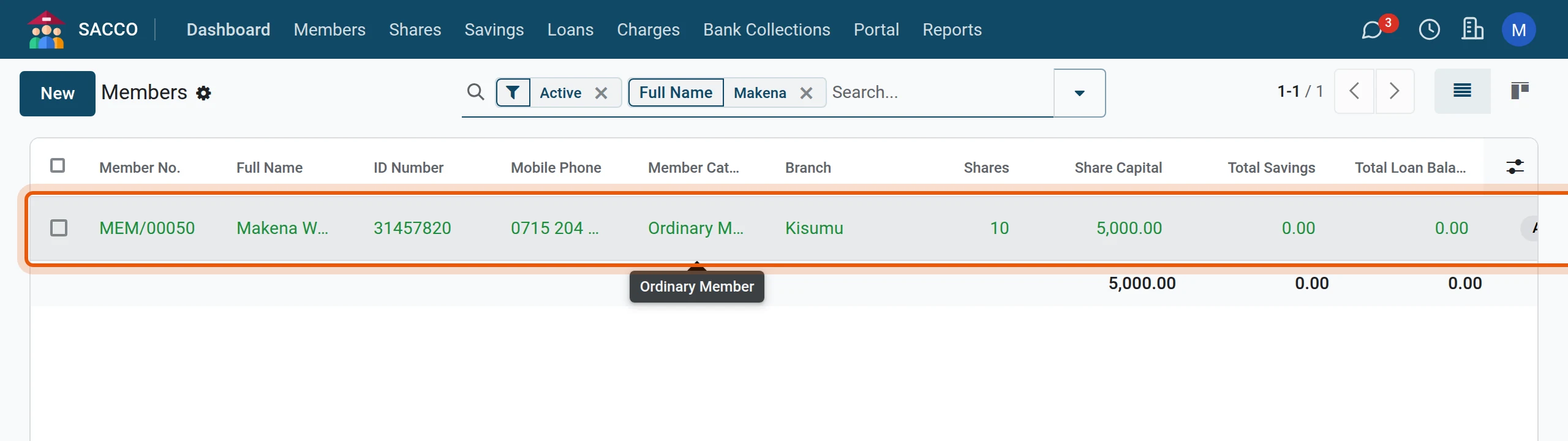
1Open the member
Open , search for the member and click the line.
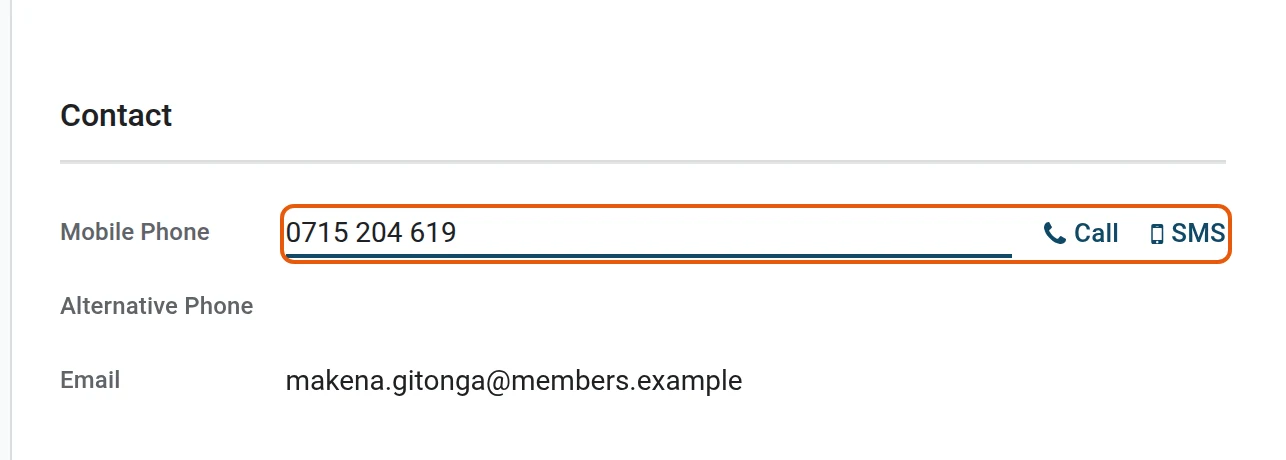
2Click in the field and type the new value
Here the Mobile Phone changes. Any field with a white box is changed the same way.
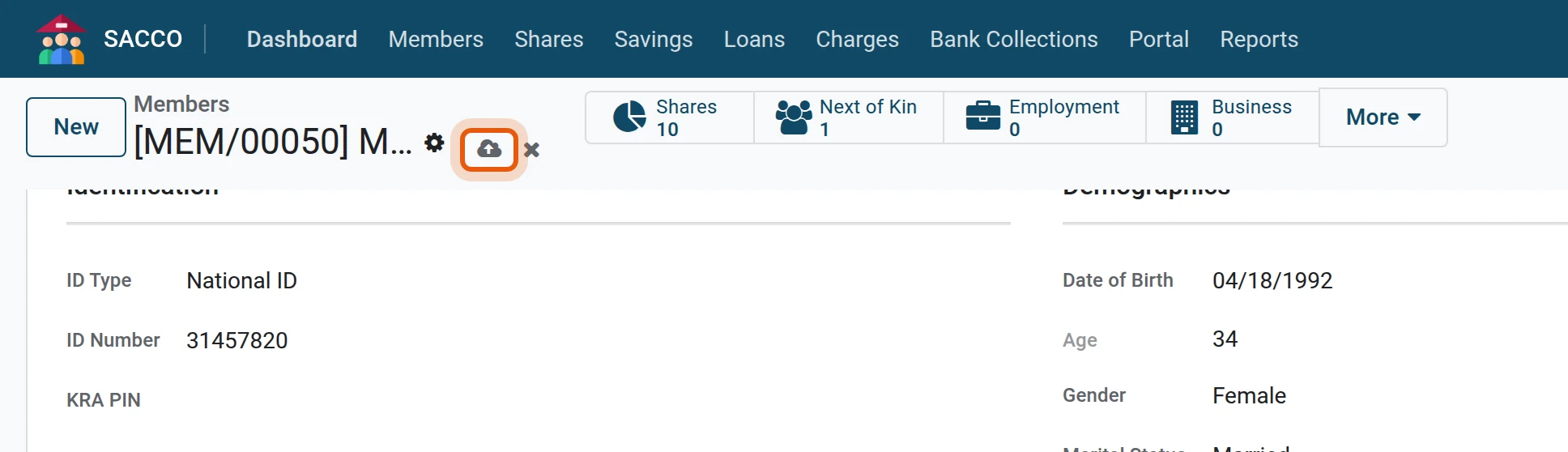
3Save
Press the cloud icon next to the member’s name (or simply leave the record: it saves by itself). The cross next to it discards what you typed.
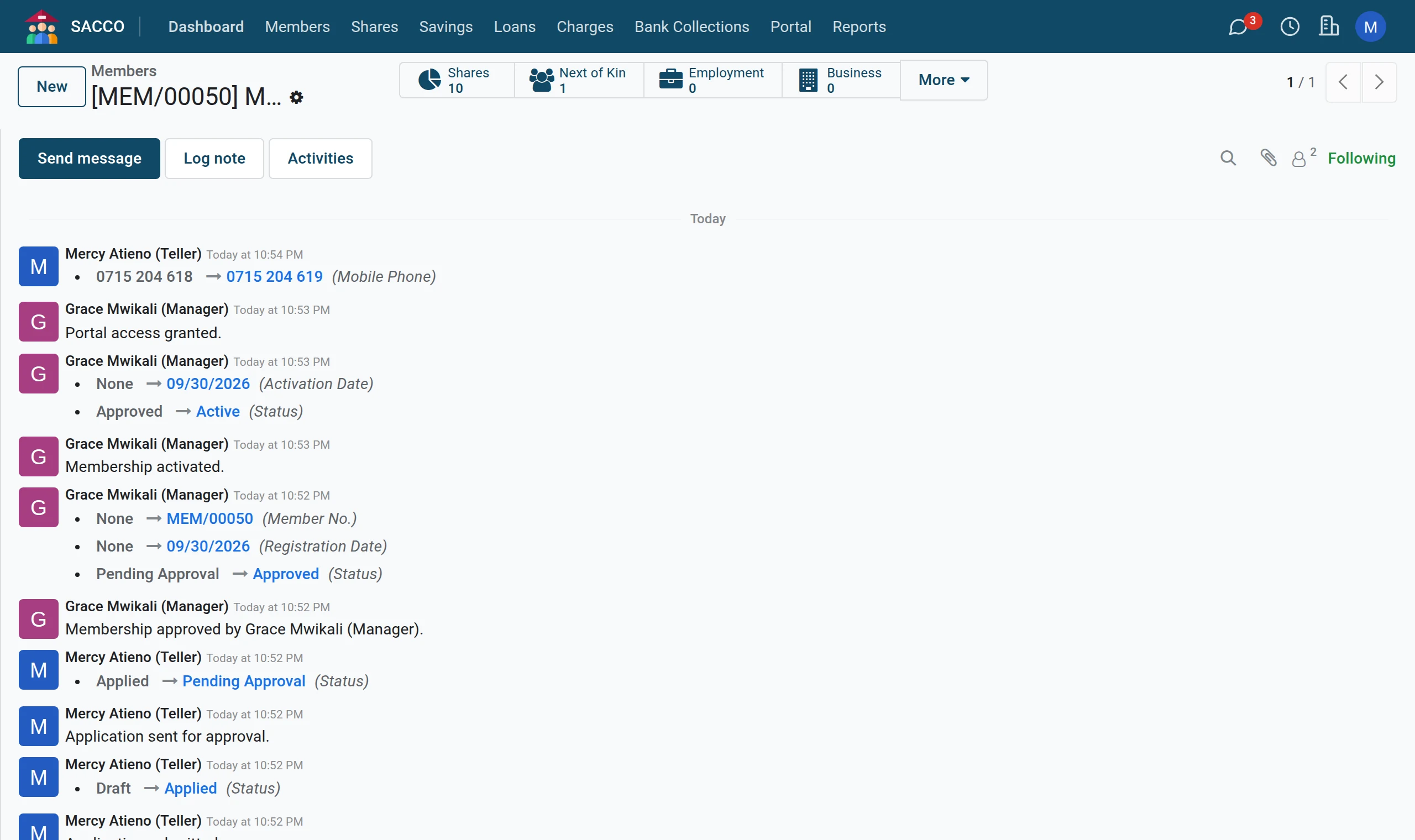
4The change is in the history
Scroll to the bottom of the form. The old and the new value are recorded with the date and your name. Names, ID number, date of birth, phone, email, county, category, branch and status are tracked this way.
Add an employer
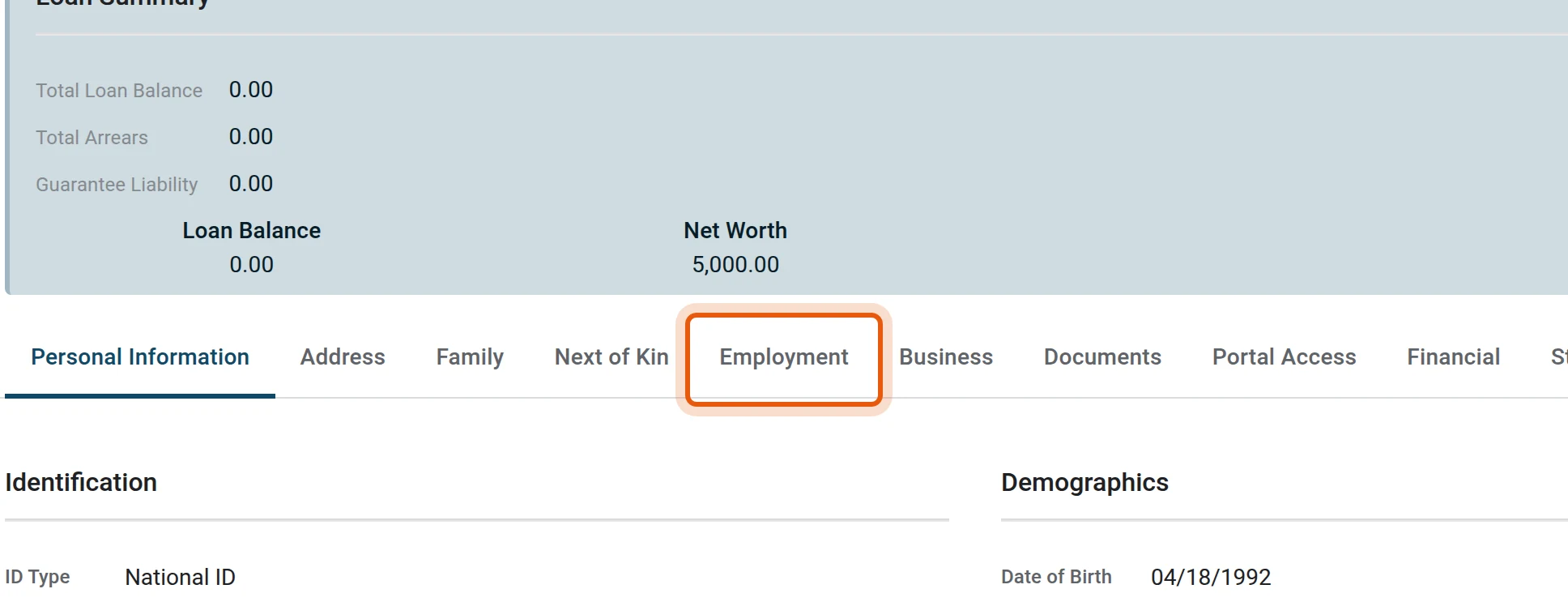
1Open the Employment tab
On the member’s form open Employment.
2Add the employer
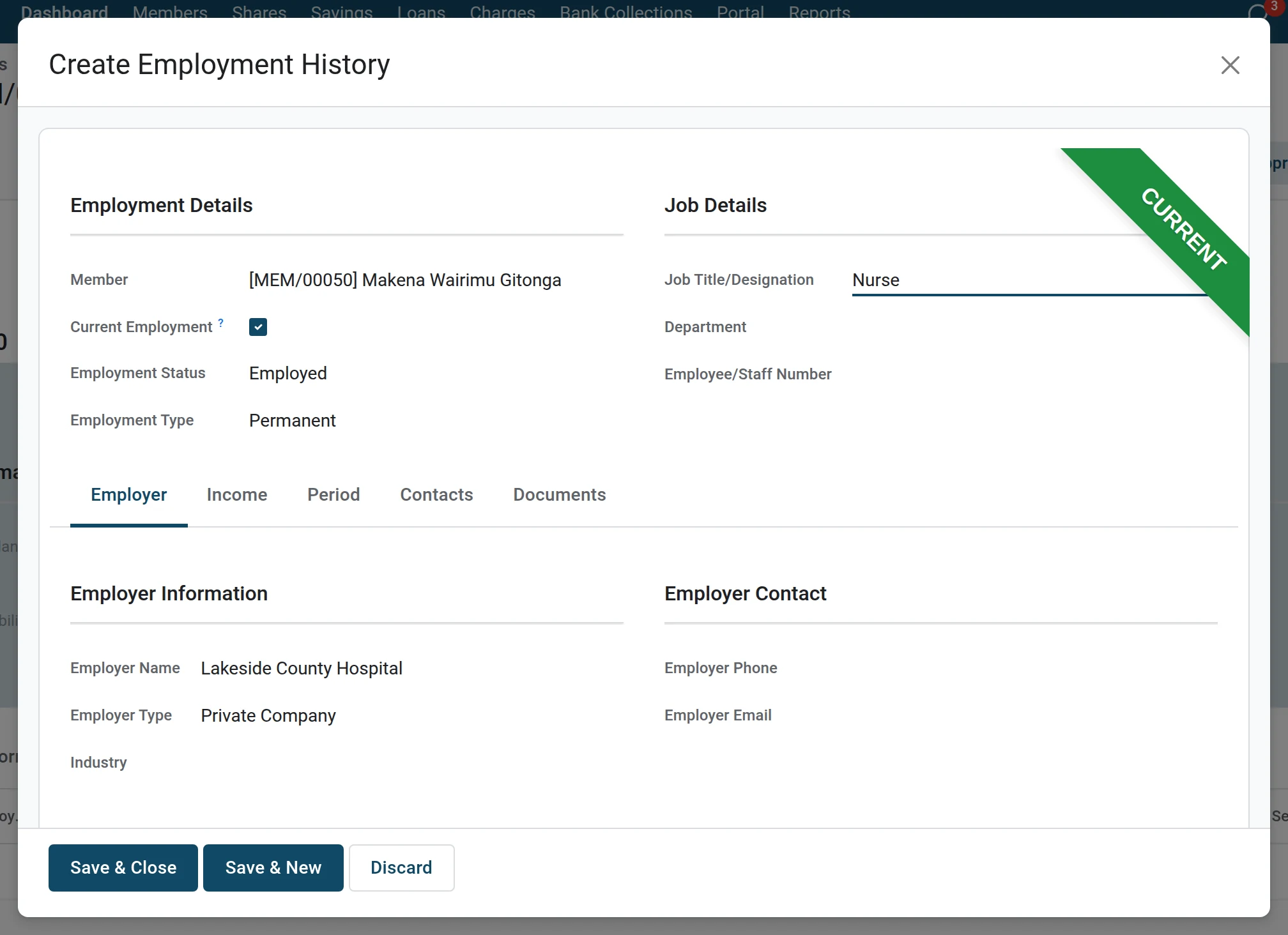
Press Add a line. A form opens: choose the Employment Status and type the Employer Name and the Job Title/Designation.
3Add the income
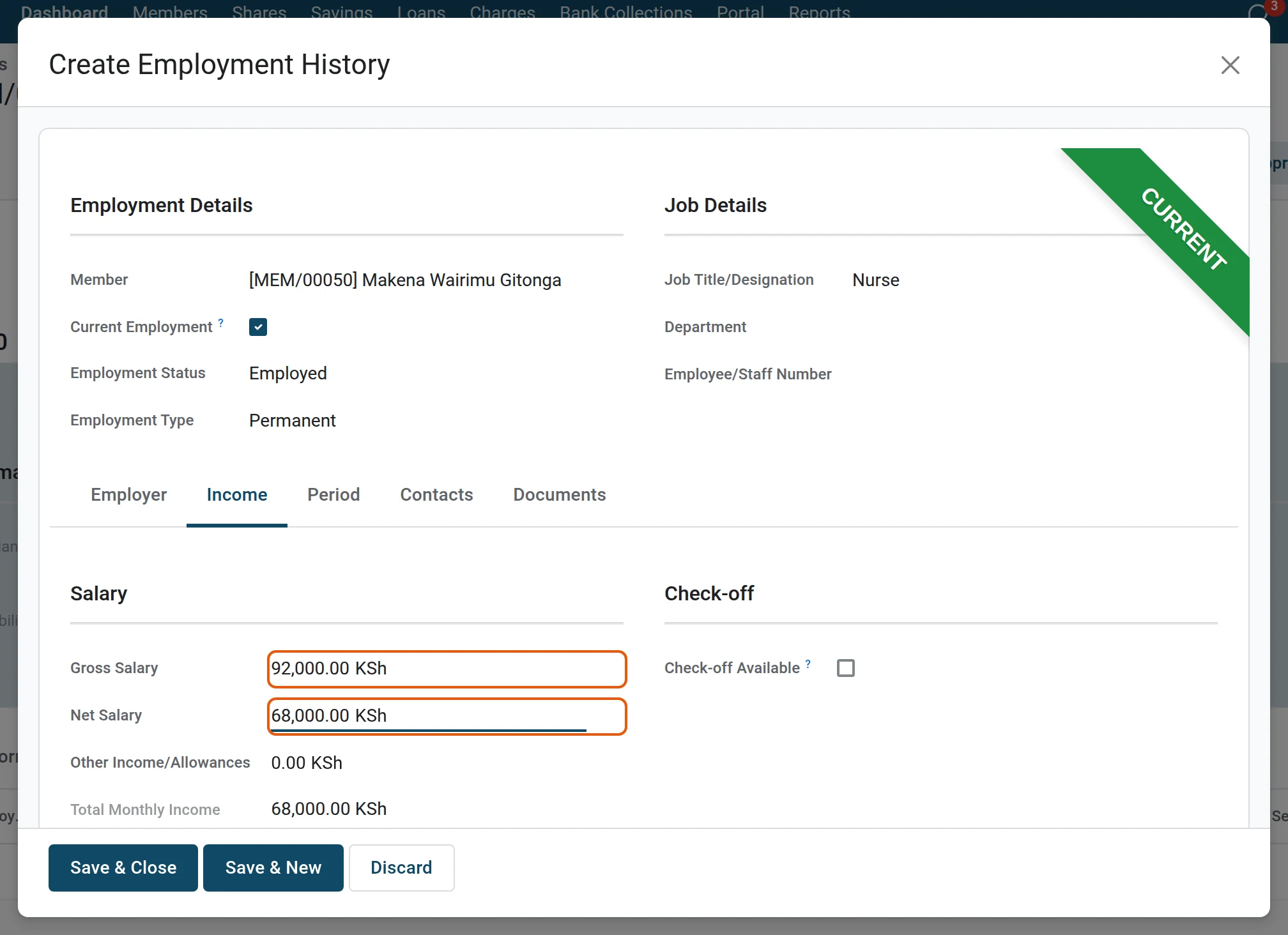
On the Income tab type the gross and the net salary. Loan officers read the net salary when they appraise a loan.
4Save the line
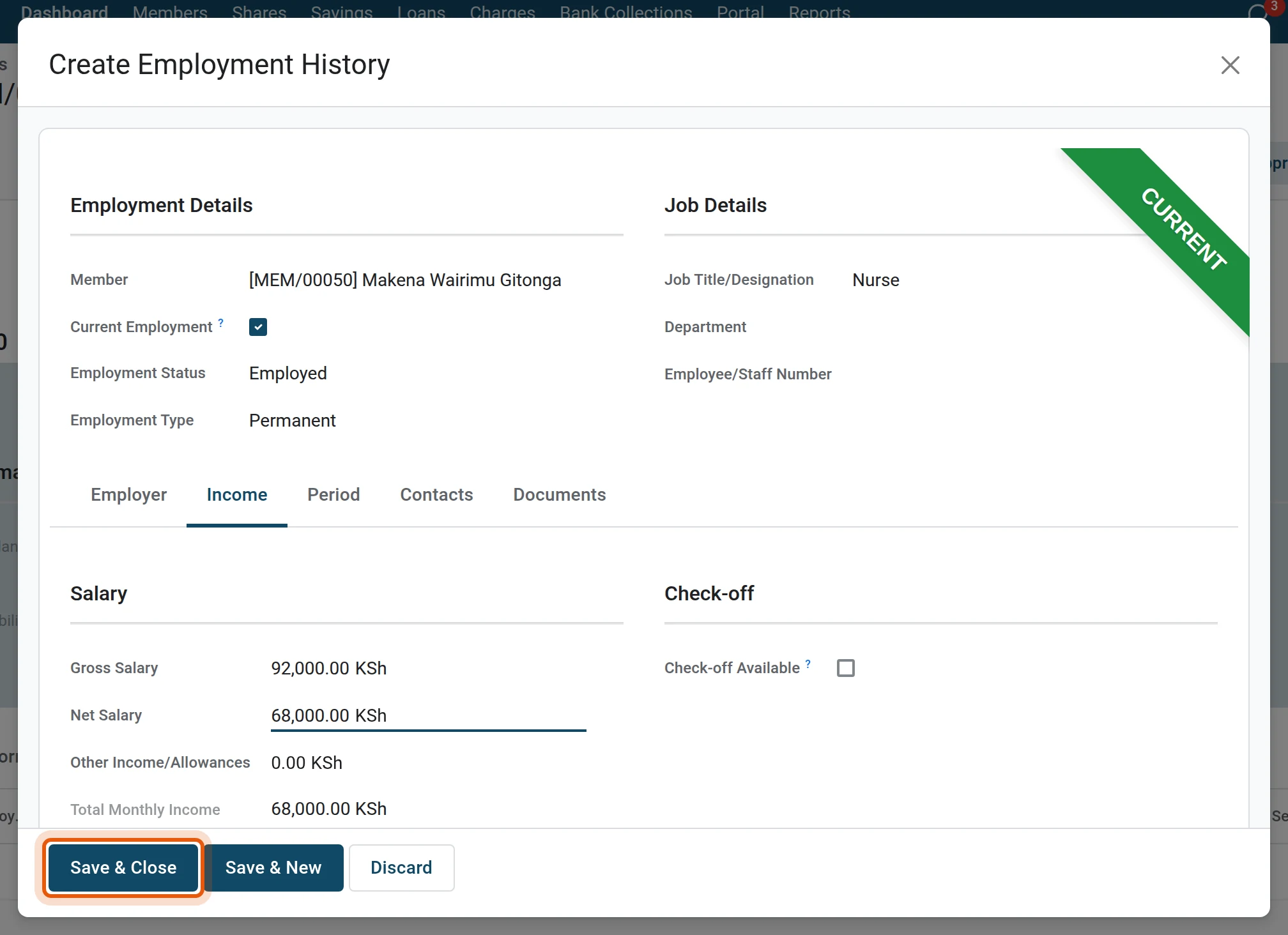
Press Save & Close. The employer now shows on the member’s Employment tab.

The full employment record (employer contacts, payslip, verification) opens from . A business is added the same way on the Business tab, a next of kin on the Next of Kin tab.
Good to know
- The Member No. is given on approval and cannot be typed.
- The status changes only through the buttons at the top of the form (status changes).
- The name, phone and email are copied to the member’s contact card, which the portal and the emails use.
- To replace the photo hover over it and press the pencil; the bin removes it.