

Register a patient & issue a ticket
Registration turns an arrival into a known patient with a visit and a queue ticket. BridgeERP HMS guides the receptionist through a seven-step wizard that searches first (to avoid duplicates), captures only the fields a new patient really needs, verifies insurance, sets a triage priority, and prints the ticket that puts the patient on the queue. The same wizard handles both a brand-new patient and a returning one — it simply skips the steps that are already answered.
Where to find it
- Reception → Reception → Walk-in Registration — the full registration wizard (model
hms.reception.registration.wizard). - Reception → Reception → + Walk-in Registration — the first-step shortcut that drops you straight into search.
- Reception → Reception → Fast Register — a stripped-down quick-create for high-volume moments (model
hms.fast.register.wizard). - Reception → Reception → Reception Desktop → New Patient button — launches registration in context of your desk and session.
- Reception → Reception → Kiosk → Check-In Kiosk — self-service registration/check-in for patients (see Kiosk below).
Before you start
Make sure your desk has an open session (Reception → Reception → Sessions) so the new ticket attaches to it, and that insurance schemes are configured (Reception → KE Private Insurers, model hms.ke.insurer) if you will verify cover. Departments must exist so a ticket can be routed. See configuration for first-time setup.
Registering a patient, step by step
The wizard's Step field walks the receptionist through the flow; Mode is either Fast (existing patient) or Full (new patient).
- Search. Type any identifier. The wizard lists matches so you confirm the person is genuinely new before creating a record.
- Select. If a match is right, pick it and skip ahead. If none is, choose New Patient to continue in Full mode.
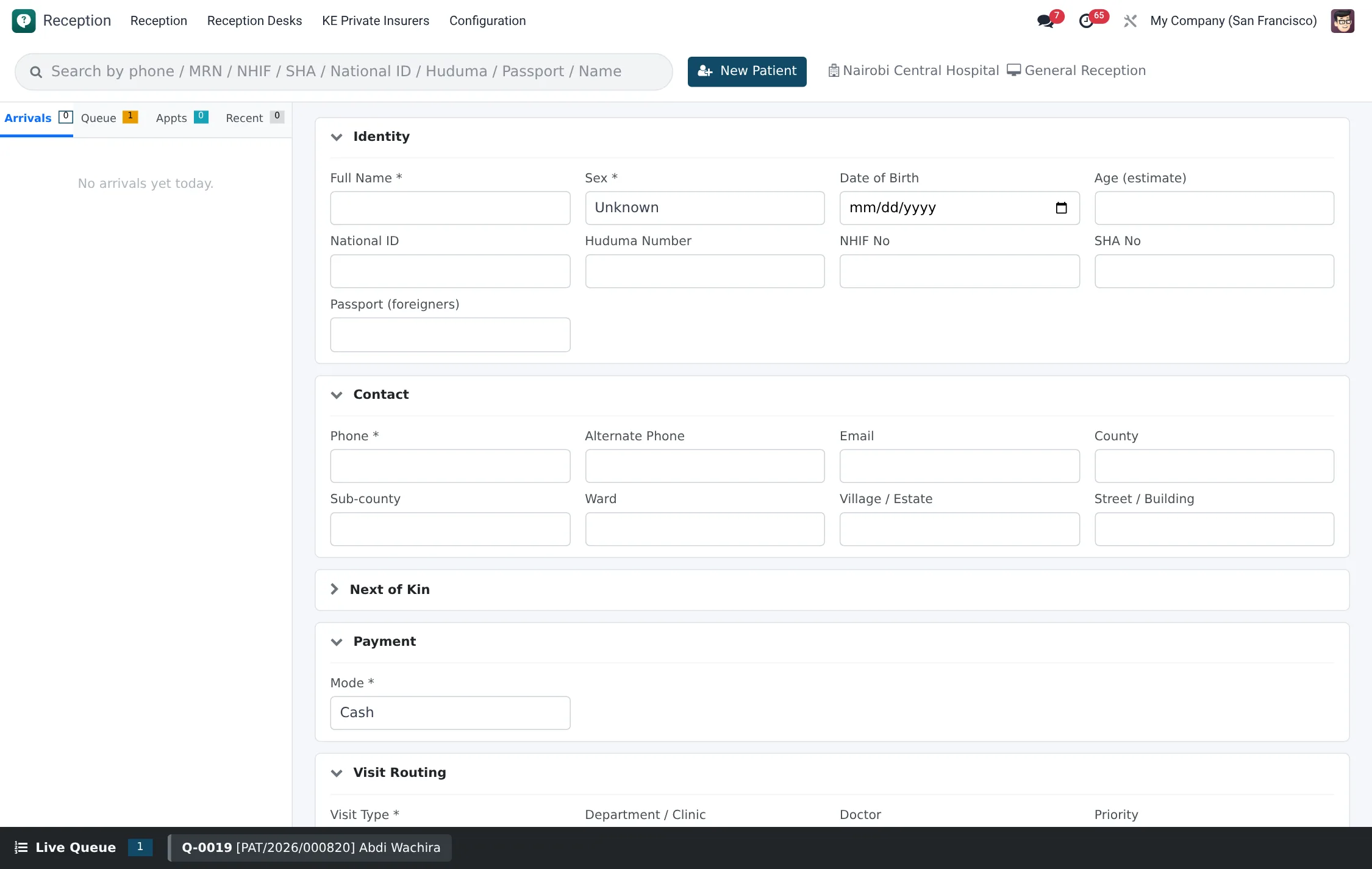
- New Patient. Capture the demographics (table below) and use Quick Create to make the
hms.patientrecord. - Insurance. Pick the scheme and member number and run Verify Insurance; the result comes back as Eligible, Expired, Not Active, Not Yet Valid or Policy Not Found, with notes. You may also Skip Insurance for cash patients.
- Triage. Set the priority — Emergency (Red), Urgent (Yellow) or Routine (Green) — and flag Emergency? if the patient must jump the queue. Choose the destination Department.
- Ticket. Click Issue Ticket. A queue ticket is generated and, optionally, an appointment is booked too. Use Print Ticket to hand the patient their number.
- Done. Finish closes the wizard; the patient is now on the Queue tab of the Reception Desktop and on the waiting-room display.
Required fields & field reference
For a new patient, capture at minimum a name, date of birth and gender; an identifier and a phone number make the record findable later.
| Field | Meaning | Required |
|---|---|---|
| Full Name | Patient's legal name. | Yes |
| Date of Birth | Drives the computed age; cannot be in the future or before 1900. | Yes |
| Gender | Patient gender selection. | Yes |
| Phone | Primary contact; also a search key. | Recommended |
| National ID | Primary identifier; must be unique per facility. | Recommended |
| NHIF / SHA Number | National insurer membership for eligibility checks. | If insured |
| Next of Kin (name & phone) | Emergency contact. | Recommended |
| Insurance Card Number / Member Number | Captured when a scheme is selected. | If insured |
| Payment Mode | Cash, NHIF/SHA, corporate, etc. | Yes |
The patient record also stores County, Sub-county/Constituency, Ward and Village/Estate for location, a Passport Number for non-citizens, blood group, corporate scheme details, and M-Pesa phone/account reference for mobile-money billing.
Reception (arrival) types
When the arrival is logged, you classify why the person is here. The Type drives reporting and, for emergencies, the default priority. These are the recognised types on the hms.reception.arrival record.
| Type | When to use it |
|---|---|
| Scheduled Appointment | The patient is arriving for a pre-booked appointment. |
| Walk-in | No appointment; the default for most front-desk arrivals. |
| Emergency | Acute case that should jump the queue at red priority. |
| Return Visit | A known patient coming back, e.g. for review or refill. |
| Referral Arrival | Sent in from another facility or clinician on a referral. |
| Discharge Pickup | Collecting a discharged patient; no new clinical visit. |
| Records Request | Here only to obtain copies of medical records. |
| Visitor | A non-patient visitor; logged for security, not queued. |
The arrival itself carries its own Status — Logged, In Queue, In Service, Departed or No Show — so the Arrivals Log shows at a glance who is still in the building.
Payment modes & eligibility results
During registration you set the patient's Preferred Payment Mode, and for insured patients you run a verification whose result is recorded against the visit. The two tables below list the exact values.
| Payment mode | Use |
|---|---|
| Cash | Patient pays out of pocket; the default. |
| M-Pesa | Mobile-money billing; uses the stored M-Pesa phone / account reference. |
| NHIF / SHA | National insurer cover; triggers an eligibility check. |
| Private Insurance | A private scheme from KE Private Insurers; captures member number. |
| Corporate Account | Employer-funded cover; captures company, employee number and copay percent. |
| Bank Card | Card payment at the desk. |
Running Verify Insurance returns one of these outcomes, with explanatory notes you can read back to the patient:
| Result | What it means |
|---|---|
| Eligible | Cover is active and the patient may be served on the scheme. |
| Expired | The policy has lapsed; collect cash or settle membership first. |
| Not Active | Membership exists but is not currently active. |
| Not Yet Valid | Cover starts on a future date; not usable today. |
| Policy Not Found | The member number did not resolve — re-check the card or treat as cash. |
ID proofing
The ID proofing option strengthens identity capture in two ways. First, an OCR Engine can read an ID document so the receptionist does not re-key the number; the engine is configurable as Local Tesseract (free, offline), Google Cloud Vision, AWS Textract or a development stub. Second, insurance eligibility runs against the national insurer in either Live mode (real NHIF/SHA API) or a documented Mock mode that returns plausible answers with a notice — useful before live credentials are in place. Both are set in Reception → Configuration → Settings.
Self-service kiosk
The Check-In Kiosk (Reception → Reception → Kiosk) lets patients check themselves in on a touchscreen, easing the front-desk load at peak times. An ADA/accessibility-friendly variant is available for larger touch targets and assisted use. Kiosk check-ins flow into the same arrivals log and queue as desk registrations, so the receptionist sees them on the worklist immediately.
Roles & access
Registration is a Reception-group task. Records respect multi-company rules, so a desk only creates arrivals, tickets and sessions for its own facility. Triage priority set here is advisory; the clinical Nurse confirms it at the triage stage.
Tips & troubleshooting
| Symptom | Cause & fix |
|---|---|
| “National ID already in use” on save | The patient already exists at this facility — go back to search and load the existing record. |
| Insurance returns Policy Not Found | Wrong member number or the patient is on a different scheme; re-check the card, or Skip Insurance and treat as cash. |
| Date of Birth rejected | It is in the future or before 1900; confirm the year with the patient. |
| Ticket issued but not on the queue | The desk has no open session — open today's session and re-issue. |