

Laboratory
The Laboratory area of BridgeERP HMS runs the full diagnostic-testing lifecycle — from the moment a clinician orders a test, through specimen collection and accessioning, analyser processing, multi-level result verification, critical-value escalation and final release back to the chart. It is built for a hospital laboratory that needs end-to-end traceability, turnaround-time (TAT) monitoring and a defensible chain of custody on every specimen.
Who uses this area
The Laboratory is shared by several roles, each touching a different part of the workflow:
- Ordering clinicians raise lab requests from a consultation or visit and read released results in the patient chart.
- Phlebotomists and collection staff draw specimens, label them and hand them to the lab.
- Lab technicians accession received specimens, run analysers and enter results.
- Senior technologists and supervisors perform the second and third verification steps and release results.
- Lab managers own the catalogue, analysers, quality control, proficiency testing and reference-lab relationships.
Where to find it
Everything lives under the Laboratory top menu:
| Menu path | What it opens |
|---|---|
| Laboratory → Dashboard | Operational overview of open requests, pending results and TAT. |
| Laboratory → Lab Requests | The list of test orders and the place to raise a new one. |
| Laboratory → Samples | Specimen records, accessioning, rejection and storage. |
| Laboratory → Results Inbox | Results awaiting entry, verification and release. |
| Laboratory → Critical Values | Results flagged critical-high or critical-low for urgent call-back. |
| Laboratory → Radiology Orders | Imaging orders managed alongside the lab. |
| Laboratory → Catalog → Test Catalog / Panels / Equipment / Analyzers | The master data: individual tests, grouped panels and the analysers that run them. |
| Laboratory → Quality → QC Materials / QC Runs / Proficiency Testing / TAT Report | Internal QC, external proficiency testing and turnaround reporting. |
| Laboratory → Reference Lab → Reference Labs / Send-outs | Partner laboratories and specimens sent out for esoteric testing. |
| Laboratory → Configuration → Settings | Module-wide options for the Laboratory. |
Before you start
Two pieces of master data must exist before any test can be ordered:
- A test catalogue. Each entry in Laboratory → Catalog → Test Catalog defines a test code, name, default sample type and container, analytical method, target TAT in hours, price, unit of measure and category. Tests can also be marked as requiring fasting or written consent, and grouped into Panels that expand into their component tests when ordered.
- Reference ranges. Normal ranges and default critical-low / critical-high thresholds are configured per test so that results are flagged automatically. See Results & verification for how flagging works.
The laboratory workflow end to end
A specimen moves through the lab as a single, traceable chain. The high-level path is:
- Order. A clinician raises a lab request and selects tests or panels. The request moves from Draft to Requested.
- Collect. Specimens are drawn, given a barcode and recorded against the request; each becomes a sample in Collected status. See Orders, specimens & accessioning.
- Accession. The lab receives and accessions specimens (Received in Lab); when all specimens are in, the request advances to Sample Collected.
- Process. Technicians start processing (request becomes In Progress) and enter results on the analysers.
- Verify & release. Each result is verified at technician and supervisor level, then released. When every result is released the request can be Validated and then Reported back to the chart. See Results & verification.
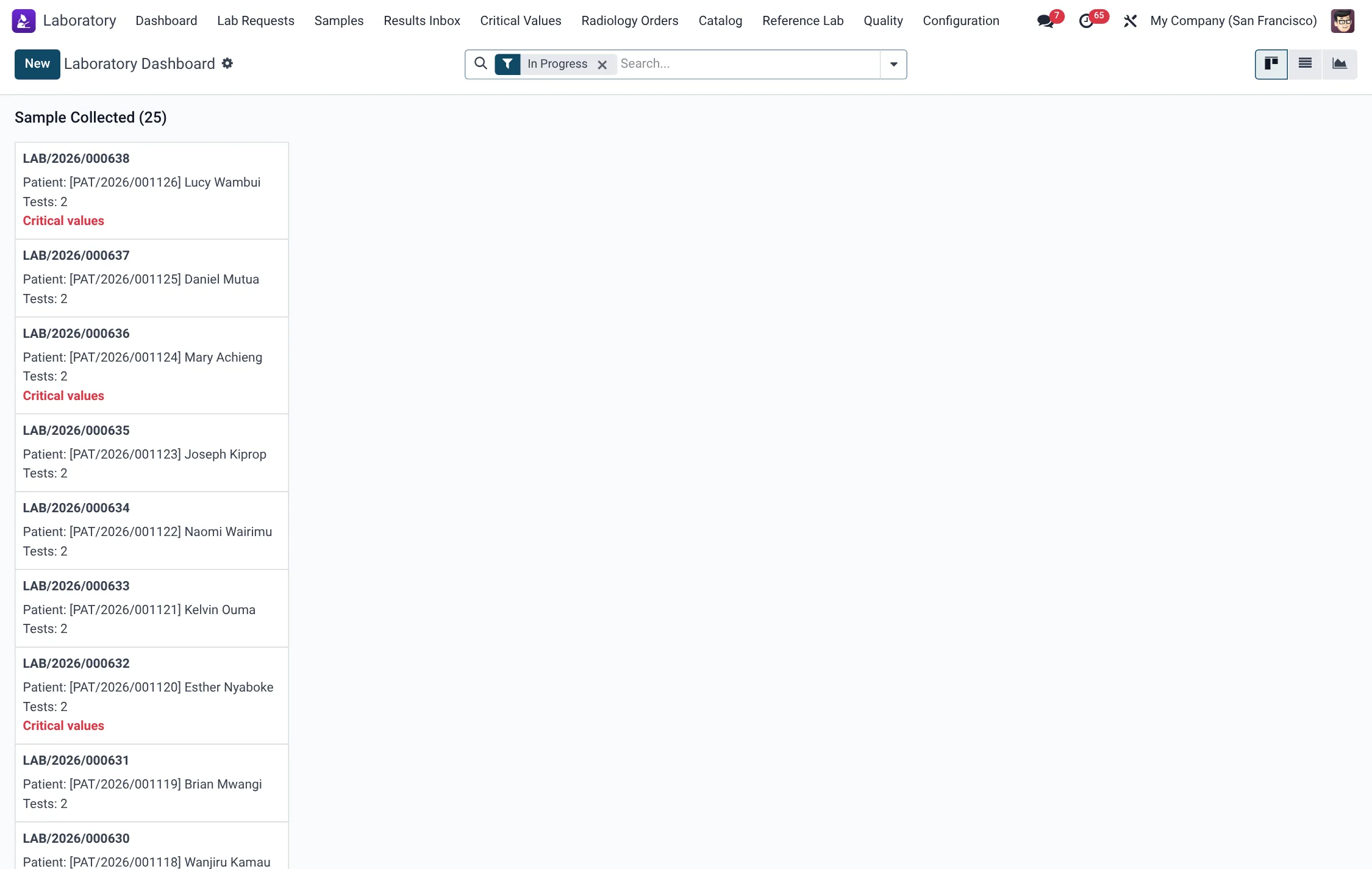
Request status reference
The lab request status drives the whole area. The available statuses are:
| Status | Meaning |
|---|---|
| Draft | Order being built; tests still being added. |
| Requested | Order submitted; awaiting specimen collection and receipt. |
| Sample Collected | All specimens received in the lab. |
| In Progress | Processing started; results being entered. |
| Validated | All results released and verified. |
| Reported | Final report issued back to the patient chart. |
| Cancelled | Order cancelled (can be reset to draft). |
Quality and turnaround monitoring
Each test carries a target TAT, and every request computes its actual turnaround from request to release and flags any TAT breach. The Quality submenu adds internal quality control (QC materials and QC runs), external Proficiency Testing, and a TAT Report so a manager can see where the lab is meeting or missing its turnaround commitments. Results flagged as critical surface on the dedicated Critical Values list for urgent clinician call-back.
Reference (send-out) testing
Tests the in-house lab does not perform are sent to a partner laboratory. Partner labs are maintained under Reference Lab → Reference Labs, and each specimen sent out is tracked under Reference Lab → Send-outs, so esoteric tests remain visible on the same request and report back into the patient chart alongside in-house results. This keeps a single, complete record for the patient even when the work is split across laboratories.
Roles & access
Access follows the HMS security groups. Clinical staff (doctor group) can raise requests and read results; pharmacist, nurse and lab roles operate the bench; lab managers and HMS managers maintain catalogue, analysers and quality data. Administrators retain full configuration rights. Result release in particular is gated through the technician and supervisor verification steps described on the results page, so that running a result and authorising it are never done by the same single action.
Tips & troubleshooting
Laboratory menus at a glance
The full Laboratory menu tree, with the record type behind each entry, so an operator can navigate the area without hunting:
| Menu | Record type | Purpose |
|---|---|---|
| Dashboard | Lab Request | Operational overview of open requests and turnaround. |
| Lab Requests | Lab Request | Raise and track test orders. |
| Samples | Lab Sample | Specimen collection, receipt, rejection, storage. |
| Results Inbox | Lab Result | Results awaiting entry, verification and release. |
| Critical Values | Lab Result | Critical-high / critical-low results for call-back. |
| Radiology Orders | Radiology Order | Imaging orders managed alongside the lab. |
| Catalog → Test Catalog | Lab Test | Individual tests and their settings. |
| Catalog → Panels | Lab Test | Grouped panels that expand into component tests. |
| Catalog → Equipment / Analyzers | Lab Equipment | Analysers linked to the tests they run. |
| Quality → QC Materials | Lab QC | Internal quality-control materials. |
| Quality → QC Runs | Lab QC Log | Recorded QC runs against materials. |
| Quality → Proficiency Testing | Lab Proficiency Testing | External proficiency-testing rounds. |
| Quality → TAT Report | Lab TAT Report | Turnaround analysis and breaches. |
| Reference Lab → Reference Labs | Lab Reference Partner | Partner laboratories for send-outs. |
| Reference Lab → Send-outs | Lab Send-out | Specimens sent to a partner lab. |
| Configuration → Settings | Settings | Module-wide Laboratory options. |
Specimen types and tubes
The catalogue and each specimen carry a sample type and a colour-coded container, so collection staff know exactly which tube to draw:
| Sample type | Typical container |
|---|---|
| Whole Blood | EDTA (Lavender) |
| Serum | Serum Separator (Gold) |
| Plasma | Lithium Heparin (Green) |
| Plasma (coagulation) | Sodium Citrate (Light Blue) |
| Plasma (glucose) | Sodium Fluoride (Grey) |
| Urine / Stool / Fluid | Sterile Container |
| Swab | Swab Transport Tube |
| Sputum / viral specimens | Viral Transport Medium |
| CSF, Tissue, Semen, Body Fluid, Other | Plain Red / Sterile Container as appropriate |
Roles & access matrix
Laboratory access is governed by HMS security groups. The table below summarises who can do what on the core records:
| Group | Catalogue & analysers | Lab requests | Results |
|---|---|---|---|
| Lab Technician | Read | Create & edit | Enter & technician-verify |
| Lab Supervisor | Create & edit | Full | Supervisor-verify & release |
| Doctor (ordering clinician) | Read | Raise requests | Read released results |
| Nurse | Read tests | — | — |
| Radiologist | Read equipment | — | — |
| HMS Manager | Full | Full | Full |
| HMS Admin | Full (incl. delete) | Full | Full |