

Reception
Reception is the front door of BridgeERP HMS. Every person who arrives at the facility — an appointment patient, a walk-in, an emergency, a returning chronic-care client, or a visitor — is greeted, identified, and put into the right queue here. The receptionist works almost entirely from a single screen, the Reception Desktop, which combines patient search, arrival logging, queue-ticket issuing and the live worklist into one place so that the first ninety seconds of a patient's journey are fast and accurate.
Who uses Reception
Reception is operated by front-desk staff in the Reception security group. They register and find patients, issue queue tickets, verify insurance eligibility, and hand the patient on to triage, a consultation room, services or billing. Nurses and doctors normally pick the patient up after reception from the clinical queue, so a clean hand-off here keeps the whole facility flowing. A clinic that has only just installed the suite should configure its reception desks and a daily session before opening the doors — see configuration for the prerequisites.
Where to find it
The whole area lives under the Reception top menu. The most-used destinations are:
- Reception → Reception → Reception Desktop — the all-in-one front-desk console (described below).
- Reception → Reception → Reception Dashboard — live counts of arrivals, waiting tickets and average wait, refreshed through the day.
- Reception → Reception → Walk-in Registration and + Walk-in Registration — the guided registration wizard for new and returning patients.
- Reception → Reception → + Returning Patient — a fast lookup-and-new-visit shortcut for a patient who already exists.
- Reception → Reception → Today's Queue and Queue Tickets — the live ticket list (model
hms.queue.ticket). - Reception → Reception → Arrivals Log — every arrival recorded today (model
hms.reception.arrival). - Reception → Reception → Appointments — the day's booked appointments (model
hms.appointment). - Reception → Reception → Sessions, Visitor Log, Incidents and Reception Desks — the supporting records.
- Reception → Reception → Kiosk → Check-In Kiosk and Queue Board (TV) — self-service check-in and the waiting-room display.
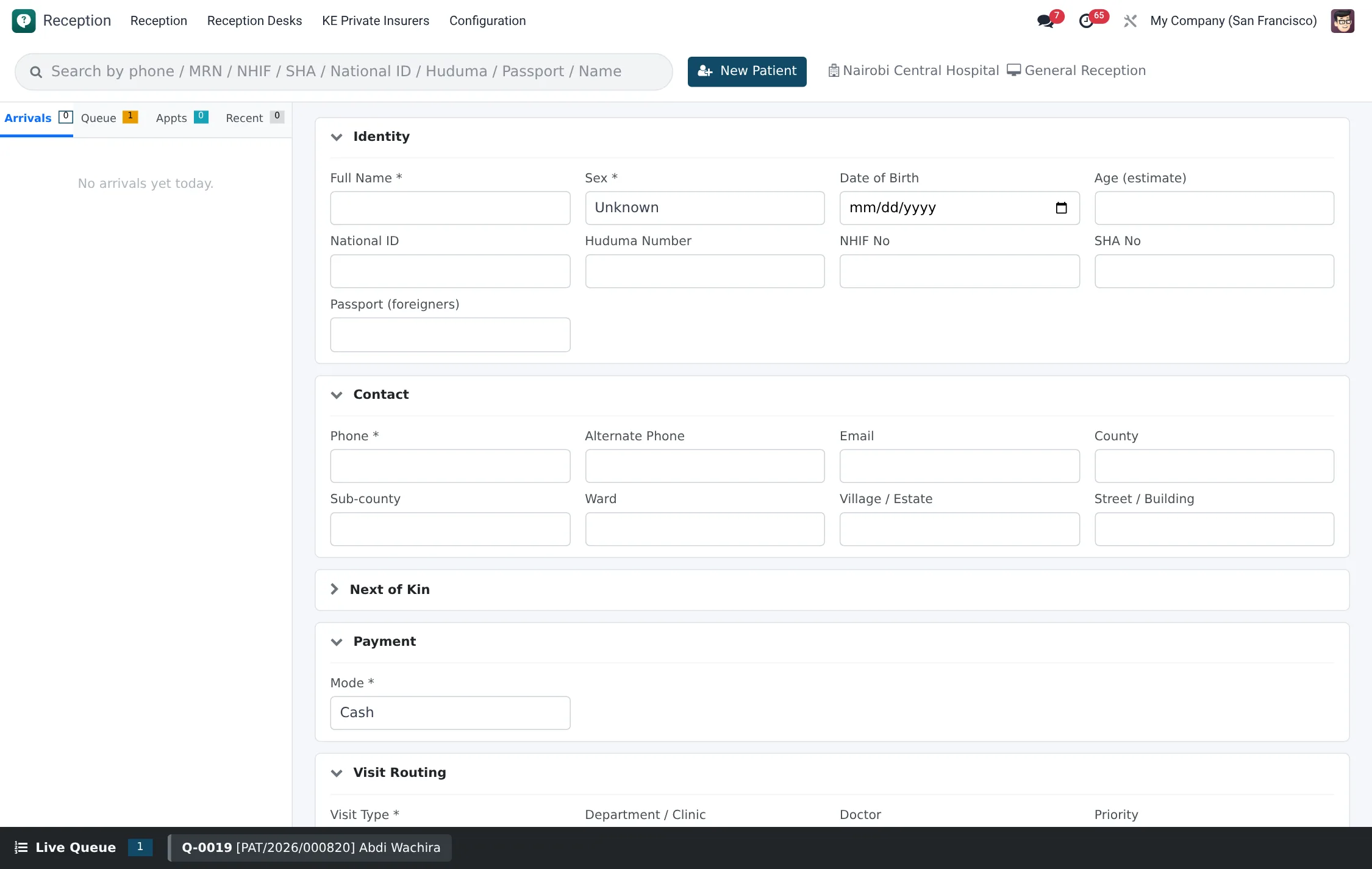
The Reception Desktop
The Reception Desktop is a purpose-built single-page console. Across the top is a global search box and a New Patient button; the facility and the desk you are signed in to are shown to the right. The left panel is a tabbed worklist with a live badge count on each tab:
- Arrivals — people logged in today who are waiting to be processed.
- Queue — active queue tickets, colour-coded by priority (red emergency, yellow urgent, green routine).
- Appointments — today's scheduled patients, so you can mark them arrived in one click.
- Recent — patients you have touched recently, for quick re-open.
Typing in the search box matches across name, phone, National ID, NHIF/SHA number and MRN at the same time, so you rarely need to know which identifier the patient is carrying. Each result row shows the patient, their payment mode and any active insurance scheme as a badge, plus a red warning flag where attention is needed. Clicking a row loads the patient; clicking an arrival or queue entry opens the underlying visit so you can move it to the next stage.
The daily flow
A typical front-desk shift runs like this:
- Open a session. At the start of the day open or confirm today's Reception Session for your desk (Reception → Reception → Sessions). Tickets and arrivals attach to the active session.
- Greet and identify. Search for the arriving person. If they exist, load them; if not, register them as a new patient.
- Log the arrival. Record why they are here (appointment, walk-in, emergency, return visit, referral, records request or visitor).
- Verify cover. For insured patients, run the NHIF/SHA or private-scheme eligibility check.
- Issue a ticket. Assign a priority and print the queue ticket. The patient now appears on the Queue tab and the waiting-room display.
- Hand off. When a clinician calls the next number, the ticket and its visit move on to triage or consultation.
The three pillars of this flow each have their own page: searching and finding patients, registering a patient and issuing a ticket, and managing the live queue.
Desks and sessions
A Reception Desk (hms.reception.desk) represents a physical counter. Configure one per counter under Reception → Reception → Reception Desks.
| Field | Meaning | Required |
|---|---|---|
| Name | Label for the counter, e.g. “Front Desk 1”. | Yes |
| Facility | Which facility this desk belongs to. | Yes |
| Counter Number | The physical counter identifier shown to patients. | No |
| Ticket Prefix | Prefix used when generating queue-ticket numbers at this desk. | No |
| Default Department | Department a ticket is routed to when none is chosen. | No |
| Current Session | The open session the desk is processing right now. | Auto |
The desk also shows live Waiting Tickets and Arrivals Today counts so a supervisor can balance load across counters.
Reception menus at a glance
Every destination the front desk needs sits under the Reception top menu. This is the full map of where each tool lives and the record model behind it.
| Menu path | Opens | Model |
|---|---|---|
| Reception → Reception → Reception Desktop | The all-in-one front-desk console | — |
| Reception → Reception → Reception Dashboard | Live arrival, waiting and wait-time counts | — |
| Reception → Reception → Walk-in Registration | Full registration wizard | hms.reception.registration.wizard |
| Reception → Reception → + Walk-in Registration | First-step registration shortcut | hms.reception.first.step.wizard |
| Reception → Reception → Fast Register | Stripped-down quick-create | hms.fast.register.wizard |
| Reception → Reception → + Returning Patient | Lookup-and-new-visit shortcut | hms.reception.lookup.wizard |
| Reception → Reception → Today's Queue | Live ticket list for today | hms.queue.ticket |
| Reception → Reception → Queue Tickets | All tickets, incl. served/voided | hms.queue.ticket |
| Reception → Reception → Waiting Room Display | Patient-facing now-serving board | hms.queue.ticket |
| Reception → Reception → Arrivals Log | Every arrival recorded today | hms.reception.arrival |
| Reception → Reception → Appointments | The day's booked appointments | hms.appointment |
| Reception → Reception → Sessions | Per-desk daily sessions | hms.reception.session |
| Reception → Reception → Visitor Log | Non-patient visitor register | hms.reception.visitor.log |
| Reception → Reception → Incidents | Front-desk incident reports | hms.reception.incident |
| Reception → Reception Desks | Physical counter master data | hms.reception.desk |
| Reception → KE Private Insurers | Private-scheme master data | hms.ke.insurer |
| Reception → Configuration → Settings | OCR & eligibility-mode settings | res.config.settings |
Roles & access
Reception records are governed by the Reception group, with multi-company record rules so each desk only sees its own facility's arrivals, sessions, tickets, visitor logs and incidents. The Nurse, Doctor and Administrator groups carry the clinical and oversight permissions for the stages a patient moves into after reception. The table below maps the core HMS security groups to what each can do in and around reception.
| Security group | Can do at the front desk |
|---|---|
| Reception | Register and find patients, log arrivals, issue/call/serve/void tickets, run eligibility checks, open sessions, record visitors and incidents. |
| Nurse | Read facility and department master data; pick patients up from the triage and clinical queue after reception hands off. |
| Doctor | Read facility and department master data; take routed patients into consultation from the clinical queue. |
| Cashier | Handle the billing stage a served visit moves into; not a front-desk role. |
| Manager | Read/write/create across reception master data; balance desk load and review dashboards. |
| Administrator | Full create/read/write/delete on reception records plus EMPI merge oversight. |
Tips & troubleshooting
| Symptom | Cause & fix |
|---|---|
| Worklist badge counts look wrong or stale | The desktop refreshes in place; reload the page if it has been open across a date change so it re-reads today's records. |
| A new ticket does not attach to the day's totals | No open Reception Session for the desk — open today's session under Reception → Reception → Sessions first. |
| Desk does not appear when issuing a ticket | The desk is inactive or belongs to another facility; check Reception → Reception Desks and confirm its facility matches yours. |
| Receptionist cannot see another counter's queue | Working as designed — multi-company record rules scope each desk to its own facility. |