

Queue calling & waiting-room announcer
When a clinician is ready for the next patient, they call the next ticket and the waiting room announces it aloud and on screen — e.g. “Number Q-0019, please proceed to Consultation Room 3” — matching the call/announce experience of dedicated queue systems (Qmatic, Wavetec) but built into the HMS.
Calling the next patient
From Reception → Call Next Patient the clinician picks their department/queue and room and clicks Call Next; the system takes the next waiting ticket by priority then arrival, marks it called, and announces it. The wizard stays open so the next patient is one click away. A ticket can also be called (and re-called) directly from its form.
Waiting-room display & voice
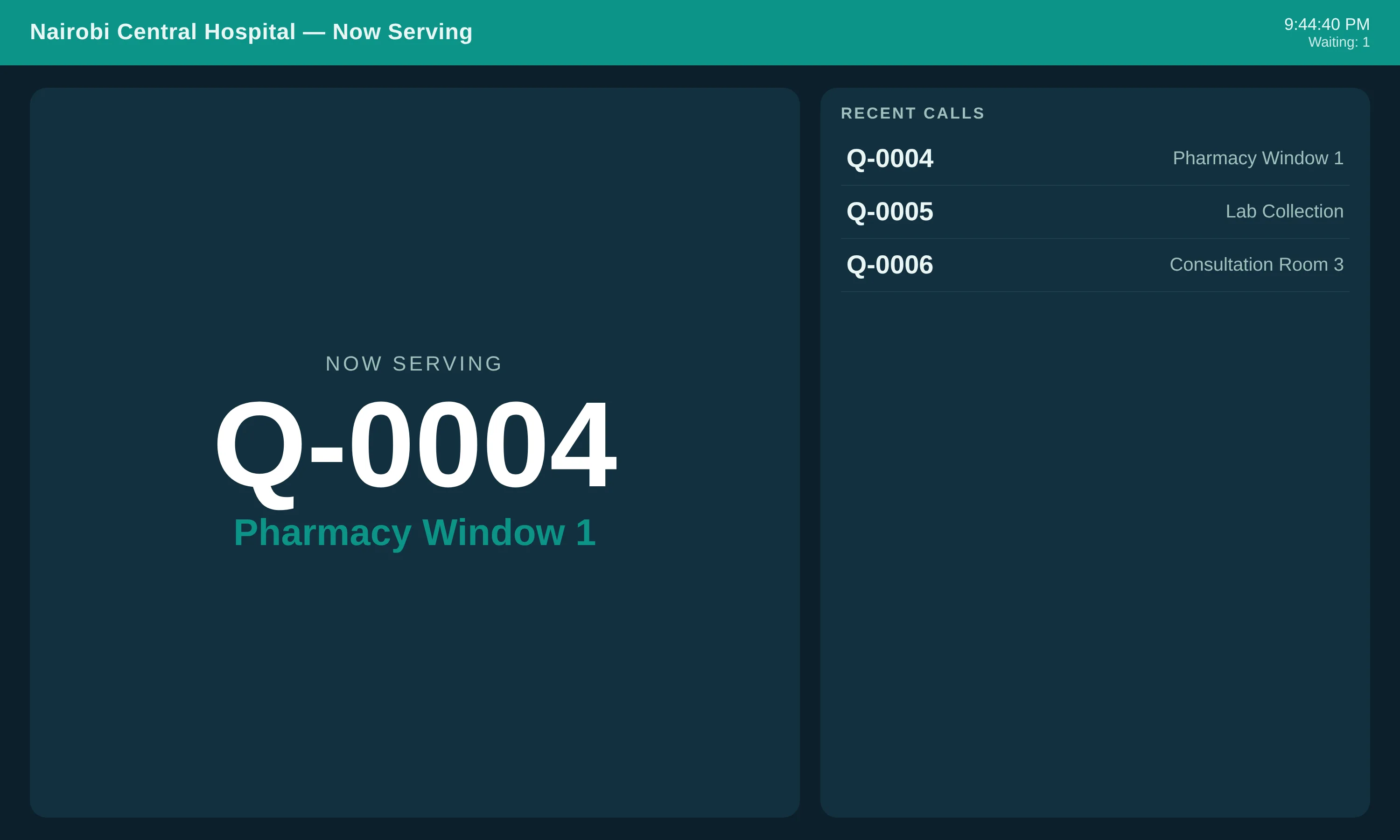
Open the board at /hms/queue/board on any waiting-room screen (smart TV, media player or mini-PC). It shows a large NOW SERVING number and room, recent calls, the live waiting count and estimated wait. On each new call it plays a chime and speaks the announcement in English and Swahili using the browser’s speech engine. A one-time Tap to start unlocks audio (a standard browser requirement). Use /hms/queue/board?zone=<dept> for an area-specific display.
Virtual queue (SMS / WhatsApp)
When a patient is called, the system can text them “Your number is being called, proceed to {room}” via the configured messaging gateway, so patients can wait nearby instead of in a crowded hall. This needs an SMS/WhatsApp provider configured (Settings → Messaging).
Hardware & integration
- Display + sound — any LCD/TV or media player with a browser; its audio output feeds the waiting-room speakers or PA. No proprietary display box required.
- LED counter displays / external controllers — poll the plain-text endpoint
/hms/queue/board/now(returnsNUMBER|ROOM) or the JSON feed/hms/queue/board/feed. - Ticket kiosk — the self-service check-in kiosk prints the queue ticket on a standard thermal (ESC/POS) printer.
- SMS/WhatsApp — via the messaging gateway (Twilio, Africa’s Talking, etc.).