

Install the HMS apps
Before any patient can be registered, the BridgeERP HMS apps must be installed and activated. This page explains which apps to enable, the order to enable them in, how the dependency chain keeps the data model consistent, and how to confirm that an install finished cleanly. It is written for the system administrator performing the initial roll-out.
Where to find it
Apps are installed from the platform Apps menu in the top bar. Search by name (for example “HMS” or “Patient Management”), then use the Activate button on each app card. Once an app is installed it appears in the app drawer; the foundation appears there as HMS Core.
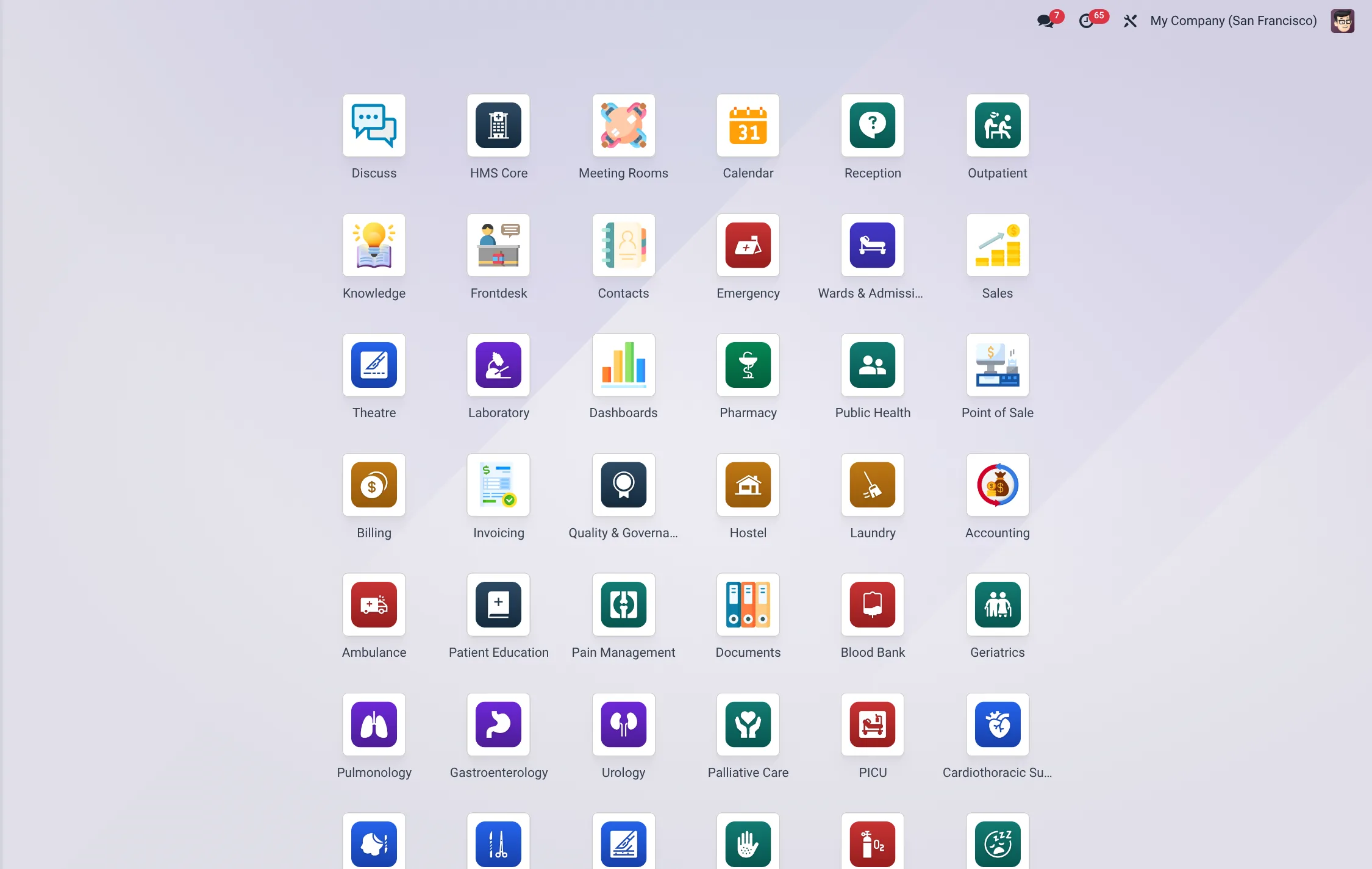
Install the foundation first
The foundation module is Patient Management (shown in the drawer as HMS Core). It must be installed before anything else because every other HMS app declares it as a dependency. Installing the foundation pulls in the platform building blocks it needs — the contacts, calendar, HR, mail/messaging and portal layers — and seeds the shared data the whole suite relies on: the security roles, the visit and patient numbering sequences, the ICD-10 catalogue (500+ codes), and a starter set of insurance schemes including NHIF and SHIF.
- Open Apps and search for Patient Management.
- Click Activate. The platform resolves and installs its dependencies automatically.
- Wait for the install to finish and the page to reload. HMS Core now appears in the app drawer.
What the foundation gives you
It is worth knowing what the single Patient Management activation actually delivers, because it is the platform every later app builds on. Out of the box you get a multi-facility, multi-department topology; the patient master record with demographics, allergies, chronic conditions, surgery and family history, next-of-kin and a document vault; appointment scheduling with reminders; a priority-aware Red/Yellow/Green queue; vitals-driven triage with early-warning scoring; the visit lifecycle hub; the ICD-10 catalogue; insurance schemes and member policies; the shared security roles and record rules; and an operational Control Tower dashboard. Every clinical and financial app simply attaches its own data to these.
| What the foundation seeds | Where it appears |
|---|---|
| Facility & department topology | HMS Core → Configuration → Facilities / Departments |
| Patient master record | HMS Core → Patients → Patients |
| Visit lifecycle hub | HMS Core → Patients → Visits |
| ICD-10 catalogue (500+ codes) | HMS Core → Configuration → ICD-10 Codes |
| Insurance schemes (incl. NHIF, SHIF) | HMS Core → Configuration → Insurance Schemes |
| Security roles & record rules | Settings → Users & Companies → Groups |
| Numbering sequences (patient / visit / appointment) | Applied automatically on each new record |
Which apps to enable
You install only the apps your hospital actually uses. The suite is deliberately granular, so a clinic can run on a handful of apps while a tertiary hospital runs scores of them. A practical starting set for an outpatient operation:
| App | What it adds | When to enable |
|---|---|---|
| Patient Management (HMS Core) | Foundation: facilities, patients, visits, queue, triage, roles | Always — first |
| Reception | Registration desk, arrivals log, queue tickets, reception desks | Before opening the front desk |
| Reception Desktop | Single-screen receptionist workspace and dashboard | With Reception, for staffed counters |
| Consultation | Clinical encounters, diagnoses, orders | Before clinicians see patients |
| Laboratory | Test orders, sample collection, results | When the lab goes live |
| Pharmacy | Prescription verification and dispensing | When the pharmacy goes live |
| Billing | Service pricing, payments, visit closure | Before taking payment |
Beyond this, add specialty and back-office apps as each area comes online — Wards, ICU, Theatre, Blood Bank, Radiology/PACS, Immunization, HR, Procurement, Stores, the M-Pesa collector, and the country localisation pack for your market (for example the Kenya pack for NHIF/SHA formats). Each is activated the same way from Apps.
How dependencies work
Every HMS app names the apps it needs in its manifest, and the platform installs those automatically when you activate it. This is why install order rarely bites you in practice: activate a clinical app and its prerequisites — the foundation included — come along for the ride. Two consequences worth knowing:
- Bridge apps install themselves. Some connector apps are marked auto-install: once both apps they bridge are present, the bridge activates on its own. You will see it appear without having clicked it.
- You cannot remove the foundation while clinical apps depend on it. Uninstall clinical apps first, then the foundation, if you ever need to tear down.
Verifying the install
After activating your starting apps, confirm the install is clean before configuring anything:
- App drawer — open it and confirm HMS Core plus each app you enabled is listed.
- Foundation menus — open HMS Core → Configuration and confirm Facilities, Departments, Patients and Settings are present.
- Seeded data — open HMS Core → Configuration → ICD-10 Codes and confirm codes are loaded, and HMS Core → Configuration → Insurance Schemes to confirm NHIF and SHIF appear.
- Roles — in the platform Settings → Users & Companies → Groups, confirm the BridgeERP HMS roles (Reception, Nurse, Doctor, Pharmacist, Lab Technician, Cashier, Manager, Administrator) exist.
| Check | Where to look | Expect to see |
|---|---|---|
| Foundation installed | App drawer | HMS Core present |
| Master-data menus | HMS Core → Configuration | Facilities, Departments, Staff, Patients, Settings |
| Diagnosis catalogue | HMS Core → Configuration → ICD-10 Codes | Codes loaded (500+) |
| Payers seeded | HMS Core → Configuration → Insurance Schemes | NHIF and SHIF listed |
| Roles present | Settings → Users & Companies → Groups | The eight HMS roles under BridgeERP HMS |
| Symptom | Likely cause | Fix |
|---|---|---|
| A clinical app’s menus are missing | App not actually activated, only the foundation | Re-open Apps and Activate the specific app |
| Insurance schemes empty | Foundation install interrupted before seed scripts ran | Upgrade Patient Management to re-run its data load |
| A bridge app you expected is absent | One of the two apps it links is not installed | Install the missing app; the bridge then auto-installs |
| ICD-10 list is empty | Catalogue seed did not run | Upgrade Patient Management; re-check the codes list |