

Set up reception desks
A reception desk is a physical service point — a registration counter, a triage station, a cashier window — where a member of staff opens a session and serves patients. Desks issue queue tickets, log arrivals and give each shift a measurable record of throughput. This page shows the administrator how to define desks and the receptionist how to run a session at one.
Where to find it
Desks and the work that flows through them live under the Reception app:
- Reception → Reception Desks — the list of service points; create and edit them here.
- Reception → Reception → Arrivals Log — every patient arrival recorded against a desk.
- Reception → Reception → Queue Tickets — the numbered tickets the desks issue.
- Reception → Reception → Fast Register — the quick walk-in registration wizard used at a desk.
- Reception → Reception → Kiosk → Check-In Kiosk and Queue Board (TV) — the unattended self-check-in screen and the waiting-room display.
- Reception → Configuration → Settings — reception-wide options.
| Menu path | Opens | Use it for |
|---|---|---|
| Reception → Reception Desks | Desk list | Defining service points and counters |
| Reception → Reception → Sessions | Desk sessions | Reviewing open / closed shifts per desk |
| Reception → Reception → Arrivals Log | Arrivals | Checking patients in against a desk |
| Reception → Reception → Queue Tickets | Queue tickets | The numbered tickets desks issue |
| Reception → Reception → Fast Register | Fast-register wizard | Quick walk-in registration at a desk |
| Reception → Reception → Incidents | Incident records | Logging and escalating front-desk incidents |
| Reception → Reception → Kiosk | Check-In Kiosk / Queue Board (TV) | Self-check-in and waiting-room display |
Before you start
A desk belongs to a facility and can default to a department, so create those first — see Creating your facility. Each receptionist who will run a desk also needs a user account with the Reception role — see Staff & roles.
Step 1 — create a desk
Open Reception → Reception Desks and click New.
- Give the desk a Name (for example “Registration 1” or “Cashier A”).
- Set the Facility it sits in.
- Enter the Counter Number shown to patients on the queue board.
- Set a Ticket Prefix — the letters in front of the ticket number (for example R for registration, C for cashier), so patients can tell which queue they are in.
- Optionally set a Default Department so patients served here are routed to the right unit by default.
- Leave Active ticked and save.
The desk’s Display Name is built automatically from the facility, counter and name, so it reads clearly in lists and on the queue board.
| Field | Meaning | Required |
|---|---|---|
| Name | Label for the service point | Yes |
| Facility | Site the desk belongs to | Yes |
| Counter Number | Number shown to patients | Recommended |
| Ticket Prefix | Letters prepended to ticket numbers | Recommended |
| Default Department | Unit patients are routed to by default | Optional |
| Active | Whether the desk is in service | Yes |
Step 2 — open and run a session
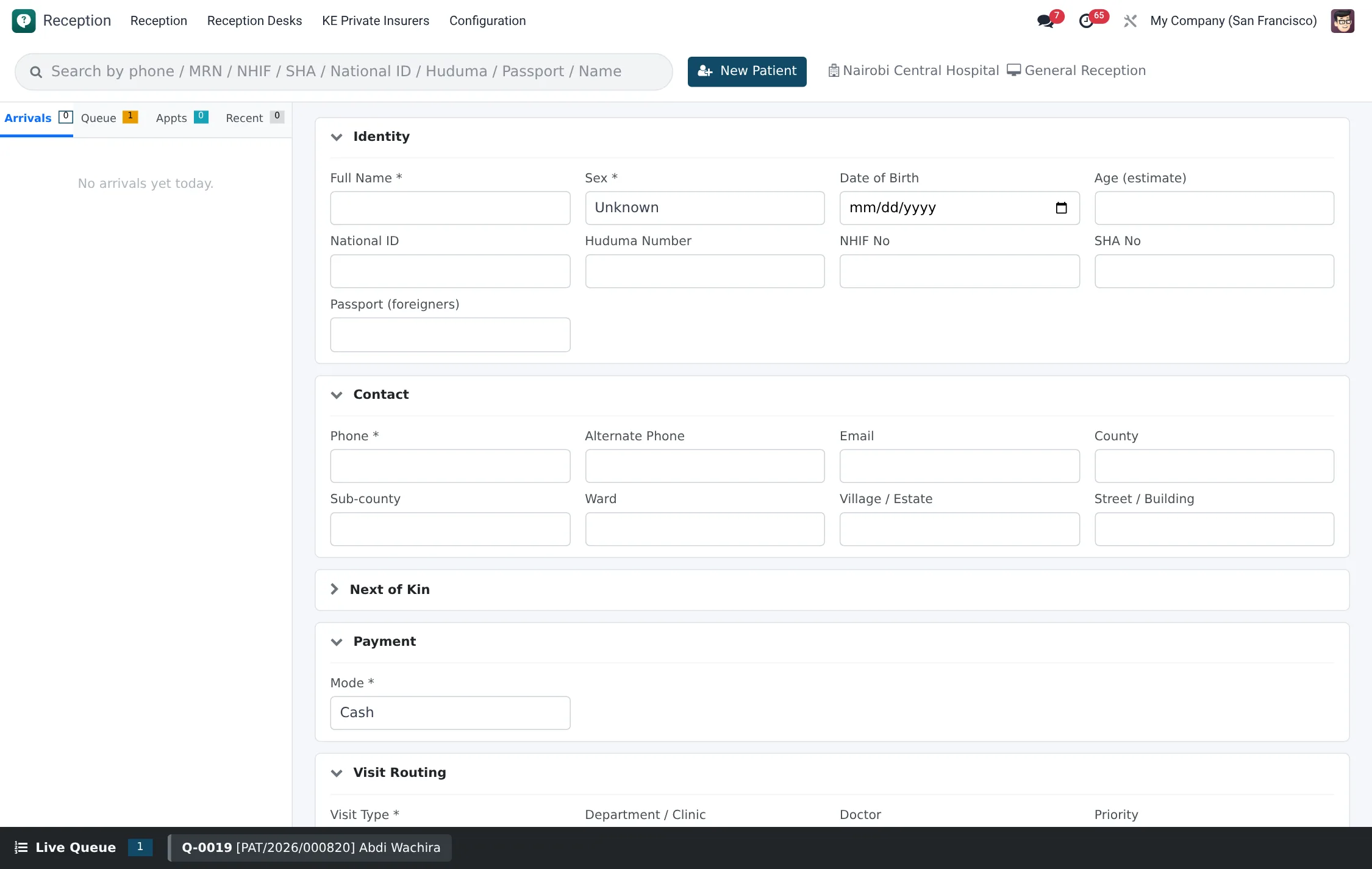
Work at a desk is organised into sessions — one per receptionist per shift — so throughput can be measured and handed over cleanly.
- The receptionist opens their desk and starts a session; it is stamped with their name and the open time, and an Opening Note can record the float or shift notes.
- While the session is Active it accumulates the work done: registrations, arrivals logged, tickets issued, no-shows and escalations, plus an average service time.
- As patients arrive they are recorded in the Arrivals Log and issued a Queue Ticket from this desk; the ticket carries the desk’s prefix and counter.
- At end of shift the receptionist adds a Closing Note and closes the session; its status moves from Active to Closed and the close time is recorded.
What a session records
| Metric | Meaning |
|---|---|
| Registrations | New patients or visits created at the desk |
| Arrivals | Patients checked in during the session |
| Tickets Issued | Queue tickets handed out |
| No-shows | Tickets that were called but not served |
| Escalations | Cases passed to a supervisor or incident |
| Average Service Minutes | Mean time to serve a patient at this desk |
These figures roll up into the reception dashboard, giving a supervisor a live picture of which counters are busy, where queues are building and how long patients are waiting — the basis for moving staff between desks during a peak.
Kiosk and queue board
Hospitals that want self-service add the Check-In Kiosk so arriving patients tap in themselves, and the Queue Board (TV) so waiting patients see ticket numbers and counters called. Both are reached under Reception → Reception → Kiosk and draw on the same desks and tickets as the staffed counters, so a kiosk ticket and a counter ticket sit in one queue.
Logging incidents
When something goes wrong at the front desk — an abusive visitor, a registration dispute, a safeguarding concern — the receptionist records it under Reception → Reception → Incidents so it is captured against the session and can be escalated rather than lost. The session’s escalation count reflects these.
Roles & access
Defining desks is an Administrator / Manager task. Running a session — opening it, logging arrivals, issuing tickets, registering patients — is done by staff with the Reception role.
Troubleshooting
| Issue | Fix |
|---|---|
| Tickets show the wrong prefix | Edit the desk’s Ticket Prefix |
| Patients routed to the wrong unit | Set or correct the desk’s Default Department |
| Receptionist cannot open a shift | Close the previous open session on that desk |
| Desk missing from the list | Confirm it is Active and on the user’s facility |