

Beds & the bed map
Wards, rooms and beds are the physical inventory of the hospital, and the Bed Map is the screen the whole inpatient operation revolves around. This page explains how to build the ward-and-bed structure, how to read and drive the live bed map, what each bed state means, and how the cleaning and turnover cycle returns a bed to service. Bed managers, charge nurses, housekeeping supervisors and ward clerks use these screens every shift.
Where to find it
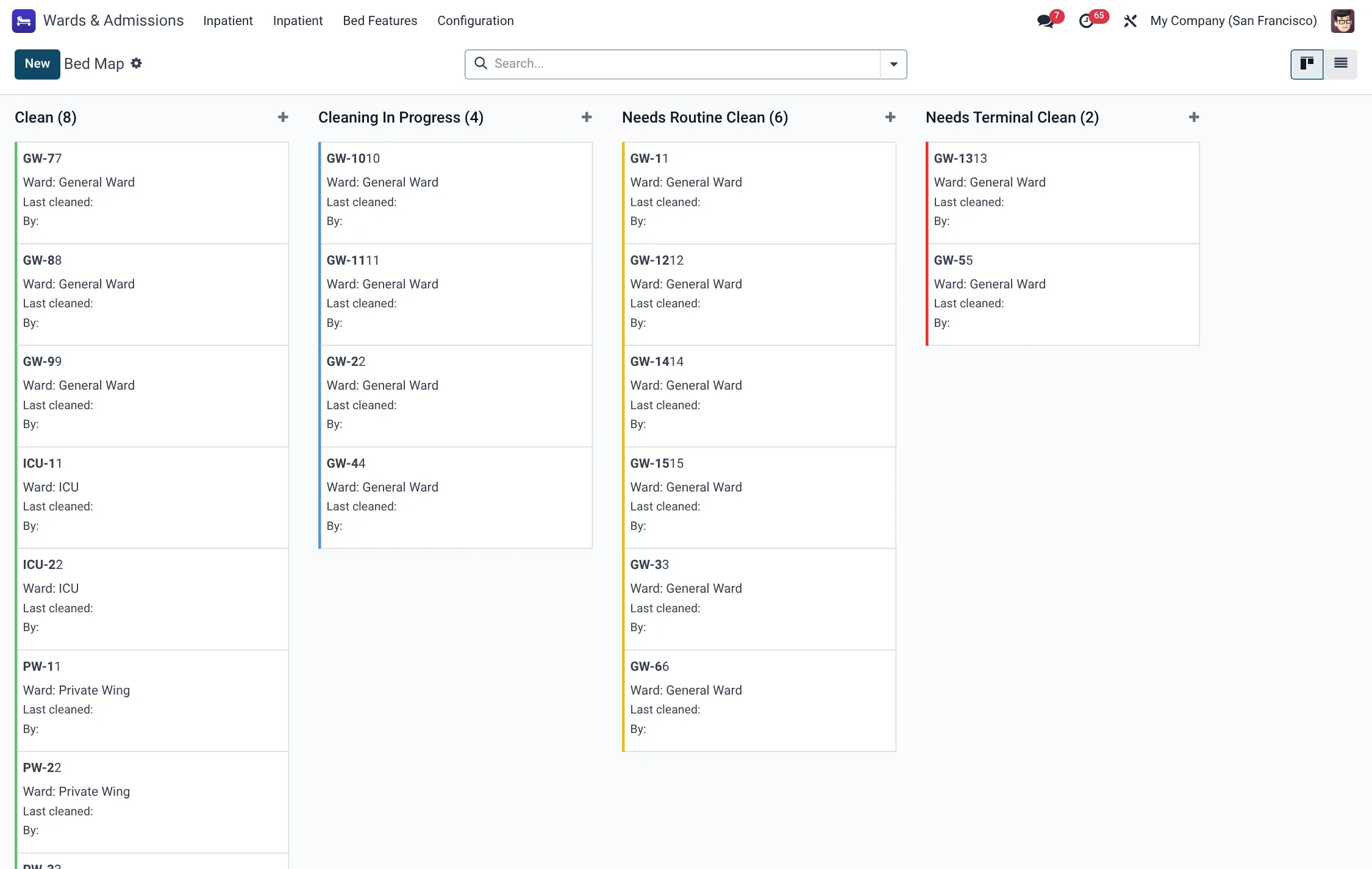
- Wards & Admissions → Inpatient → Bed Map — the colour-coded board of every bed, grouped by ward.
- Wards & Admissions → Inpatient → Wards — the ward records with occupancy figures.
- Wards & Admissions → Inpatient → Beds → All Beds — the full bed list.
- Wards & Admissions → Inpatient → Beds → Cleaning Queue — beds currently being cleaned.
- Wards & Admissions → Inpatient → Beds → Cleaning Log — the history of cleaning tasks.
- Wards & Admissions → Inpatient → Beds → Maintenance — beds in maintenance or out of service.
- Wards & Admissions → Inpatient → Bed Turnover — turnaround timing.
- Wards & Admissions → Bed Features and HMS Core → Wards & Admissions → EVS Bed Board — bed equipment master data and the housekeeping board.
Building wards and beds
Set up the structure top-down. A ward is the nursing unit; beds live inside it.
- Open Wards & Admissions → Inpatient → Wards and create a ward. Give it a Name and Code, pick a Ward Type, and optionally set the Floor, Wing, nursing-station phone and ward in charge.
- Inside the ward (or from Beds → All Beds) create each bed. Enter a Bed Label, a Code and a Number, choose the Bed Class, and link the bed to its ward.
- Attach any Features (oxygen point, monitor, isolation capability) so beds can be matched to a patient’s clinical need.
- Save. The new bed starts in the Available state and immediately appears on the Bed Map under its ward.
Reading the bed map
The Bed Map is a kanban board grouped by ward, where each card is one bed and its colour is its state. The map opens grouped by ward by default, so you see each unit’s free and occupied beds side by side. Occupied cards show the current patient and admission date; available cards are ready to fill. Click any bed card to open the bed form, where the status buttons let you change its state.
Bed states
Every bed is always in exactly one of seven states. This is the vocabulary of the whole board:
| State | What it means |
|---|---|
| Available | Clean, serviceable and ready for a patient. |
| Occupied | A patient is admitted in this bed. |
| Reserved | Held for an incoming/pre-admission patient. |
| Cleaning | Vacated and being turned over by housekeeping. |
| Maintenance | Withdrawn for a repair. |
| Out of Service | Unusable and not counted as capacity. |
| Isolation Hold | Held for infection-control reasons. |
The bed form carries the matching buttons: Mark Available, Send to Cleaning, Send to Maintenance, Out of Service and Isolation Hold. Each button records who changed the state and when, in the bed’s Status Updated field. Occupancy is driven automatically: admitting a patient sets the bed to Occupied, and discharging them releases it.
Cleaning & turnover
When a patient is discharged the bed does not become available immediately — it drops to Cleaning and a cleaning task (hms.bed.cleaning) is raised. Housekeeping works this from the Cleaning Queue:
- Open Beds → Cleaning Queue (or the EVS Bed Board) and pick the bed.
- On the cleaning task choose the Type — Routine, Post-Discharge, Terminal (Isolation), Deep Clean or Bio-Hazard.
- Press Start; the task moves to In Progress and the start time is stamped.
- Work the checklist, then press Complete. The task moves to Completed, the duration is calculated, and the bed returns to Available.
- If the clean fails inspection, press Flag Re-Clean to send the task to the Re-Clean Needed state and keep the bed off-line.
Cleaning types
Each cleaning task carries a Type that sets the protocol and the expected effort. The five types are fixed:
| Type | When it applies |
|---|---|
| Routine | Standard between-patient or daily clean of an occupied area. |
| Post-Discharge | Full turnover clean after a patient is discharged from the bed. |
| Terminal (Isolation) | Deep terminal clean after an isolation case, before the bed leaves Isolation Hold. |
| Deep Clean | Scheduled deep clean beyond the routine turnover cycle. |
| Bio-Hazard | Decontamination after a biohazard or spillage event. |
Cleaning-task states
The cleaning task (hms.bed.cleaning) walks its own short lifecycle, separate from the bed state:
| State | Meaning |
|---|---|
| Pending | Task raised, not yet started; bed waits in the Cleaning Queue. |
| In Progress | Start pressed; start time stamped, clean under way. |
| Completed | Complete pressed; duration calculated and the bed returns to Available. |
| Re-Clean Needed | Failed inspection; bed kept off-line until re-cleaned. |
Field reference
| Field | Meaning | Required |
|---|---|---|
| Bed Label | Human-readable bed name shown on the map. | Yes |
| Code | Short internal code for the bed. | Yes |
| Number | Bed number within the ward. | Yes |
| Bed Class | General / private / amenity class used for billing. | Yes |
| Ward | The ward the bed belongs to. | Yes |
| State | One of the seven bed states above. | Yes |
| Features | Equipment tags (oxygen, monitor, isolation). | No |
| Current Patient / Admission | Filled automatically while occupied. | Auto |
| Cleaning Type | Routine, Post-Discharge, Terminal, Deep Clean or Bio-Hazard. | Yes (on task) |
Tips & troubleshooting
Bed features & configuration
Beyond the bed itself, two pieces of configuration shape how the board behaves. Bed Features (under Wards & Admissions → Bed Features) are reusable equipment tags — oxygen point, cardiac monitor, isolation capability, electric profiling frame — that you attach to beds so a clinician can match a patient’s need to the right bed at admission. Define each feature once with a name and code, and it becomes available to tag on every bed. The Configuration → Settings screen holds the inpatient defaults for the area. Keeping features accurate pays off at admission time: a patient who needs oxygen and a monitor can be placed in a single search rather than by walking the ward.
Ward-level figures are computed for you. Each ward record rolls up its total, occupied, available and cleaning bed counts and an occupancy percentage from the beds inside it, so the Wards list doubles as a capacity summary without any manual tallying. The EVS Bed Board presents the same beds from the housekeeping angle, and the Deep Clean Schedule and linen-exchange tools under HMS Core → Wards & Admissions manage the longer-cycle hygiene work that sits behind day-to-day turnover.
Bed & housekeeping menus at a glance
The screens that drive the bed inventory and its turnover:
| Menu path | Opens |
|---|---|
| Wards & Admissions → Inpatient → Bed Map | Live colour board (hms.bed) |
| Wards & Admissions → Inpatient → Beds → All Beds | Full bed list (hms.bed) |
| Wards & Admissions → Inpatient → Beds → Cleaning Queue | Beds awaiting clean (hms.bed) |
| Wards & Admissions → Inpatient → Beds → Cleaning Log | Cleaning history (hms.bed.cleaning) |
| Wards & Admissions → Inpatient → Beds → Maintenance | Beds in maintenance (hms.bed) |
| Wards & Admissions → Inpatient → Bed Turnover | Turnaround timing (hms.bed.cleaning) |
| Wards & Admissions → Bed Features | Equipment master (hms.bed.feature) |
| HMS Core → Wards & Admissions → EVS Bed Board | Housekeeping bed board (hms.bed) |
| HMS Core → Wards & Admissions → Deep Clean Schedule | Deep-clean cycle (hms.evs.deep.clean.schedule) |