

Surgery scheduling
Scheduling is where a requested operation becomes a confirmed surgical case. From a single surgery booking record, theatre coordinators assign an operating room and a slot, surgeons and anaesthetists document the plan, and the team works through the WHO surgical safety checklist — sign-in, time-out and sign-out — as the case advances from request to discharge. This page explains how to book a surgery, manage operating-room slots, complete the safety checklist, and follow the case through its states and anaesthesia.
Where to find it
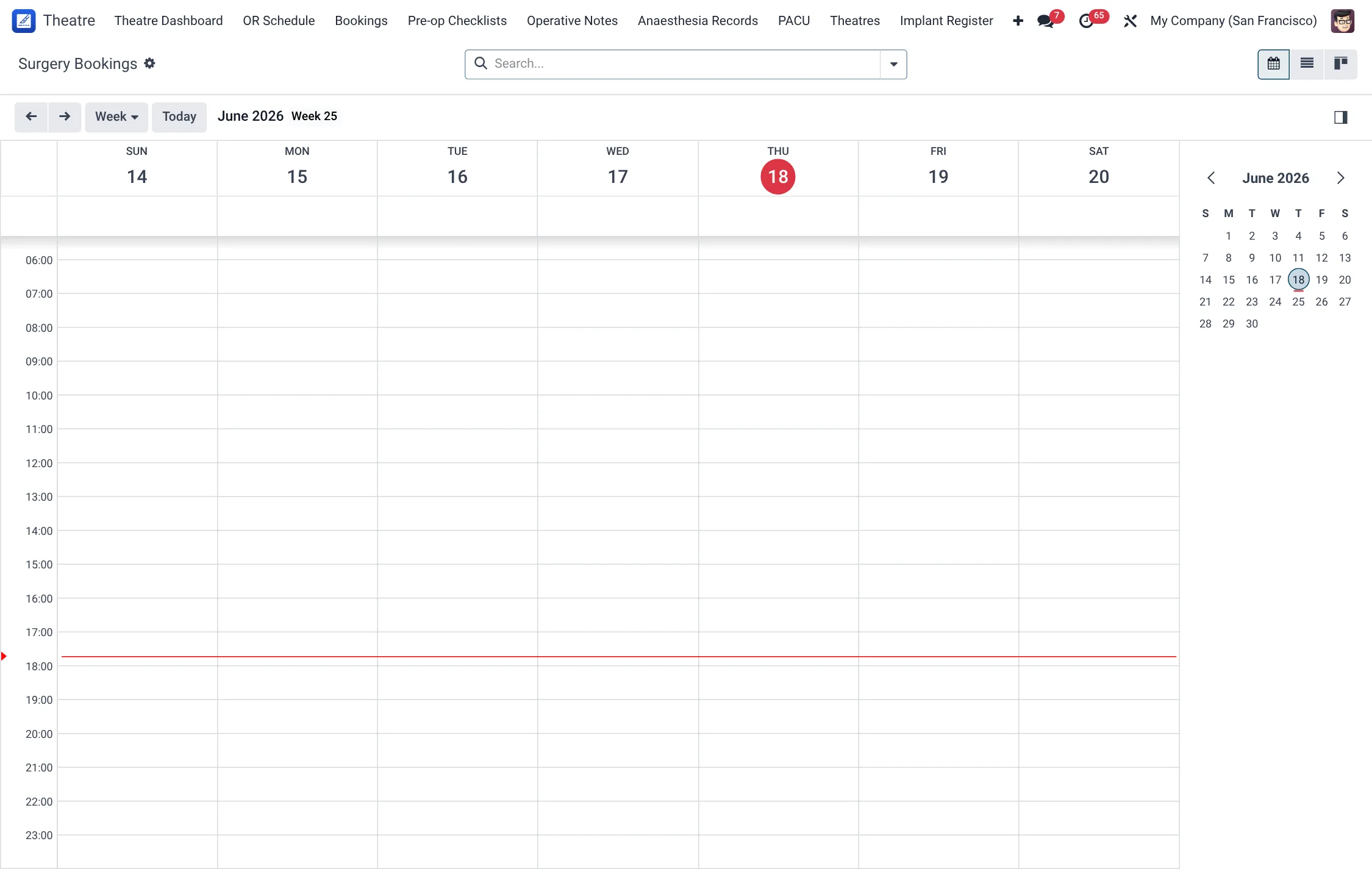
- Theatre → OR Schedule — the operating-room schedule listing every surgery booking; the place to create and slot new cases.
- Theatre → Bookings → Today / This Week / In Progress / Completed / Cancelled — pre-filtered lists of bookings for day-to-day coordination.
- Theatre → Pre-op Checklists — the WHO surgical safety checklists tied to each case.
- Theatre → Anaesthesia Records and Theatre → PACU — the anaesthesia and post-anaesthesia recovery records.
- Theatre → Theatres → Theatre Rooms and Procedure Catalogue — the master data a booking draws on.
Before you start
Confirm that the case prerequisites exist before you book: the patient must be registered, the procedure should be in the Procedure Catalogue, the operating room must exist under Theatre Rooms, and the surgeon, anaesthetist and nurses must be on file as staff. If sterile instrument trays are required, CSSD should already have them assembled and released (see CSSD).
Booking a surgery
- Open Theatre → OR Schedule and create a new booking. A new record starts in the Requested state.
- Select the patient, procedure, theatre (operating room) and scheduled date.
- Assign the surgical team — surgeon, anaesthetist, scrub and circulating nurse. The circulating-nurse field accepts only staff with the nurse role.
- Set the clinical classification: Anaesthesia Type, ASA Grade and Priority (see the field reference below).
- Press Schedule to confirm the slot. The booking moves to Scheduled.
- When the patient has been prepared, press Mark Pre-op Prepared (state Pre-op Prepared), then Ready for Theatre once the team and room are ready (state Ready for Theatre).
- Press Start Surgery to begin the operation. The case moves to In Theatre and the assigned theatre room is marked occupied.
- At the end of the operation, move the patient to recovery; the case becomes In Recovery (PACU) and the room is flagged for cleaning. From PACU, Transfer to Ward (state Transferred to Ward) and finally Discharge (state Discharged).
- Use Complete & Bill to finalise the case and raise the surgical bill.
If a case cannot go ahead, use Cancel Booking (records a cancellation reason) or Postpone to reschedule.
Case states
| State | Meaning |
|---|---|
| Requested | Surgery requested, not yet slotted. |
| Scheduled | Confirmed onto the operating-room schedule. |
| Pre-op Prepared | Patient prepared and pre-op steps done. |
| Ready for Theatre | Team and room ready; case may start. |
| In Theatre | Operation in progress; room occupied. |
| In Recovery (PACU) | Patient in post-anaesthesia care; room flagged for cleaning. |
| Transferred to Ward | Patient handed over to ward care. |
| Discharged | Surgical episode complete. |
| Cancelled / Postponed | Case stopped, with reason, or rescheduled. |
The surgical safety checklist
Each case is paired with a WHO surgical safety checklist, captured in three timed phases. The checklist record advances through its own states: Draft → Sign-In Complete → Time-Out Complete → Sign-Out Complete.
- Sign-In (Before Induction) — confirm patient identity, surgical site marking, the anaesthesia safety check, pulse oximeter on, allergy review, and any difficult-airway or blood-loss risk. Press Complete Sign-In.
- Time-Out (Before Skin Incision) — team introductions, confirmation of patient/procedure/site, antibiotic prophylaxis, imaging displayed and anticipated critical events. Press Complete Time-Out.
- Sign-Out (Before Patient Leaves OR) — confirm the procedure recorded, instrument/swab counts, specimen labelling and equipment concerns. Press Complete Sign-Out.
Checklist phases & items
The checklist record advances through Draft → Sign-In Complete → Time-Out Complete → Sign-Out Complete. Each phase has its own confirmation items, recorded as ticks with a signing staff member.
| Phase (when) | Items confirmed |
|---|---|
| Sign-In (before induction of anaesthesia) | Patient identity confirmed; surgical site marked; anaesthesia safety check; pulse oximeter on; allergy reviewed; difficult-airway risk; blood-loss risk. |
| Time-Out (before skin incision) | Team introductions; patient / procedure / site confirmed; antibiotic prophylaxis given; imaging displayed; anticipated critical events. |
| Sign-Out (before patient leaves theatre) | Procedure name recorded; instrument count complete; sponge / swab count complete; specimen labelled; equipment issues addressed. |
Checklist states
Each phase is a button that moves the checklist to the next state; a phase cannot be back-dated once signed.
| State | Meaning | Button |
|---|---|---|
| Draft | Checklist created, no phase yet signed. | – |
| Sign-In Complete | Pre-induction checks signed off. | Complete Sign-In |
| Time-Out Complete | Pre-incision team time-out signed off. | Complete Time-Out |
| Sign-Out Complete | End-of-case checks signed off. | Complete Sign-Out |
Surgical priority
The booking's priority drives how cases are sequenced on the list and how they are reported. Set it honestly — inflated emergency tiers distort throughput metrics.
| Priority | Target window |
|---|---|
| Elective | Planned list, no urgency. |
| Urgent | Within 72 hours. |
| Emergency (within 24h) | Within 24 hours. |
| Emergency (within 6h) | Within 6 hours. |
| Emergency (Immediate) | Straight to theatre. |
Anaesthesia
The anaesthesia plan is recorded on the booking and detailed in the anaesthesia record. The available Anaesthesia Type options are General Anaesthesia, GA with Endotracheal Intubation, GA with Laryngeal Mask Airway, Spinal, Epidural, Regional Block, Local Infiltration and MAC (Monitored Anaesthesia Care). During the operation the anaesthesia record documents airway assessment, vital readings, and drug and fluid events; after the operation the PACU record tracks recovery until the patient is safe to leave.
The PACU record carries its own state and a discharge destination chosen before release:
| PACU state | Discharge destination |
|---|---|
| Admitted | Ward |
| Monitoring | Intensive Care Unit |
| Discharged | High-Dependency Unit |
| – | Home (Day Case) |
| – | Left Against Medical Advice |
The airway assessment on the anaesthesia record uses the Mallampati class to predict intubation difficulty:
| Mallampati class | Visible structures |
|---|---|
| I | Soft palate, uvula and pillars visible. |
| II | Soft palate and upper uvula visible. |
| III | Soft palate and base of uvula visible. |
| IV | Hard palate only. |
Managing operating-room slots
The operating-room schedule is shared across every theatre, so good slot discipline keeps the day running. A few practical habits help:
- Slot against a real room. Every booking names a theatre and a scheduled date; the OR Schedule view shows how the day fills up per room so you can spot clashes and gaps before the list is published.
- Sequence by priority. Elective cases form the planned list; urgent and emergency cases (Emergency 6h, Emergency 24h, Emergency Immediate) are slotted ahead of electives as their priority demands.
- Watch room status. When a case starts, its room is marked occupied; when the patient moves to recovery, the room is flagged for cleaning. The dashboard reads these statuses, so a room is only offered for the next case once it is free again.
- Postpone, don't delete. If a case slips, use Postpone rather than cancelling and re-creating — it keeps the audit trail and lets you re-slot the same booking.
The Bookings sub-menus (Today, This Week, In Progress, Completed, Cancelled) are the coordinator's working filters across the same underlying schedule, so the team can answer “what is on now?” and “what is left today?” at a glance.
Field reference
| Field | Meaning | Required |
|---|---|---|
| Patient | The patient undergoing surgery. | Yes |
| Theatre | Operating room assigned to the case. | Yes |
| Scheduled Date | Planned date/time of the operation. | Yes |
| Anaesthesia Type | Planned anaesthesia technique; defaults to General. | Yes |
| ASA Grade | Physical-status classification, ASA I–V; defaults to ASA I. | Yes |
| Priority | Elective, Urgent (within 72h), Emergency 24h, Emergency 6h or Emergency Immediate. | Yes |
| Circulating Nurse | Nurse-role staff supporting the case. | No |
| Cancellation Reason | Recorded when a booking is cancelled. | On cancel |
Tips & troubleshooting
Related
- Theatre overview — the full surgical pathway.
- CSSD — sterile instrument sets feeding the list.