

Scheduled Reports
Scheduled Reports defines recurring report deliveries -- which report, to whom, in what format and on what cadence -- so management packs arrive automatically by email. It removes the manual effort of running and circulating routine reports. Leadership relies on it for daily, weekly and month-end distributions.
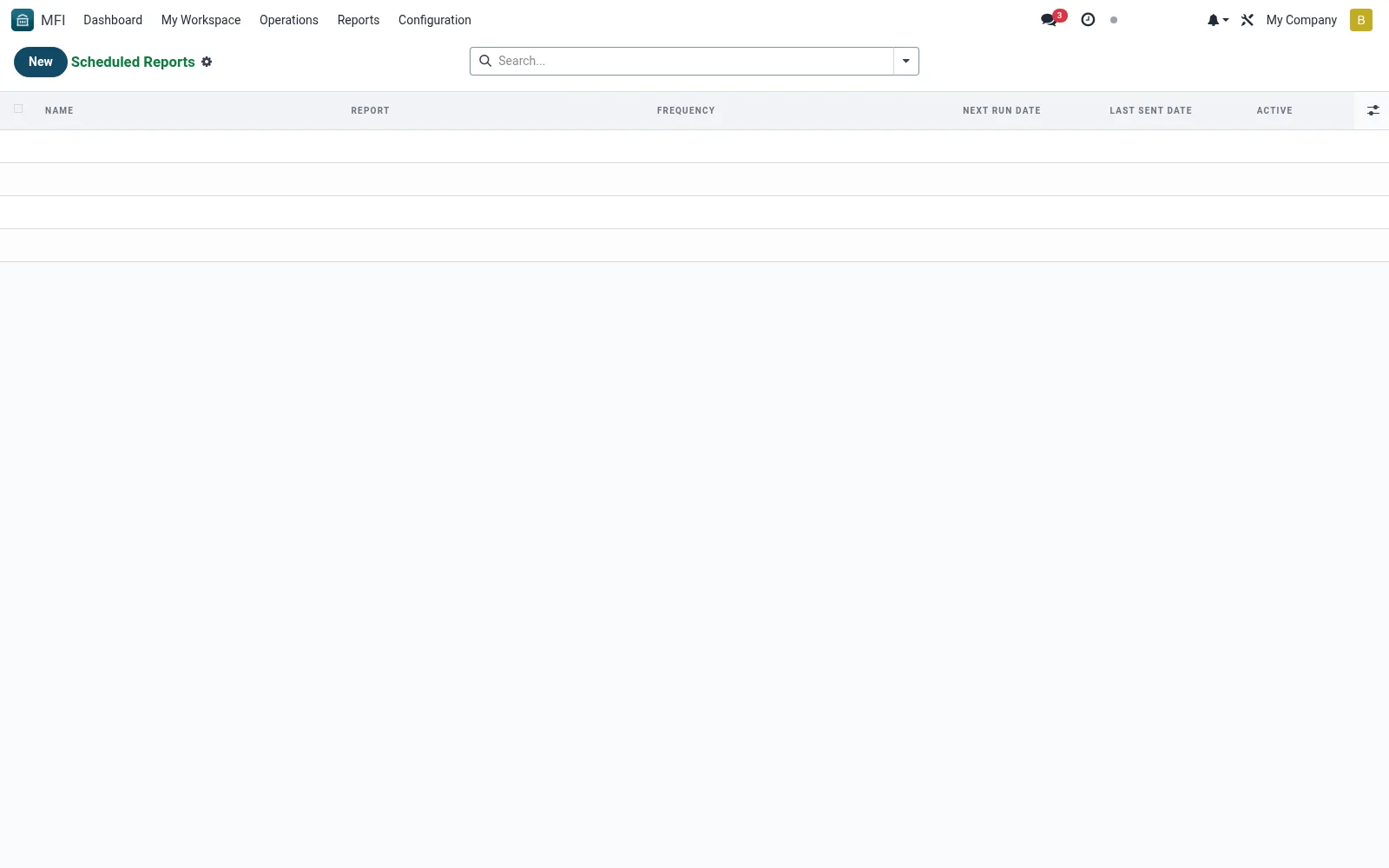
Workflow
- Open MFI > Operations > Reports > Scheduled Reports
- Click New and pick the report or template to schedule
- Set frequency, time and the recipient list
- Choose output format (PDF, spreadsheet) and filters
- Activate the schedule and verify the first delivery
Fields reference
Every field on this screen, drawn from the live data model.
| Field | Type | Required | Description |
|---|---|---|---|
Namename | Text | Yes | Name |
Frequencyfrequency | Choice: Daily, Weekly, Monthly, Quarterly | Yes | Frequency |
Activeactive | Yes/No | — | Active |
Reportreport_action_id | Link → ir.actions.report | — | Report |
Recipient Usersrecipient_user_ids | Tags | — | Recipient Users |
Recipient Partnersrecipient_partner_ids | Tags | — | Recipient Partners |
Day Of Weekday_of_week | Choice: Monday, Tuesday, Wednesday, Thursday, Friday, Saturday, Sunday | — | Day Of Week |
Day Of Monthday_of_month | Number | — | Day Of Month |
Hour Of Dayhour_of_day | Number | — | Hour Of Day |
Filter Domainfilter_domain | Text | — | Filter Domain |
Last Sent Datelast_sent_date | Date & time | — | Last Sent Date |
Next Run Datenext_run_date | Date & time | — | Next Run Date |
Email Subjectemail_subject | Text | — | Email Subject |
Email Bodyemail_body | Rich text | — | Email Body |
Actions & buttons
Buttons available on this screen and what they do:
- Run Now
Notes & rules
- Model mfi.report.schedule -- list, form views
- Key fields: report, recipients, frequency, format
- Related: Report Runs, Report Templates
- Used by management and operations admins
Was this page helpful?