

Print Defaults
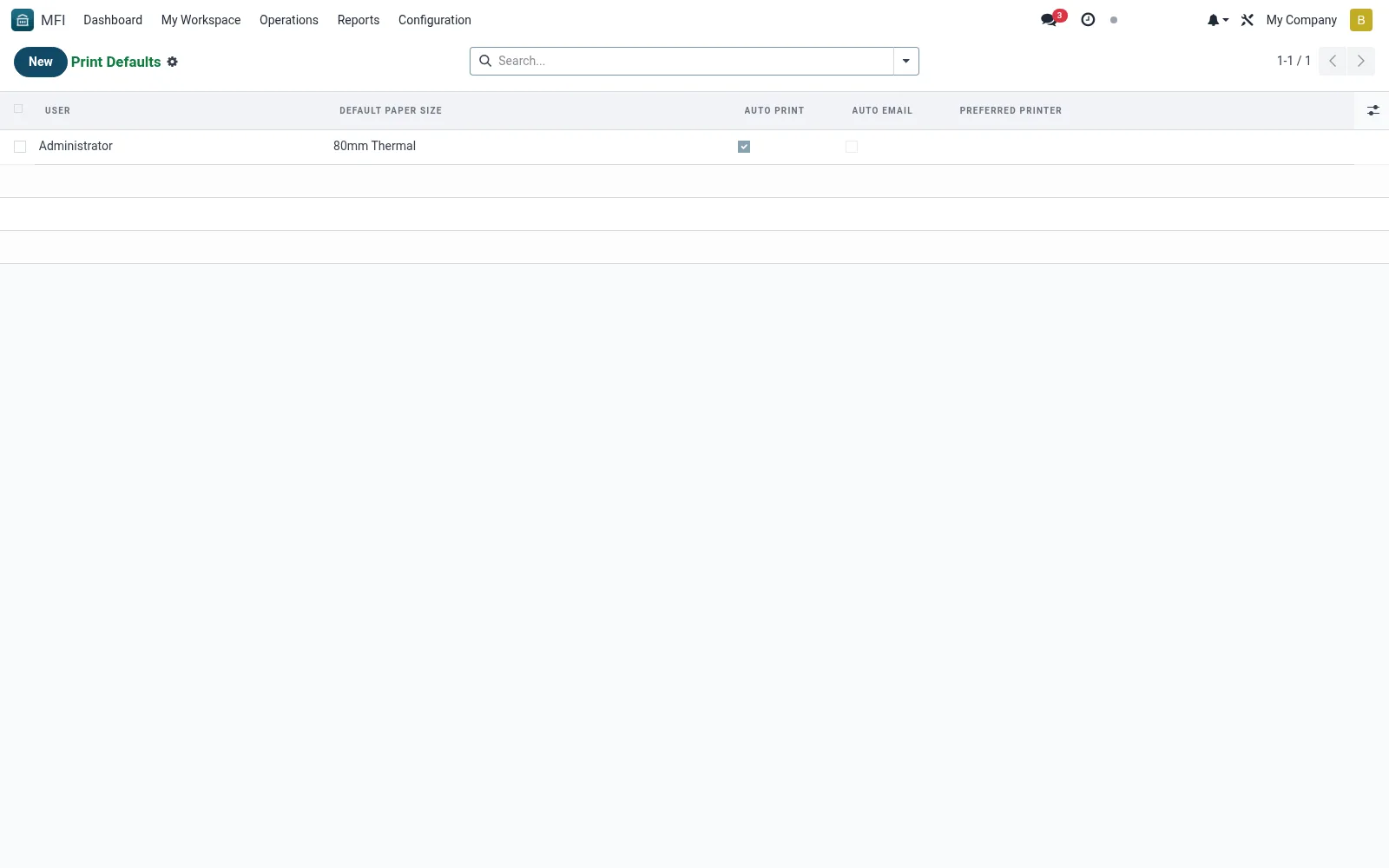
Print Defaults sets the institution's default printing behaviour -- receipt and document templates, printer assignments, paper sizes and copies -- so counter and back-office printing is consistent. It links the suite to the hardware fleet such as receipt printers and cash-drawer kickers. Operations admins configure it once so tellers print correctly every time.
Workflow
- Open MFI > Configuration > Settings > Print Defaults
- Create or edit a print configuration profile
- Assign document types to printers and paper sizes
- Set default copies and any receipt-template choices
- Save and test a print from a teller workstation
Fields reference
Every field on this screen, drawn from the live data model.
| Field | Type | Required | Description |
|---|---|---|---|
Auto Printauto_print | Yes/No | — | Open the print dialog automatically once the modal renders. |
Auto Emailauto_email | Yes/No | — | Email a copy of the receipt to the member after printing. |
Preferred Printerprinter_name | Text | — | Free-text label used to remind the user which physical printer should receive the job. Browsers cannot programmatically select a printer, so this is informational. |
Useruser_id | Link → res.users | Yes | User |
Default Paper Sizedefault_size | Choice: 80mm Thermal, 58mm Thermal, 110mm Thermal, A4, A5, US Letter | Yes | Default Paper Size |
Notes & rules
- Model mfi.print.config -- print defaults
- Key fields: document type, printer, paper size, copies
- Related: Settings, hardware/receipt printers
- Used by operations admins and IT
Was this page helpful?