

The Chart Desktop
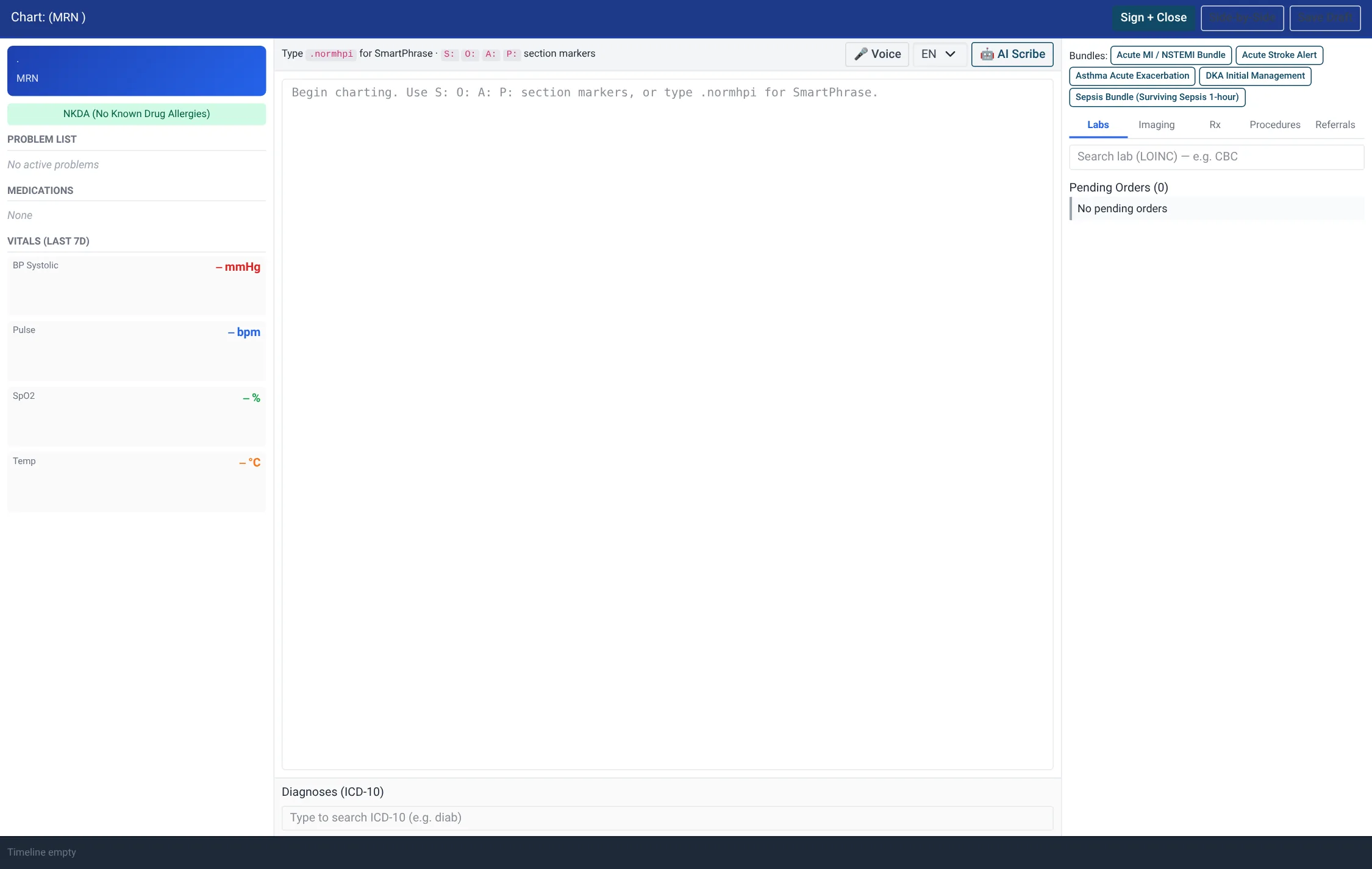
The Chart Desktop is the single-screen clinician workspace in BridgeERP HMS. Instead of moving between form tabs, the doctor sees the patient’s allergies, problem list, vitals trend and clinical timeline alongside a live note editor and an ordering panel — and signs the encounter without leaving the page. It is built for fast, keyboard-light consulting during a busy clinic.
Where to find it
- Outpatient → Chart Desktop → Open Chart (select consult) opens the desktop for a chosen consultation (model hms.consultation). Pick the patient’s consultation and the chart loads around it.
- Outpatient → Chart Desktop → Quick Order Sets manages the reusable order bundles (model hms.quick.order.set) that the desktop can apply in one click.
Before you start
- A consultation must exist for the visit (create it from Outpatient → Consultations — see Consultations).
- For the ordering panel to be productive, populate Quick Order Sets and the formulary/lab/imaging catalogues that back the search boxes.
The layout
The Chart Desktop is organised into three working zones around the patient header:
- Context rail — the Allergies banner (expandable), the Problem List, a vitals strip with sparkline trends, and a clinical timeline of past events you can click to expand.
- Note editor — a free-text clinical note with autosave; a “last saved” indicator confirms your work is being persisted as you type.
- Order panel — a tabbed ordering area for Labs, Imaging, Medications, Procedures, Referrals and Diagnoses (ICD-10), plus the running list of draft orders before you commit them.
Ordering from the chart
The order panel switches between tabs so you can build a mixed bundle of orders for the encounter:
| Tab | What you order | How you find it |
|---|---|---|
| Labs | Laboratory tests | Search lab (LOINC) — e.g. CBC |
| Imaging | Radiology studies | Search imaging — e.g. CXR, MRI L-spine |
| Medications | Prescription drugs | Search drug (RxNorm) — e.g. amoxicillin |
| Procedures | Procedures | Procedure name (free text) |
| Referrals | Specialty/provider referral | Refer to (specialty / provider) |
| Diagnoses (ICD-10) | Coded problems | Type to search ICD-10 (e.g. diab) |
Step-by-step: work a chart
- Open Chart Desktop → Open Chart (select consult) and choose the patient’s consultation. The allergy banner, problem list, vitals and timeline populate from the patient’s record.
- Review the Allergies banner first; click to expand the full list. Scan the Problem List and the vitals sparklines for trends.
- Type the encounter note in the editor. It autosaves as you work; the “saved at” marker confirms persistence. A voice-dictation control is available for hands-free entry.
- In the order panel, switch to the tab you need, search the catalogue, and add items — each lands in the draft orders list. Remove any you added by mistake.
- To order a standard bundle, apply a Quick Order Set — its lines are added to the draft orders in one action.
- Add coded problems on the Diagnoses (ICD-10) tab as you reach them.
- Press Save Draft to keep working, or Sign + Close to commit the note and orders and complete the encounter.
Quick Order Sets
A Quick Order Set is a named, coded bundle of orders — for example a malaria work-up or an antenatal panel. Each set has a name, a code, a category and an optional specialty, and holds order lines. Each line has a kind (lab, imaging, medication, procedure or referral), a label, an optional clinical concept, dose/instruction text and an urgency. Build these once under Chart Desktop → Quick Order Sets and clinicians apply them repeatedly from the desktop.
Generate Note (SOAP)
The desktop also offers a Generate Note (SOAP) action that drafts a structured SOAP note for the encounter using the AI tooling. The draft is always editable before signing — see AI clinical tools for how the AI drafts are reviewed and accepted.
Quick Order Set field reference
| Field | Meaning | Required |
|---|---|---|
| Name | Display name of the bundle. | Yes |
| Code | Short unique code used to apply the set. | Yes |
| Category / Specialty | Classifies the set for browsing. | Category: yes |
| Lines → Kind | Lab, imaging, medication, procedure or referral. | Yes |
| Lines → Label | Human-readable order text. | Yes |
| Lines → Concept | Optional coded concept for the order. | No |
| Lines → Dose / Instructions | Dosing or instruction text. | No |
| Lines → Urgency | Routine / urgent / stat for the order. | No |
Quick Order Set categories
Each Quick Order Set carries a category and an optional specialty so the right bundle is easy to find. The available classifications are:
| Category | Specialty |
|---|---|
| Emergency / Resuscitation | General |
| Critical Care | Emergency |
| Admission | ICU |
| Peri-Operative | Cardiology |
| Chronic Disease Management | Endocrinology |
| Discharge | Pulmonology |
| Other | Neurology / Infectious Disease |
Decision-support alerts on the chart
As you place orders and record diagnoses, clinical decision support evaluates them and may raise a best-practice advisory. The severity of an alert tells you whether it is a gentle reminder or a barrier you cannot cross without justifying yourself.
| Severity | Behaviour at the point of ordering |
|---|---|
| Info | Informational reminder; no action required to proceed. |
| Warning | Cautionary advisory; proceed with awareness, may prompt an override reason. |
| Critical | Serious safety concern; requires an explicit override reason to continue. |
| Hard Stop | Blocks the action outright — the order cannot proceed as entered. |
Reading the context rail
The context rail is what makes the desktop safe to consult from. The Allergies banner sits at the top precisely so it is impossible to miss before prescribing; it stays collapsed to a summary and expands to the full list on click. The Problem List shows the patient’s active and resolved problems so you are not re-discovering history mid-encounter. The vitals strip renders recent observations as sparklines, so a rising blood pressure or a falling oxygen saturation is visible as a shape rather than a column of numbers. The clinical timeline threads past encounters, results and events in date order; click any event to expand it and read the detail without leaving the chart. Together they put the “is there anything I should know about this patient” question on one screen.
Roles & access
The Chart Desktop is a clinician workspace — signing an encounter with Sign + Close is a Doctor-group action, the same right that completes a consultation from the form view. Nurses can open a chart to read the problem list, vitals and timeline. Authoring Quick Order Sets is an administrative/managerial task so that the bundles clinicians apply are governed centrally rather than created ad hoc.