

Hardware Integration
Hardware Integration bridges the suite to physical peripherals through the MFI Edge Agent — thermal printers, cash drawers, displays, signature pads, biometrics. A browser-print fallback keeps things working when the Edge Agent is offline.
How to pair a thermal printer
Install the Edge Agent on the branch PC, the printer becomes auto-discoverable. From the suite, you point the branch + till at the discovered printer.
- Download + install the Edge Agent on the branch PC (download link in Configuration → Hardware → Edge Agent).
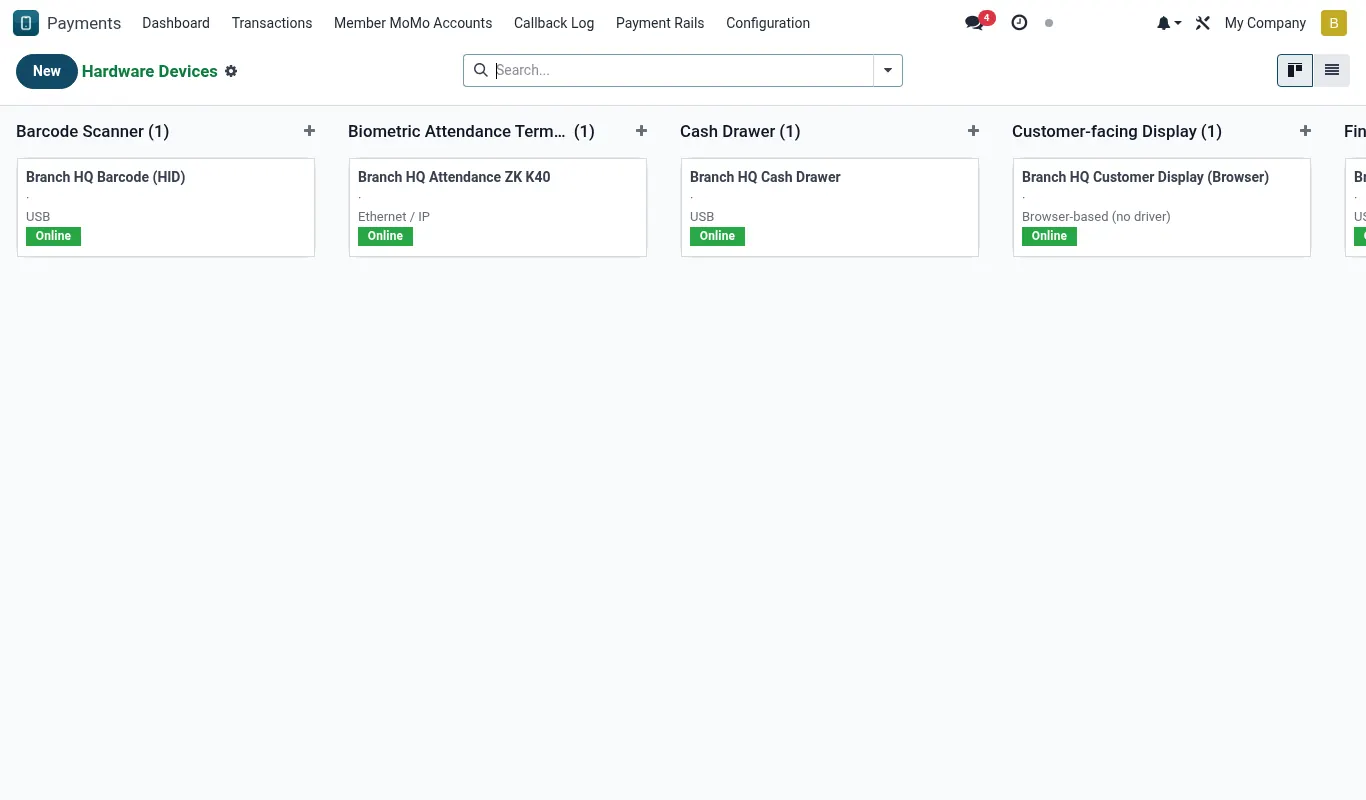
- Edge Agent registers itself with the suite and shows up under Hardware → Devices.
- Open Hardware → Devices; assign the printer to the right till.
- Print a test receipt from the till to confirm.
Reference
Feature checklist
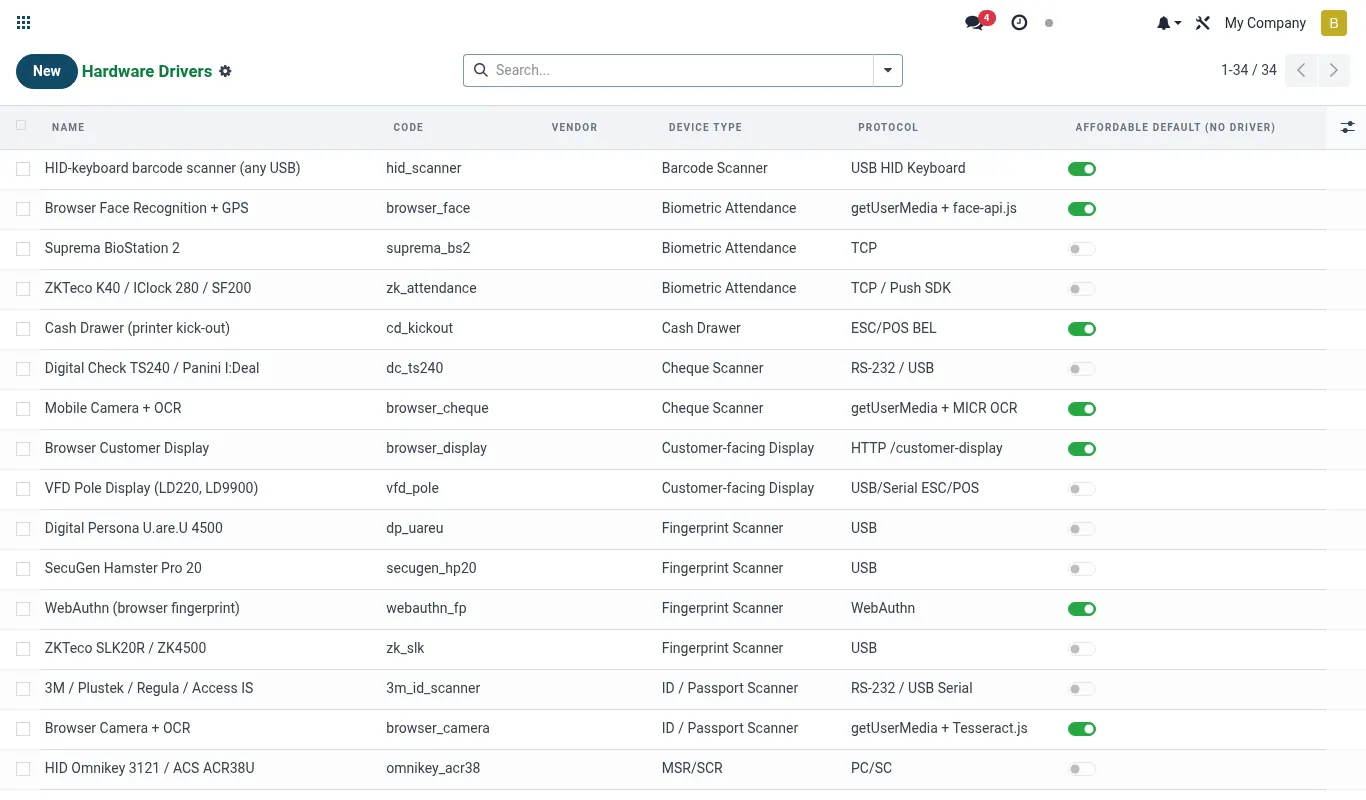
- Edge Agent for real ESC/POS receipt printing
- Cash-drawer control
- Queue management screen + ticket printing
- Customer-facing display (price + balance)
- Signature pad capture
- Fingerprint + face-match biometrics
- Browser-print fallback when Edge Agent offline
Configuration reference
| Where | What to set |
|---|---|
| Edge Agent | Download + register per branch |
| Device pairing | Auto-discover or manual |
| Print defaults | Receipt paper, copies, opening cash drawer |
Roles & permissions
| Group | Capability |
|---|---|
| mfi_hardware.group_hardware_admin | Pair devices, drivers |
Accounting integration
None — operational.Tip. When Edge Agent is offline, receipts still print via the browser fallback — operators may not notice the degradation. Keep the navbar status widget visible.
Was this page helpful?