

Feature Gates
Feature Gates is the "Settings switchboard" for the suite. Each MFI app ships with only the essentials visible; everything else (dashboards, reports, advanced workflows) hides until you flip the matching toggle. Same pattern Accounting uses for Multi-Currency.
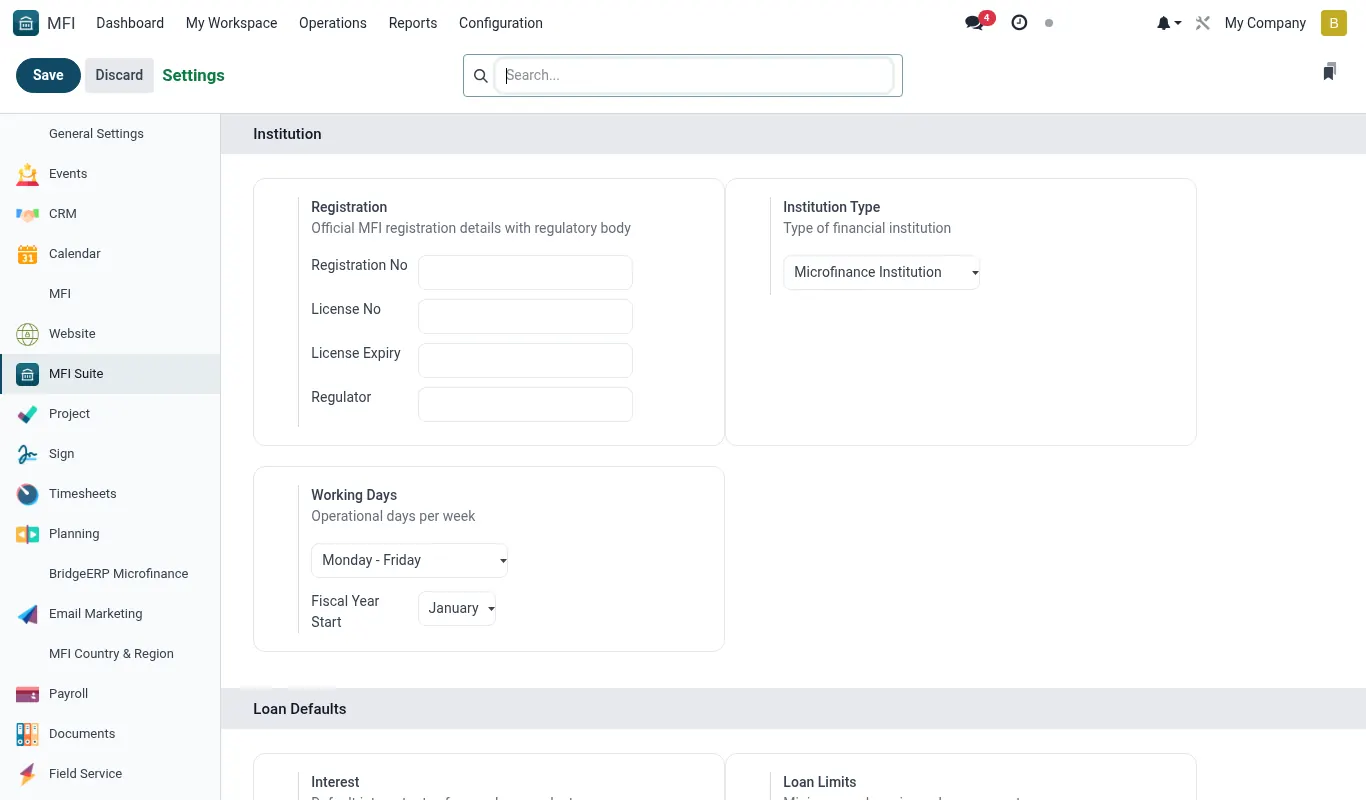
How to turn on Term Deposits (example)
Term Deposits — fixed-deposit contracts with auto-rollover and break penalties — is hidden by default because most new tenants don't need it on day one.
- Open Configuration → Settings → MFI Suite.
- Scroll to the Savings block.
- Toggle Term deposits on; click Save.
- The Term Deposits menu now appears under Savings; the term-deposit product type becomes selectable.
How the gating actually works
Each toggle is backed by a BridgeERP security group. When you flip the toggle on, the group is added to the current user; menus that were hidden because they required that group become visible.
- A toggle = a
res.groupsrecord. - The menu carries
groups_idwith that group as its only entry. - Default install: user is NOT in the group, menu hidden.
- Toggle on: user gets the group, menu visible. Toggle off: group removed, menu hidden again.
- Uninstall hook restores original
groups_idbackup.
Reference
Feature checklist
- Each MFI app ships with only its core menu + Configuration visible
- ~51 toggles across the suite
- Toggle = security group; flipping = group add
- Uninstall hook restores original groups_id backup
Configuration reference
| Where | What to set |
|---|---|
| Settings → MFI Suite | The single source of truth for what is visible |
Roles & permissions
| Group | Capability |
|---|---|
| Settings administrator | Required to flip toggles |
Accounting integration
None.Tip. On a fresh install, the default-essentials view keeps the suite uncluttered. Flip toggles per pilot branch as the team grows into them.
Was this page helpful?