

Lesson plans & resources / e-learning
Beyond grades, EduPrime helps teachers plan lessons, attach resources, and deliver online learning through standard course packages. This page covers lesson planning, the resource library, and connecting SCORM, xAPI and LTI content.
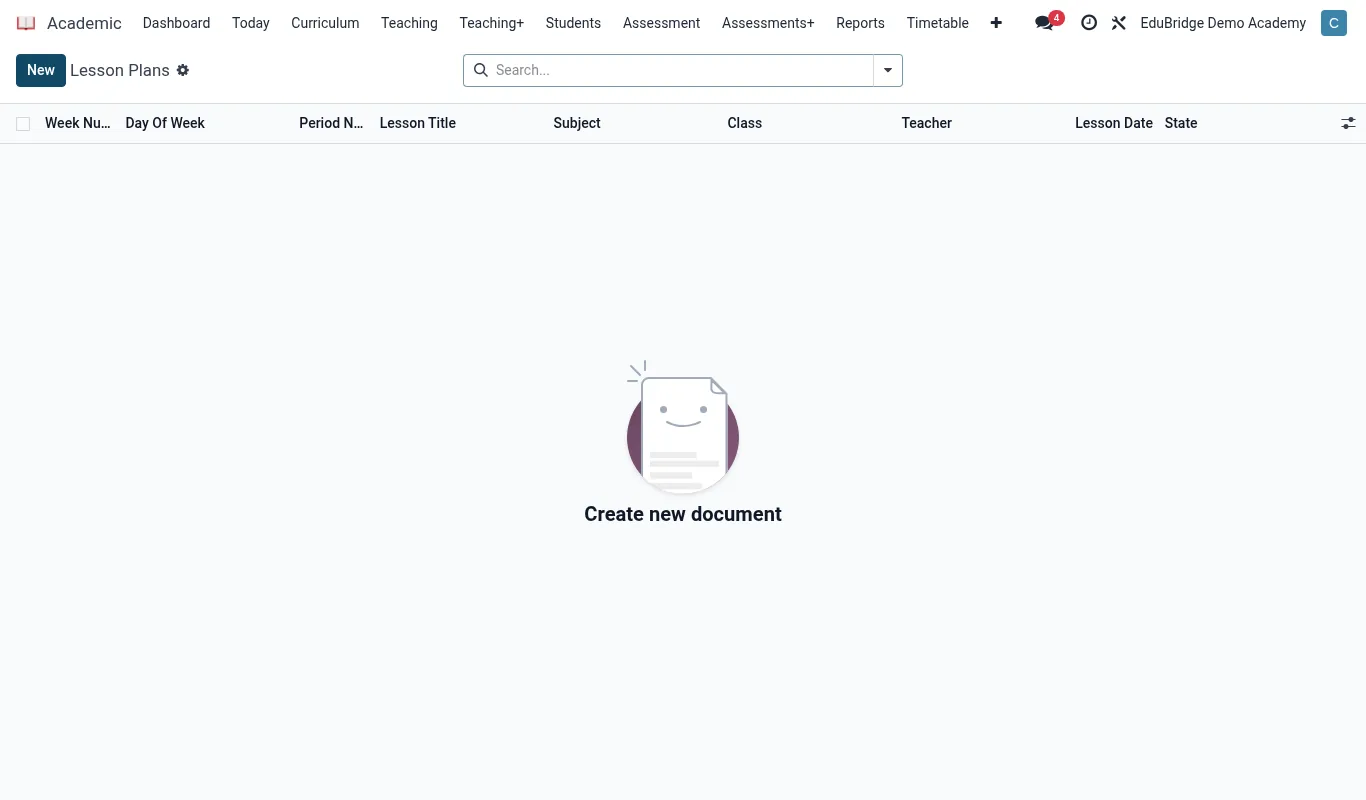
Lesson planning
A lesson plan ties a slot on the timetable to its learning objectives and materials. Open Academic → Lesson Plans and create a plan for a subject and class.
- Pick the subject, class and the week or specific timetable period.
- State the learning objectives and, for competency curricula, the strands the lesson targets.
- Outline the lesson activities and assessment.
- Attach resources – documents, slides, links or course packages (below).
- Submit for the head of department to review if your school requires sign-off.
The resource library
Files attached to lesson plans build a searchable resource library per subject. Teachers of parallel classes draw from the same library, and resources flagged as student-visible appear in the learner portal alongside the lesson.
Online courses – SCORM and xAPI
EduPrime plays standard e-learning packages directly in the portal, so commercial or self-authored courses run without extra software.
| Format | What it does | Tracking |
|---|---|---|
| SCORM | Self-contained course package | Completion & score back to gradebook |
| xAPI (Tin Can) | Richer activity statements | Detailed learning records |
- Open Academic → E-learning → Courses and click Upload package.
- Drop in the SCORM or xAPI
.zip; EduPrime registers its activities. - Assign the course to a class or subject; it appears in the learner portal.
- As learners complete it, scores can post back to the gradebook as a CA column.
LTI tools
For external platforms – an interactive maths tool, a language lab, a publisher's library – EduPrime acts as an LTI consumer. Add the tool's launch URL and keys under E-learning → External Tools, and learners launch it single-sign-on from the portal, with grades returned over LTI where the tool supports it.