

Building the timetable
The timetable engine places subject periods against the three scarce resources every school juggles – teachers, rooms and time – while watching for clashes. Once built, it publishes a per-class and a per-teacher view that parents and students can see in the portal.
Defining the time structure
Open Academic → Timetable → Configuration and define the bell schedule once for the whole school.
- Set the teaching days (for example Monday–Friday).
- Add the periods in order, each with a start and end time. Mark breaks and lunch as non-teaching periods so the engine never places a lesson there.
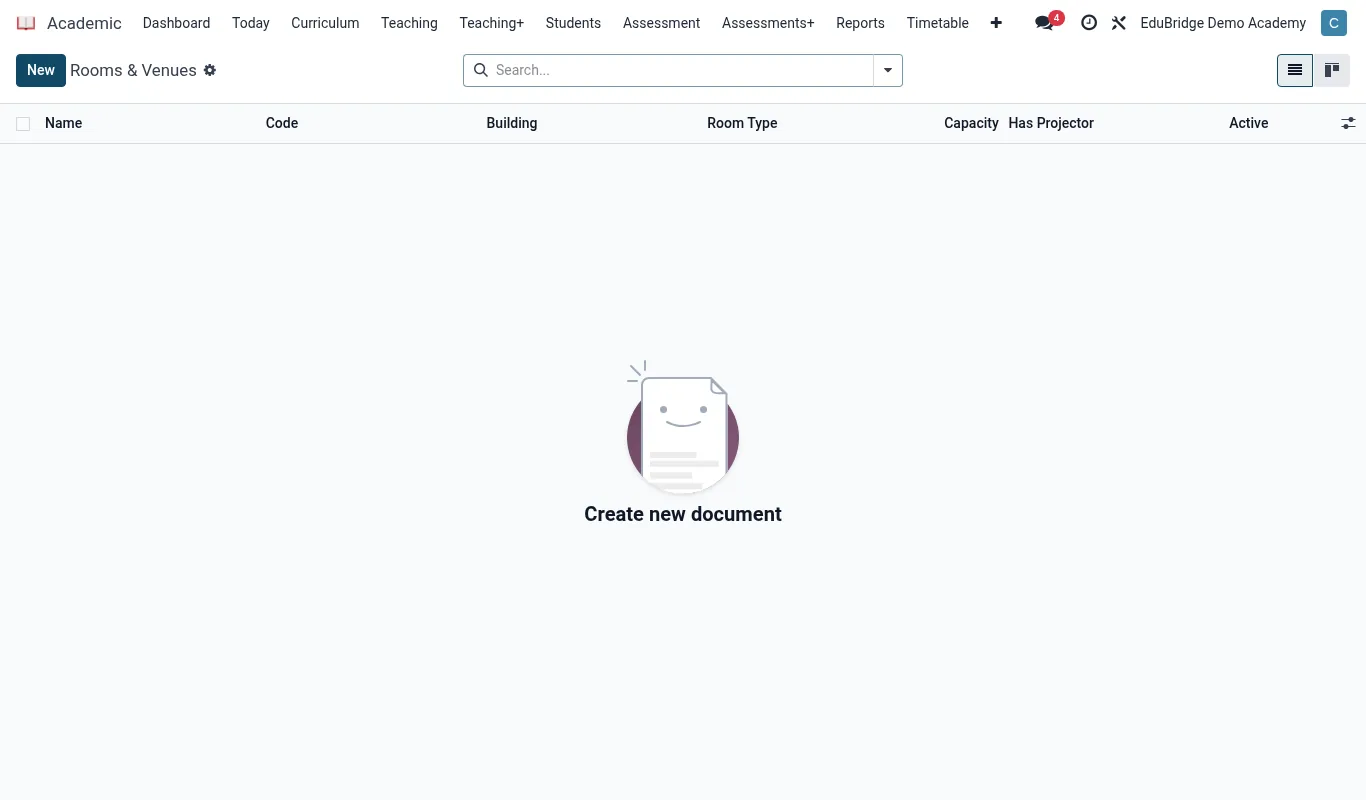
- List your rooms with a capacity and, where relevant, a type (lab, computer room, sports hall) so specialist subjects only land in suitable rooms.
Placing periods and teacher load
Create a timetable for a class, then add lessons. You can place them manually by dragging a subject onto a slot, or let the engine auto-place using each subject's periods-per-week target.
- Manual placement – click an empty slot, choose the subject and teacher; the room defaults to the class's home room and can be overridden.
- Auto-placement – click Generate and the engine fills the grid to hit every subject's weekly target while balancing each teacher's load across the week.
Each teacher carries a maximum weekly load. The engine will not exceed it, and the Teacher load report shows who is under- or over-allocated so you can rebalance before publishing.
Clash detection
EduPrime continuously checks for three kinds of conflict and flags any offending slot in red:
| Clash type | Meaning | Fix |
|---|---|---|
| Teacher double-booked | Same teacher, two classes, same period | Reassign one lesson to another teacher or slot |
| Room double-booked | Two classes in one room at once | Move one lesson to a free room |
| Class double-booked | Two subjects for one class in one slot | Remove the duplicate placement |
Publishing to the portal
When the grid is clash-free, click Publish. EduPrime generates two read-only views from the same data:
- A per-class view that students and parents see in their portal.
- A per-teacher view each teacher sees on their dashboard.