

Taking attendance
Attendance in EduPrime is taken per class and per period, not once a day. This gives an accurate picture of lesson-level presence, drives parent alerts, and feeds the attendance figures printed on every report card.
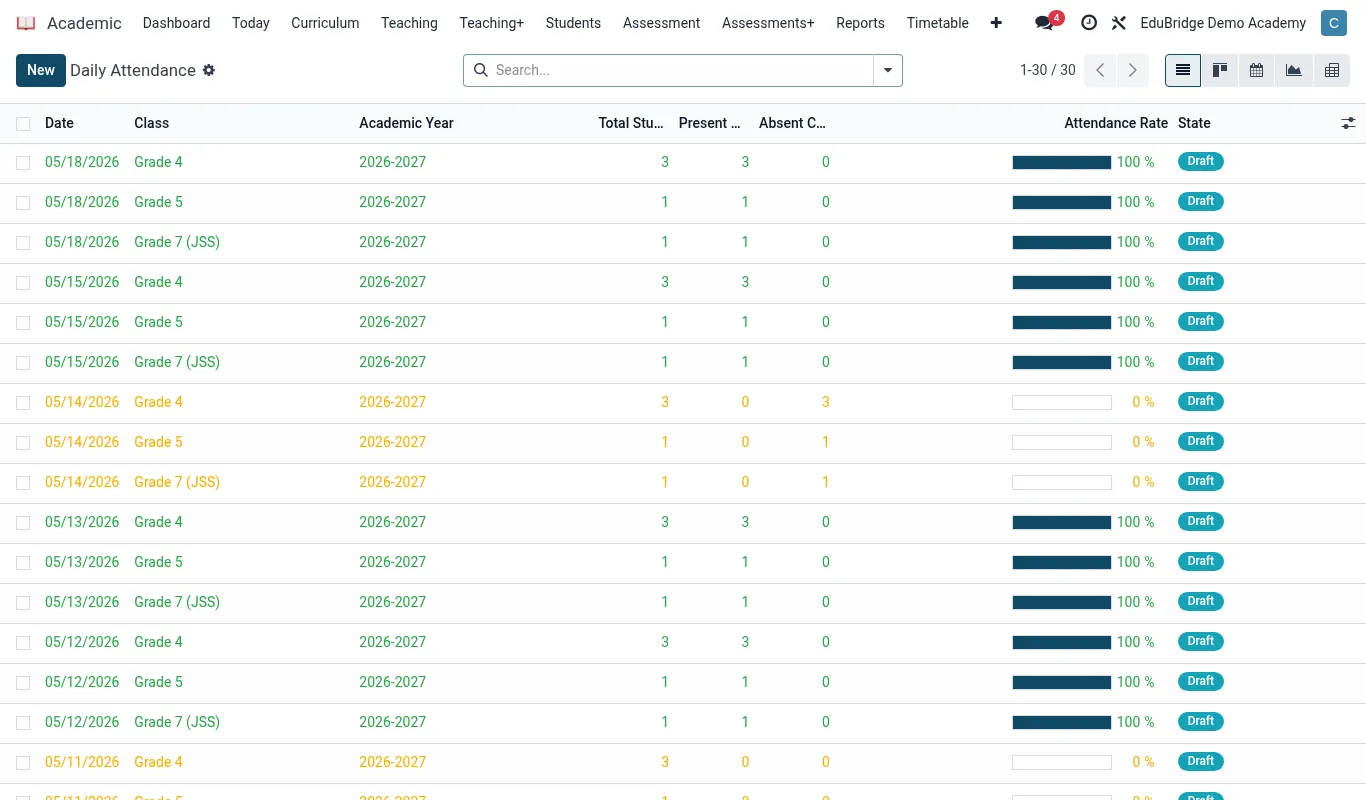
Opening a period register
Because the timetable already knows which class a teacher has in each period, the register is one click away.
- From the teacher dashboard, open the current lesson under My Timetable, or go to Academic → Attendance and pick the class and period.
- EduPrime opens a register pre-filled with every learner in the class, each defaulting to Present.
- Tap a learner to change their status to Absent or Late.
- Click Submit. The register locks for that period and the timestamp is recorded.
Marking statuses and bulk actions
Four statuses cover normal teaching. Use the bulk buttons when most of the class shares a status – for example marking everyone present after a roll call, then flipping the two who are away.
| Status | Meaning | Counts as |
|---|---|---|
| Present | In the lesson | Attended |
| Absent | Not in the lesson, no excuse yet | Absence |
| Late | Arrived after the period started | Attended (flagged late) |
| Excused | Absent with an approved reason | Authorised absence |
Recording excuses
An absence becomes an excused absence when a reason is approved. Open the learner's attendance line, click Add excuse, choose a reason (illness, bereavement, school trip), attach any document such as a medical note, and submit for the class teacher to approve. Approved excuses are reported separately from unexplained absences.
Reports and parent alerts
EduPrime turns the per-period data into rolled-up figures and proactive alerts.
- Attendance report – per learner, per class or whole-school summaries of present / absent / late / excused, with attendance percentage.
- Parent alerts – when a learner is marked absent without a pre-approved excuse, EduPrime can send the parent an SMS or portal notification automatically.
- Report card line – each term's attendance percentage is pulled onto the report card without re-entry.