

Events & the school calendar
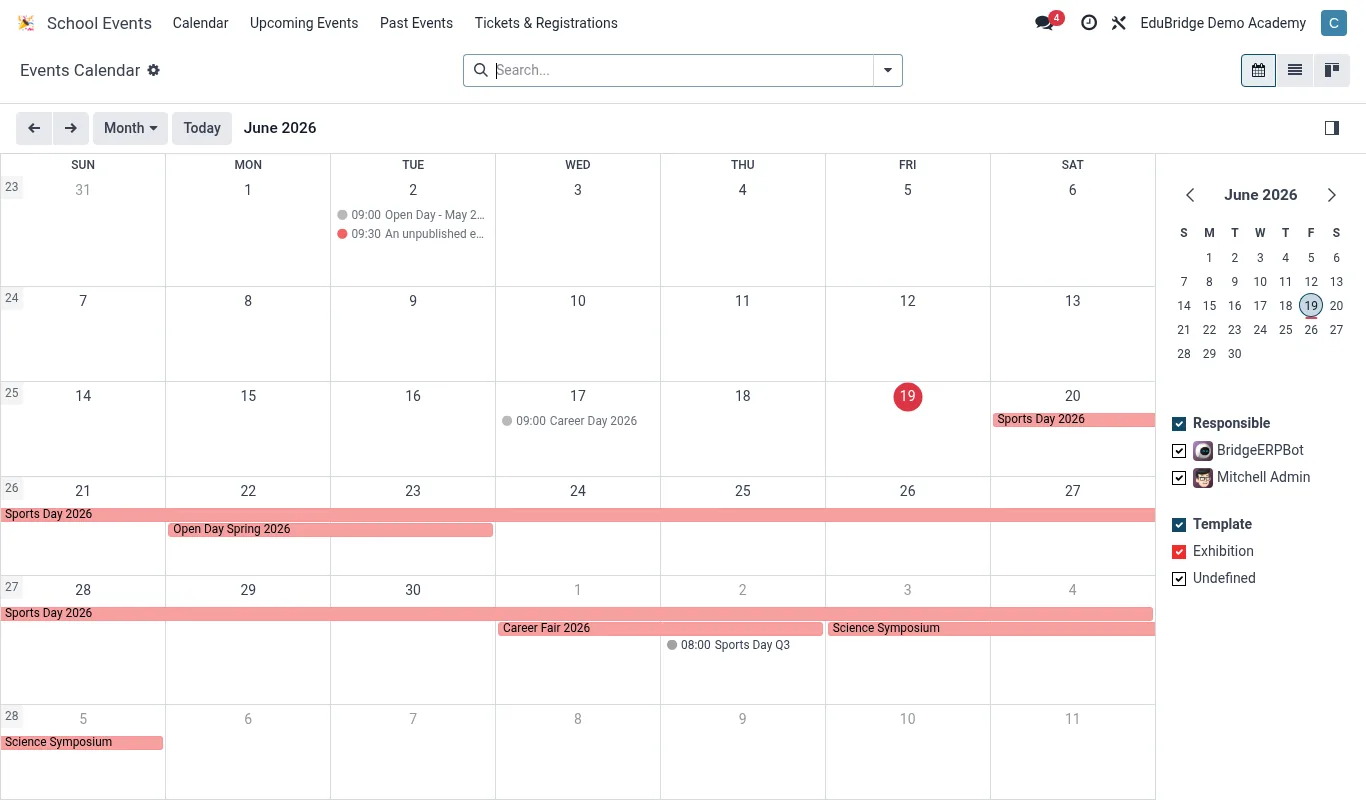
The Events app runs the school calendar with online registration and ticketing, surfacing everything that's happening on the portal calendar for families.
Where to find it — App drawer → School Events → Calendar.
Creating an event
- Open
Events → Eventsand click New. - Enter the title, date/time, venue and a description.
- Choose whether it needs registration and, if so, set capacity and any ticket types (free, paid, parent, student).
- Set the audience so it appears for the right families on the portal.
- Publish. The event shows on the school calendar and, if open, accepts registrations.
Online registration & ticketing
For events with limited places – a parents' evening slot, a trip, a paid concert – families register through the portal.
| Event type | Registration | Payment |
|---|---|---|
| Open day / assembly | None or informational | – |
| Parents' evening | Time-slot booking | – |
| Trip | Consent + place | Paid online |
| Concert / fundraiser | Ticketed | Paid online |
Capacity is enforced – once full, registration closes automatically. Paid tickets settle through the school's payment channels and produce a confirmation the family can show on arrival.
Tip — For parents' evenings, publish bookable time slots per teacher. Families pick a slot in the portal and EduPrime builds each teacher's schedule for the night – no spreadsheets, no double-booking.
The portal calendar
Every published event appears on the family's portal calendar alongside term dates and their child's timetable, so parents see one unified schedule. Reminders go out through the alert-rule engine ahead of the event.
Important — For any event involving students leaving the premises, require explicit consent at registration and keep the consent record. The medical manifest from the Clinic app draws on the registered student list for that trip.
Related pages
Was this page helpful?