

Building fee structures
A fee structure is a priced bundle of fee items for one class and one term. When a student is placed in that class, the structure decides what they are billed. This page shows how to build structures, mark items compulsory or optional, create variants for siblings and boarders, and control when a structure takes effect.
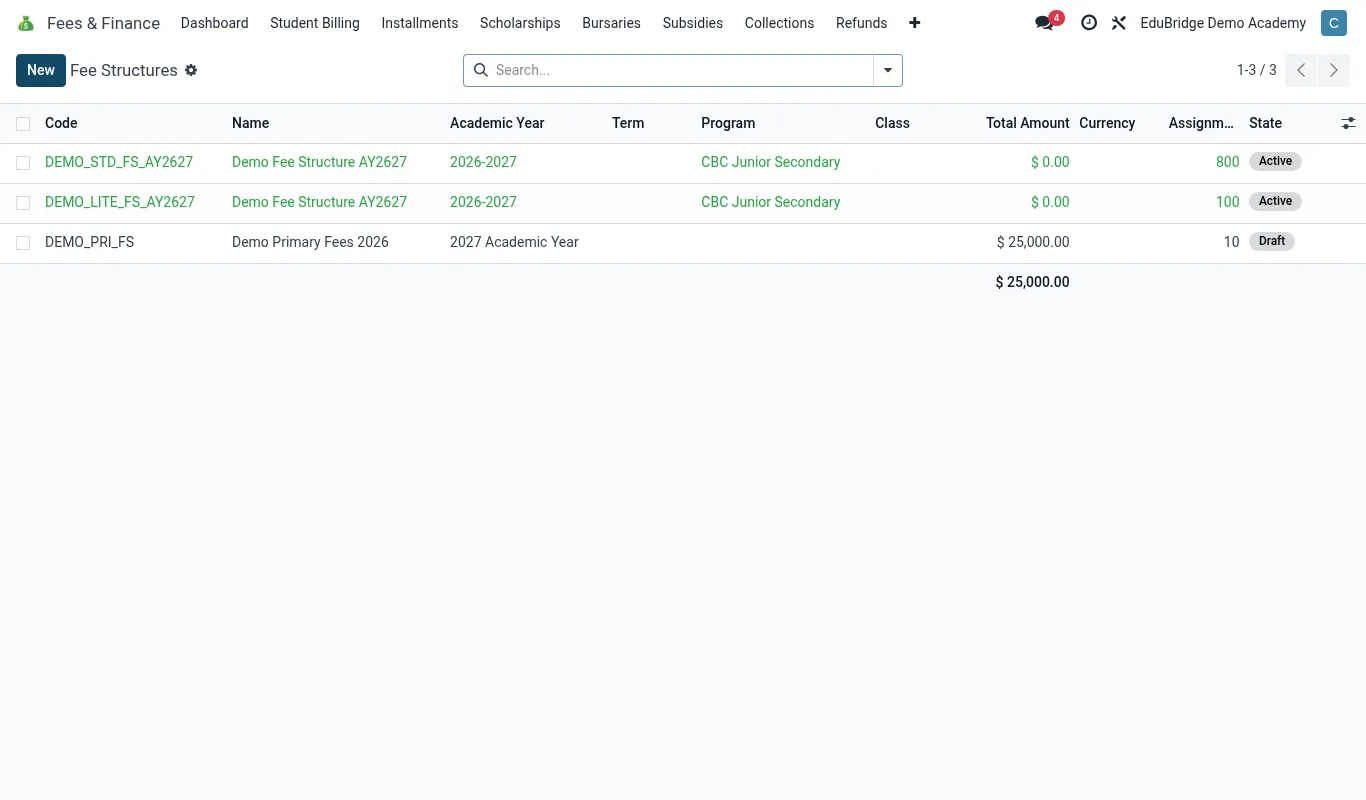
Creating a structure
Go to Fees & Finance → Configuration → Fee Structures and click New.
- Name it for the class and term, e.g. Grade 5 – Term 2 2026.
- Set the class and term it applies to.
- Set the effective date – the date from which new invoices use this structure.
- Add lines by selecting fee items; the default amount fills in and you can override it for this class.
- For each line, set Compulsory or Optional (see below).
- Save and Activate.
Compulsory vs optional items
Not every child in a class takes every service. Boarding, transport and meal items typically vary child-by-child.
- Compulsory items are billed to every student on the structure – tuition, mandatory exam fees.
- Optional items are billed only to students who have opted in (or whose service is confirmed by a bridge) – a day scholar should not see boarding even though it is on the class structure.
Bridges and enrolment settings decide which optional items apply: if the Transport app has the student on Route 3, the transport line is added; if not, it is skipped.
Sibling, boarding & staff variants
Schools rarely have one flat price list. EduPrime supports variants without duplicating whole structures:
| Variant | How it is handled |
|---|---|
| Boarder vs day scholar | Same structure; boarding/meals lines are optional and switched on for boarders |
| Sibling discount | A scholarship/bursary rule (see Scholarships page) applied automatically to invoices for 2nd, 3rd child |
| Staff children | A staff bursary rule that waives or reduces tuition |
Keep discounts in the Scholarships & Bursaries engine rather than building a separate cut-price structure – that way the full fee and the award both show on the statement, which is transparent and auditable.
Effective dates & mid-year changes
The effective date protects invoices already raised. If you raise Term 2 invoices on 1 May and then discover an item was priced wrong, edit the structure and set a new effective date – existing invoices are untouched; only newly raised ones use the corrected price.
- To change a price for everyone immediately, edit the line, then re-issue invoices for affected students (the system warns before overwriting).
- To change a price for future joiners only, set a forward effective date and leave existing invoices alone.
Always check the effective date before activating – a back-dated structure can silently re-price children who already paid.