

Statements & the family ledger
The statement is the single document a family trusts: every charge, every payment, and the balance carried forward, in date order. This page explains how the running statement works, how to set opening balances, how multi-child families are handled, and how parents download their statement.
The running statement
Each family has one continuous ledger. EduPrime posts to it automatically:
- A debit for every invoice raised (tuition, boarding, bridged transport/meals, shop purchases posted to account).
- A credit for every payment received and every credit note.
- A running balance after each line, so the bottom line is always what the family owes today.
Open it from Fees & Finance → Families → Statement, or from any student record. The statement spans terms – last term’s closing balance becomes this term’s opening line, so nothing is ever lost between terms.
Opening balances at go-live
When you first move to EduPrime, families usually arrive with existing balances – arrears or credits from your old system. Enter these as opening balances so the ledger is correct from day one.
- Go to Fees & Finance → Families → Opening Balances (or import a spreadsheet).
- For each family, enter the net balance brought forward: a debit for arrears, a credit for prepayments.
- Date it the go-live date and label it Opening balance so it is distinct from current-term charges.
- Reconcile the total of all opening balances against your old system’s closing report before going live.
Multi-child families
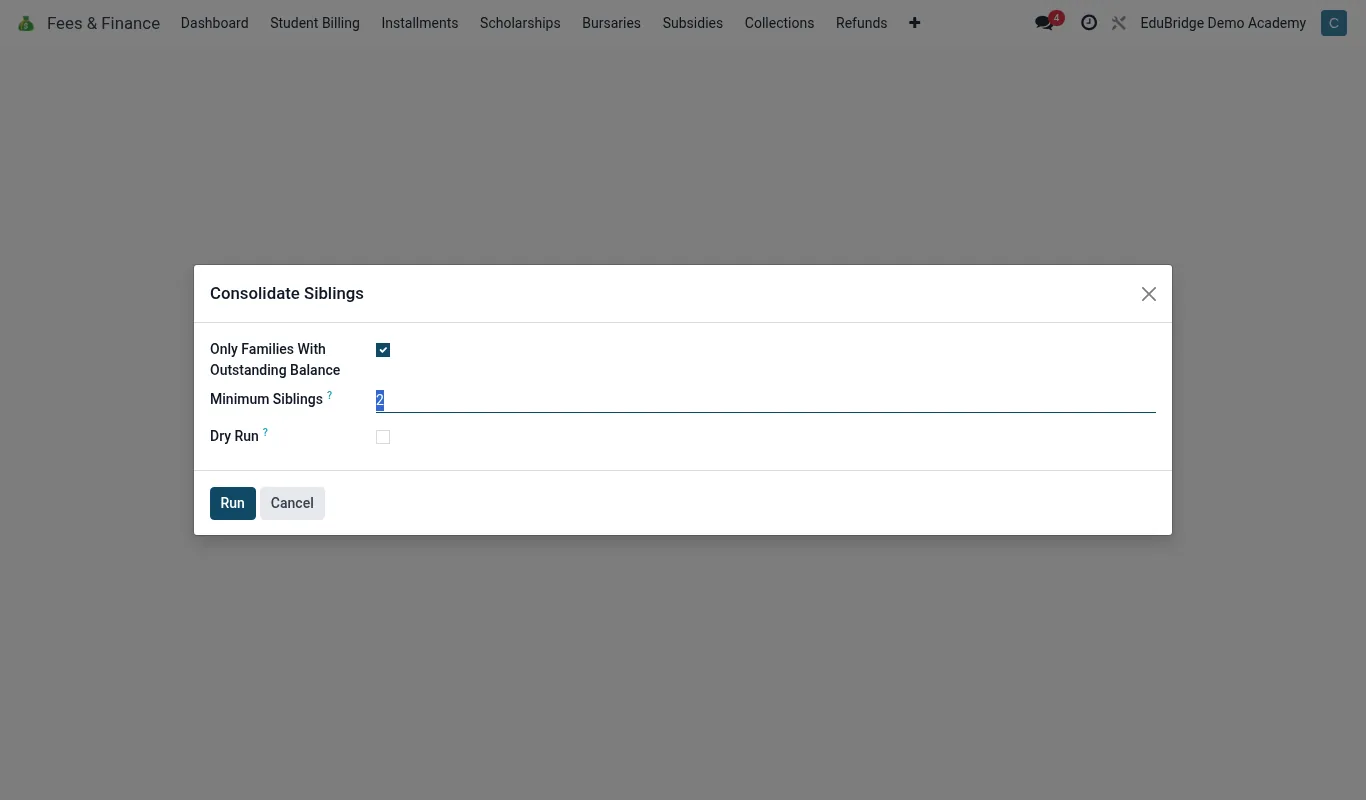
Many parents pay for several children. EduPrime links siblings to one family/guarantor account so the parent sees a combined picture while each child keeps their own invoices.
| Level | What it shows |
|---|---|
| Family statement | All children’s charges and all payments, one running balance |
| Per-child view | One child’s invoices and the payments allocated to them |
A single payment can be allocated across siblings (see Recording payments). The family statement shows the combined balance; drill into a child to see how a payment was split.
Downloading & sharing
Parents can pull their own statement from the parent portal at any time as a PDF. Bursars can generate it from the family record and send it by email or print it. The PDF carries the school header, the full ledger and the current balance, and is suitable to hand to a parent at the gate or attach to a reminder.