

Lists, pivots and Excel
Every entry under is a list of real records that you can filter, group, total, chart and download. Nothing is pre-cooked: the answer to “deposits by branch last month” is three clicks.
Who: Any SACCO user; downloading needs the export right.
The report lists
| Report | One line per | Columns |
|---|---|---|
| member | Number, name, ID, phone, category, branch, shares, share capital, loan balance, savings, status | |
| account | Account, member, product, balance, interest rate, opening date, last transaction, status | |
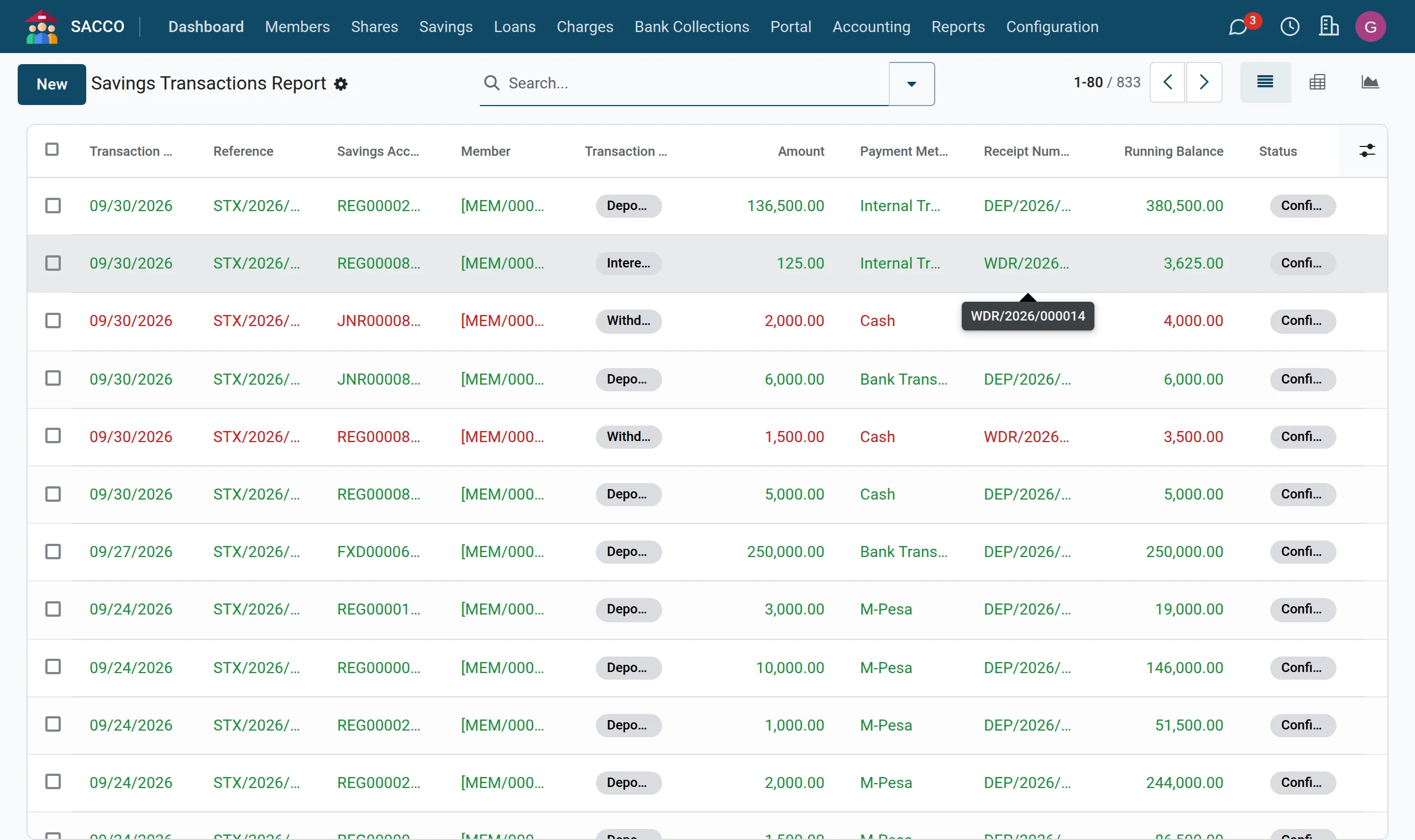
| deposit or withdrawal | Date, reference, account, member, type, amount, payment method, receipt, running balance, status | |
| , Active Loans, Overdue Loans | loan | Loan number, member, product, principal, disbursement date, instalment, outstanding balance, arrears, days in arrears, status |
| repayment | Date, receipt, loan, member, total, principal, interest, payment method, status | |
| month | Interest and penalties received, by month and loan product |
Total anything with the pivot view
1Open a report list
Open .
2Switch to the pivot view
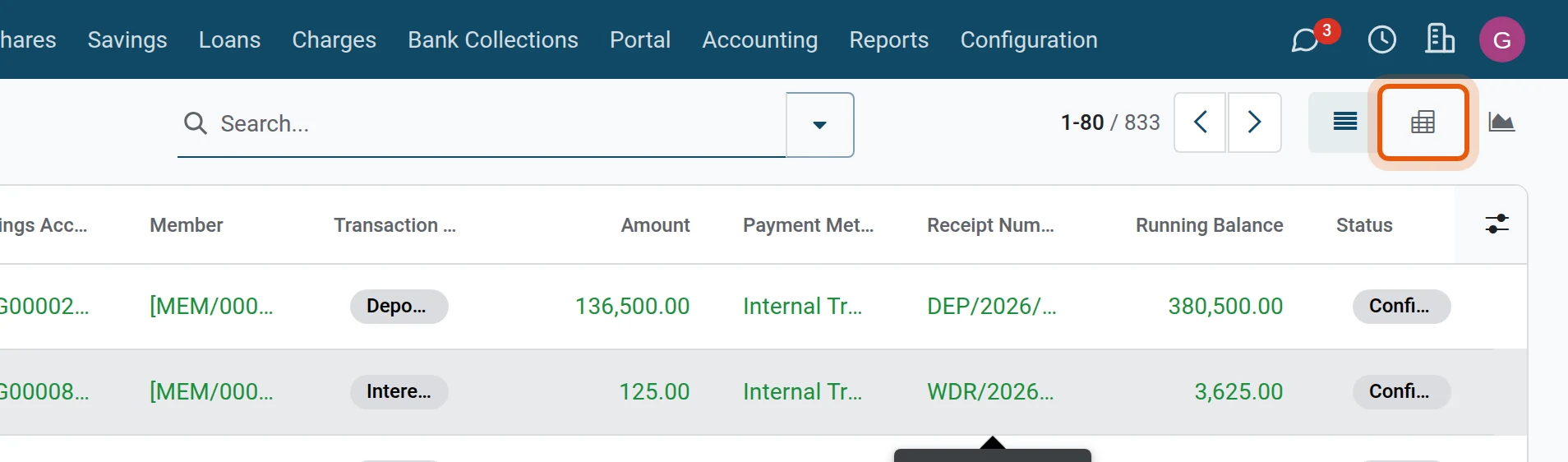
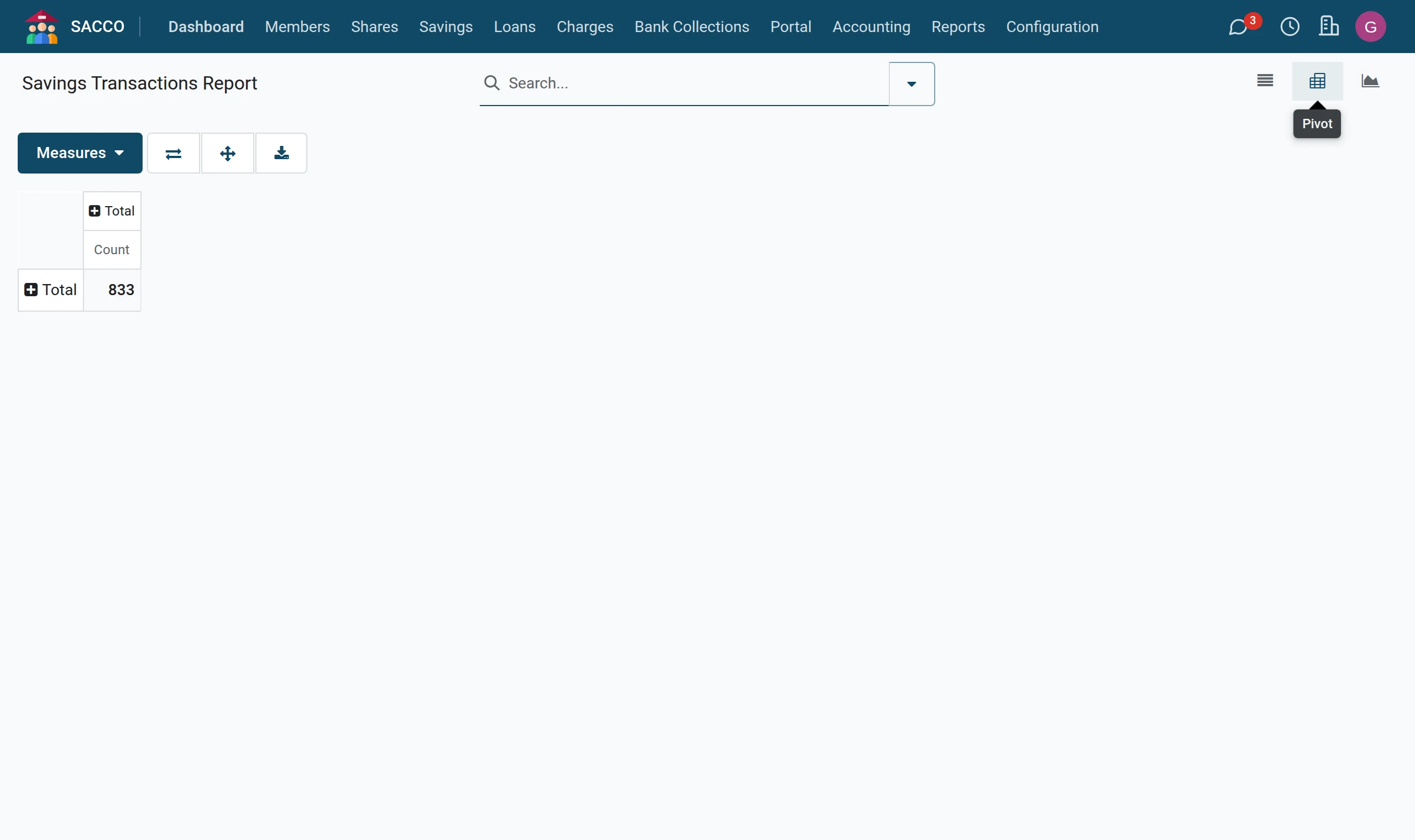
Click the pivot icon at the top right. The table totals the records; click a Total heading to break it down by any field (type, product, branch, month), across or down.
3Or the graph
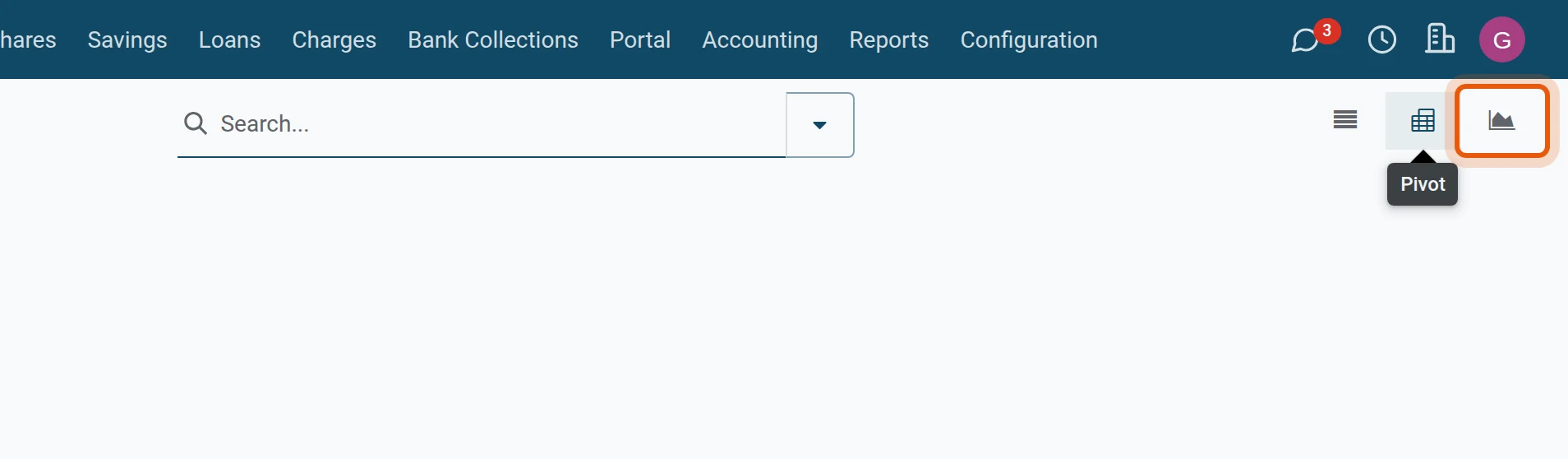
The graph icon draws the same totals as bars, lines or a pie. Measures chooses what is added up.
Income by month and product
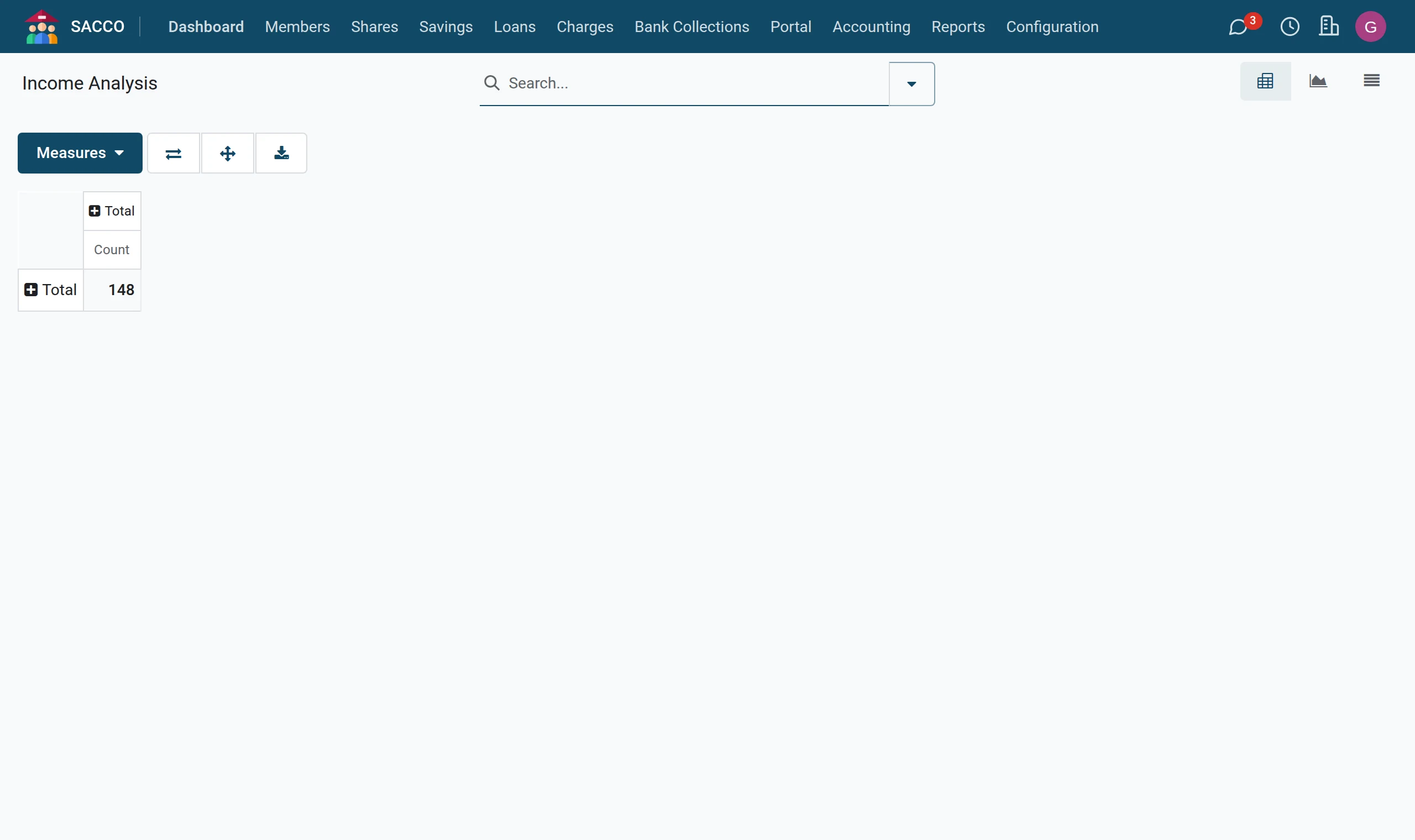
Send it to Excel
- From a pivot: press the download icon above the table. You get an Excel file laid out as on screen.
- From a list: tick the lines (or the box in the header for all), then , choose the columns and download.
Note
Downloading needs the right Access to export feature on your user: see find members and export the register.
Tip
Save a filter and grouping you use every month under Favorites in the search bar: next month it is one click.
Was this page helpful?