

Searching, filtering & grouping students
With thousands of records, finding the right student fast is a daily skill. EduPrime's search bar accepts admission number, student name or parent name, and stacks filters and groupings to slice any cohort you need.
Where to find it — App drawer → EduPrime → Students → All Students.
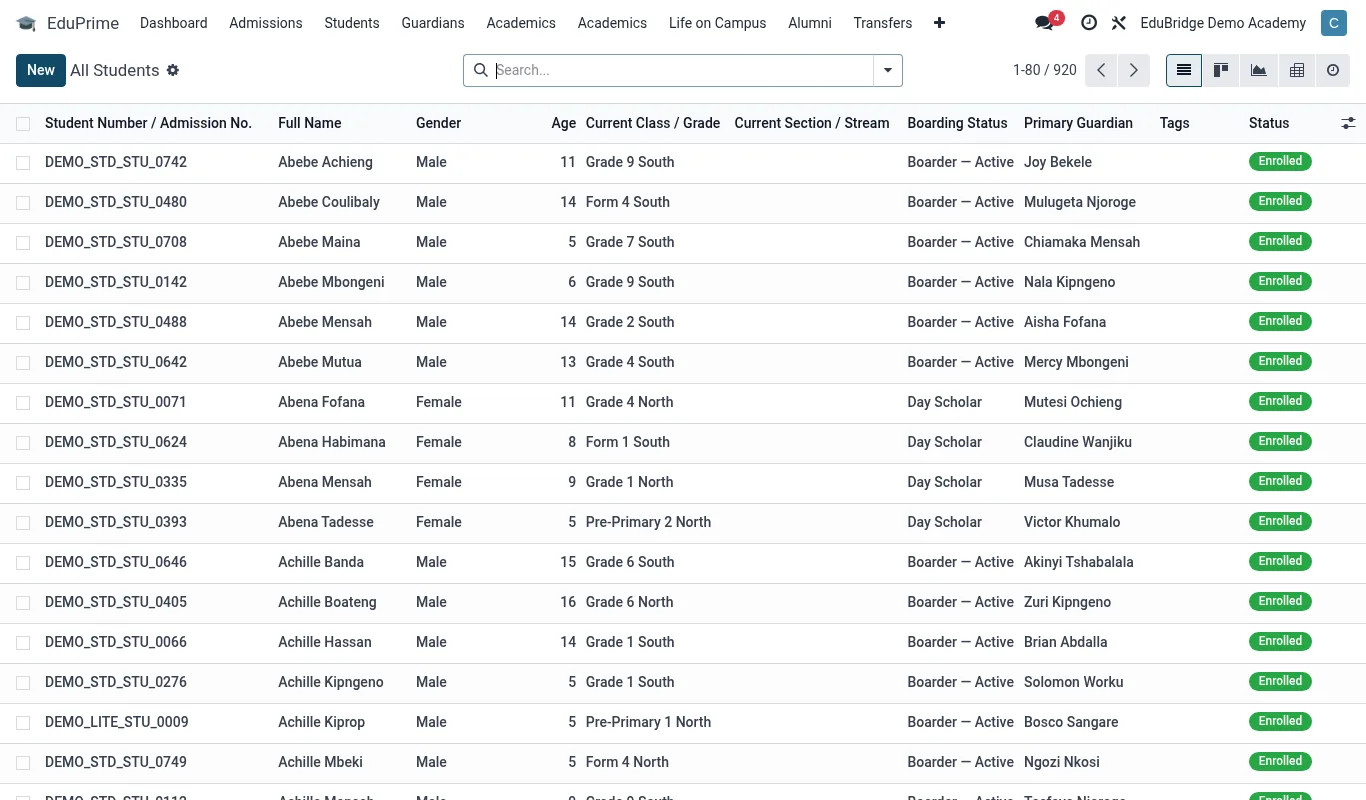
Searching
Click the search bar at the top of the Students list and type. EduPrime matches across:
- Admission number – exact or partial (e.g.
2026/00). - Student name – first, middle or surname.
- Parent / guardian name or phone – useful at the front desk when a parent calls.
As you type, EduPrime suggests which field to match – pick the suggestion to narrow precisely.
Filters & group-by
Use the filter and group-by menus to build a cohort:
| Tool | Example use |
|---|---|
| Filter: Status | Show only Active, or only Archived leavers. |
| Filter: Boarding/Day | List boarders for a hostel roll-call. |
| Filter: Has balance | Students owing fees this term. |
| Filter: Tag | All scholarship students, or Bus-Route-3. |
| Group by: Class/Stream | Counts per class for a census. |
| Group by: Gender | Gender split for reporting. |
Tip — Combine filters and groups: filter to Active + Has balance, then group by Class to instantly see fee arrears broken down by class for a debt-collection drive.
Saving filters
Once you have a useful combination, click Save current search and name it (e.g. "Boarders – Form 3"). Saved filters appear in the Favourites menu and can be set as your default view, so the list opens pre-filtered every time. You can also share a saved filter with colleagues.
Exporting a list
- Filter and group the list to exactly the cohort you want.
- Tick the select-all box (or individual rows).
- Choose Export from the actions menu.
- Pick the columns to include – admission number, names, class, guardian phone, balance, etc.
- Choose XLSX or CSV and download.
Important — Exported lists often contain guardian phone numbers and balances – personal data. Store and share them according to your institution's data-protection policy and delete working copies after use.
Related pages
Was this page helpful?