

Payment rails setup
EduPrime collects fees through mobile money — M-Pesa, Airtel Money, Flutterwave and Pesapal — plus USSD and SMS, with automatic receipting and reconciliation. This page connects those rails safely, starting in test mode.
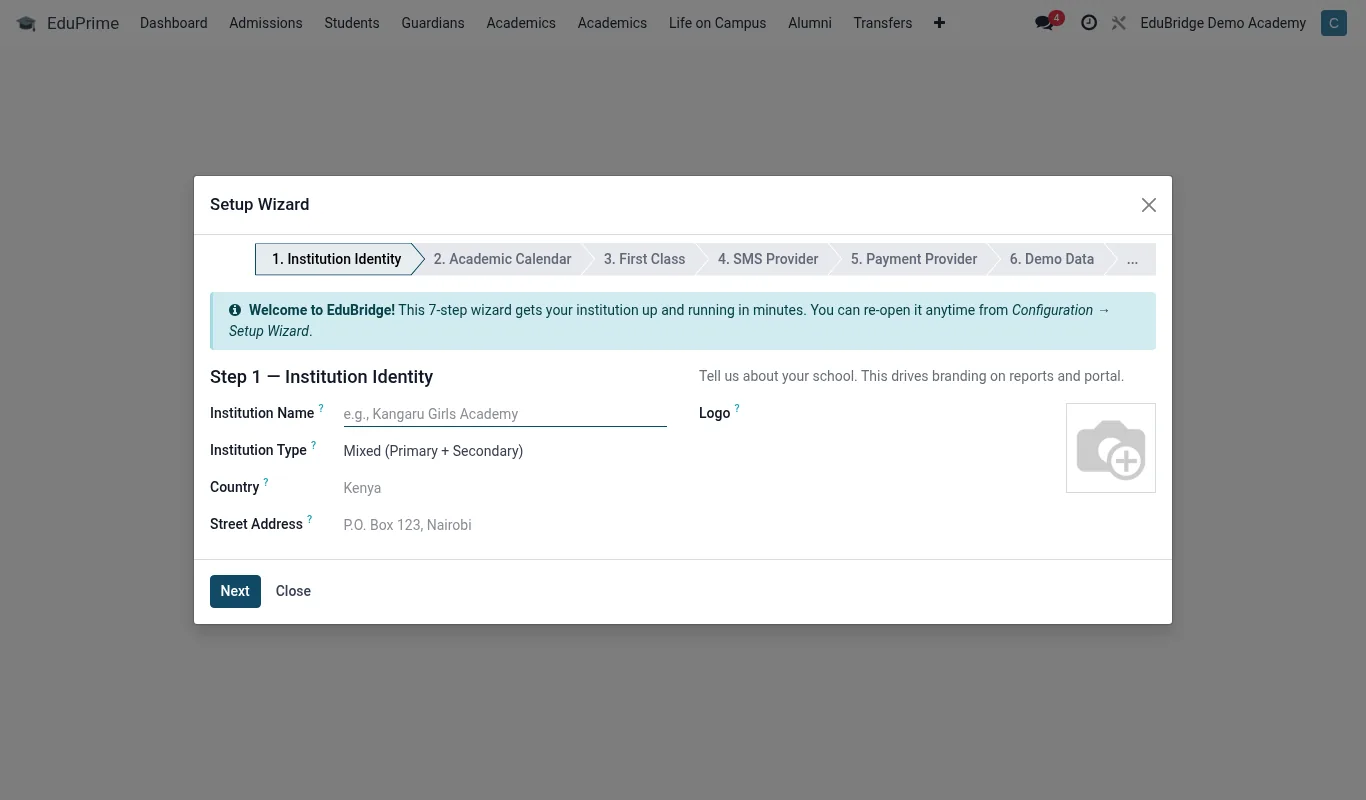
Where to find it — App drawer → EduPrime → Configuration → Setup Wizard.
Prerequisites
- The Fees & Finance app is installed and your currency is set.
- You hold merchant/API credentials from each provider you intend to use (paybill/till, API key & secret, callback URL allowance).
- EduPrime is reachable over HTTPS so providers can deliver payment callbacks.
Connecting a provider
Each rail is its own payment provider. Open Fees → Configuration → Payment Providers (or Settings → Payments).
- Open the provider (for example M-Pesa).
- Set the state to Test for now.
- Enter the credentials: consumer key/secret, passkey, shortcode/paybill or till, and the merchant account.
- Confirm the callback URL EduPrime shows is whitelisted in the provider's dashboard.
- Save.
- Repeat for Airtel, Flutterwave and Pesapal as needed.
Test mode vs live mode
| Mode | Behaviour |
|---|---|
| Test / Sandbox | Uses the provider's sandbox; no real money moves. Safe for end-to-end testing |
| Live / Production | Real charges against the school's merchant account; switch only after a clean test |
Important — Run at least one full test collection — STK prompt, payment, callback received, receipt generated — in Test mode before switching any provider to Live. A misconfigured live rail can take or mis-route real parents' money.
USSD & SMS payment
For parents without smartphones, EduPrime supports USSD/SMS-initiated payments where the provider allows it. Confirm the USSD short-code and SMS keywords with your provider, configure them alongside the matching rail, and test that a payment made by USSD lands on the right student's account.
Reconciliation basics
Reconciliation matches money received to the invoices it pays.
- Each successful payment posts automatically against the student's fee account and issues a receipt.
- Unmatched or partial payments land in a review queue — check it daily.
- Match stray payments to the correct student by admission number or phone, then confirm.
- At period end, compare the EduPrime collections report with the provider's statement to confirm totals agree.
Tip — Ask parents to use the student's admission number as the payment reference. It dramatically reduces unmatched payments and speeds reconciliation.
Related pages
Was this page helpful?