

Academic calendar — years, terms & sessions
The academic calendar is the backbone everything else hangs from. Classes, enrolment, fees, timetables and reports all sit inside a year and its terms, so build this before anything else academic.
Create the academic year
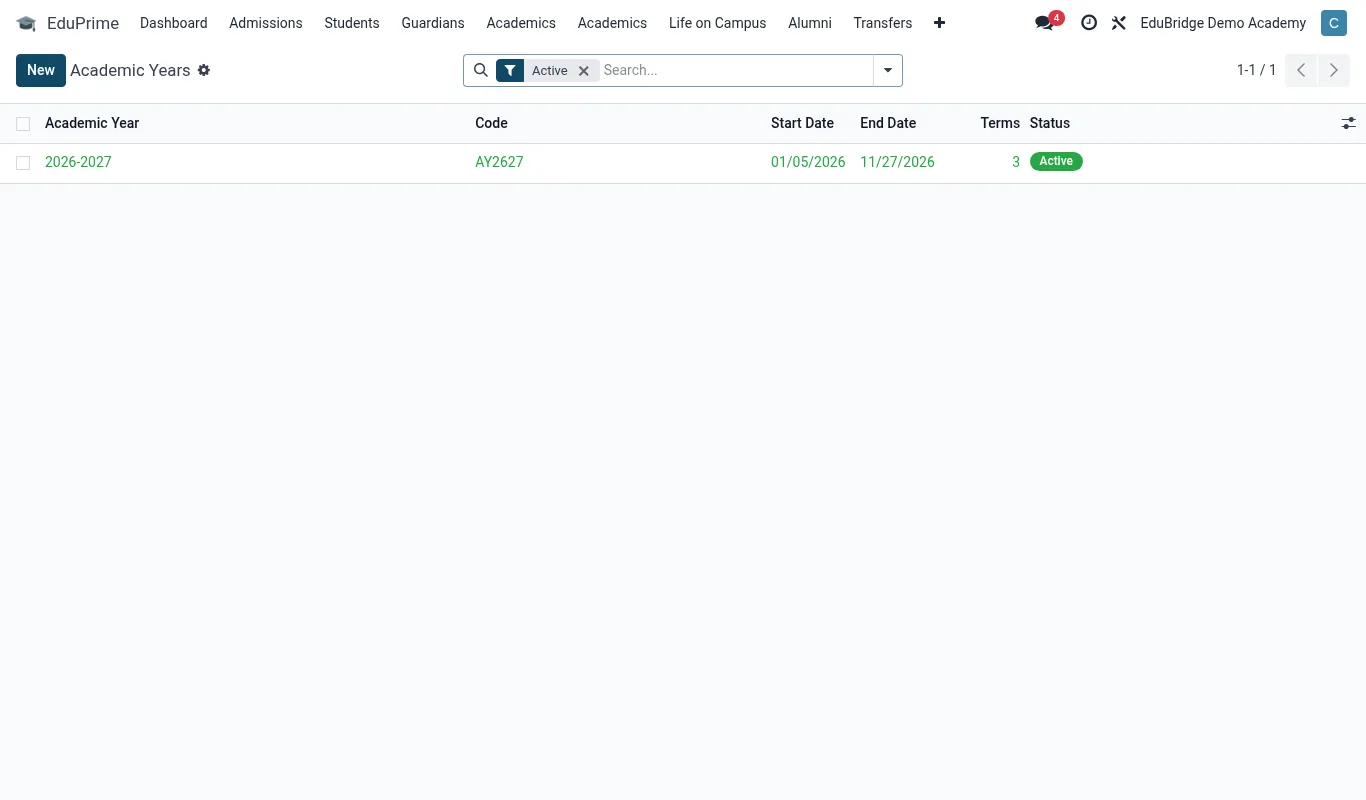
Open Academic → Configuration → Academic Years.
- Click New.
- Enter the year name (for example
2026or2026–2027for a straddling year). - Set the start date and end date that bound the whole year.
- Save.
Add terms or semesters
Inside the year, add the periods your institution uses — terms for schools, semesters for universities.
- On the academic year, open the Terms tab and click Add a line.
- Name each term (Term 1, Term 2, Term 3 — or Semester 1, Semester 2).
- Set each term's start and end dates. Terms must not overlap.
- Save.
| Institution type | Typical structure |
|---|---|
| Primary / secondary (CBC) | 3 terms per year |
| Cambridge / IB school | 3 terms or 2 semesters |
| University / college | 2 semesters (plus optional trimester/short session) |
Mark the current period
EduPrime needs to know which year and term is “now” so new records default correctly and dashboards show the right data.
- On the academic year you are in, set it as Current.
- Set the active term as current within that year.
Holidays & non-teaching days
Record public holidays, mid-term breaks and other closures so the timetable and attendance ignore them.
- Go to Academic → Configuration → Holidays (or the calendar's holiday list).
- Add each holiday with a name and date range.
- Save — these dates are excluded from attendance registers and class scheduling.
Year-end rollover
When a year ends, create the next year and its terms before the new year starts, then mark the new year current. Returning students are promoted to their next class during rollover — covered under class configuration. Keep past years in place; they hold the historical record behind each transcript.