

Communication channels — email & SMS
EduPrime keeps parents and staff informed by email and SMS — fee reminders, attendance alerts, admission updates and announcements. This page sets up the outgoing email server, the SMS gateway, message templates and the events that trigger them.
Outgoing email
Before EduPrime can send mail, give it an outgoing (SMTP) mail server. Open Settings → Technical → Email → Outgoing Mail Servers.
- Click New.
- Enter your SMTP host, port and security (TLS/SSL).
- Enter the authentication username and password from your mail provider.
- Set a sensible priority if you have more than one server.
- Click Test Connection — fix any error before saving.
Then set the from address and aliases under General Settings so outgoing mail comes from your school domain.
noreply@school.example.com) and configure SPF/DKIM at your DNS provider so messages reach parents' inboxes rather than spam.SMS gateway
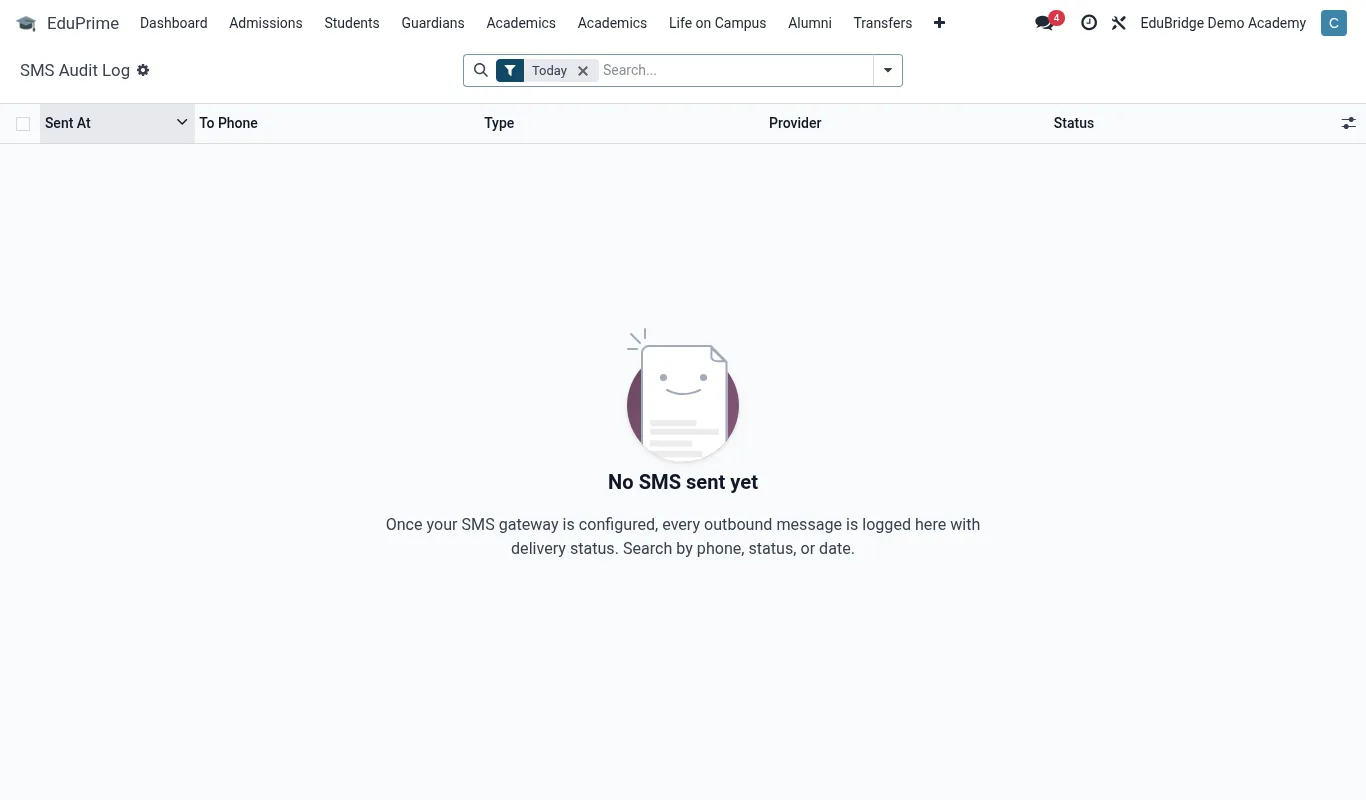
SMS is essential where parents do not use email. EduPrime connects to an SMS provider to send texts and, where supported, USSD prompts.
- Open the SMS configuration (Settings → Technical → SMS, or the messaging settings).
- Enter the provider's API credentials and sender ID (the name parents see).
- Send a test message to your own number and confirm delivery.
Message templates
Templates standardise wording and pull in the right details automatically (student name, amount, due date).
- Open Settings → Technical → Email Templates (and the SMS template list).
- Edit or create a template; insert placeholders for dynamic fields.
- Set the language; provide translated versions where you serve multiple languages.
- Save and send yourself a preview.
What triggers a notification
| Event | Typical message |
|---|---|
| Fee invoice issued | Statement and amount due to the guardian |
| Payment received | Receipt confirmation by SMS/email |
| Fee overdue | Dunning reminder on a schedule |
| Absence recorded | Same-day attendance alert to the guardian |
| Admission status change | Offer, acceptance or rejection notice |
| Announcement | Broadcast to a class or whole school |
Review which triggers are enabled before go-live so parents are neither silent nor spammed. Test each one end to end with a test guardian record.