

Receive, waive and cancel
A bill is settled by a payment, in full or in parts. A manager can waive it or cancel it with a reason.
Who: Any SACCO user receives payments; a Manager waives, cancels and reverses.
Receive a payment
1Open the bill
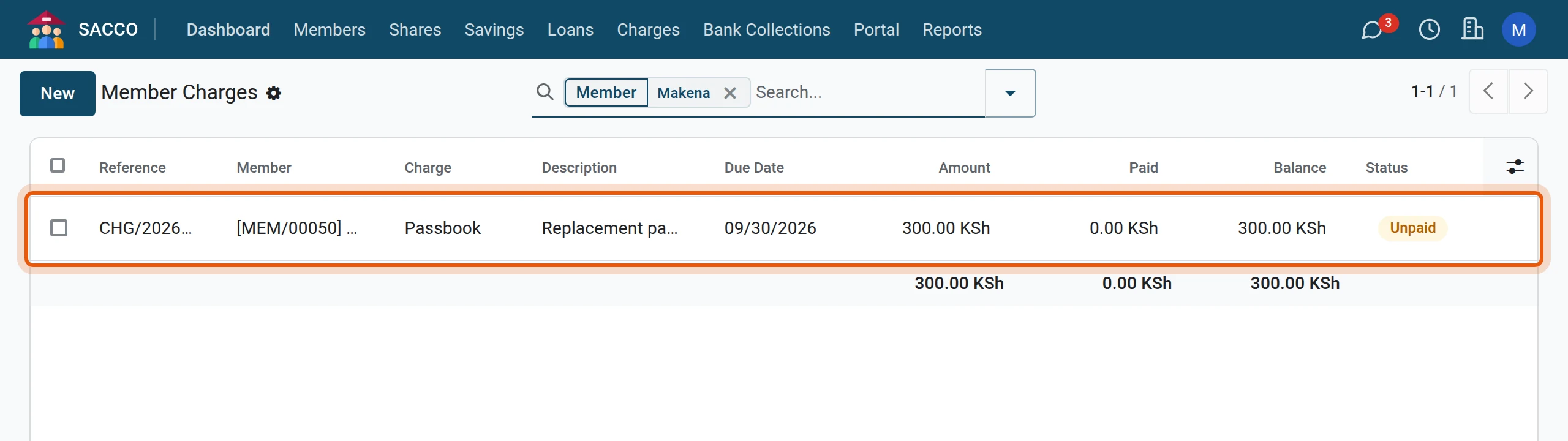
Open (the list opens on unpaid bills), search the member and click the bill.
2Register Payment
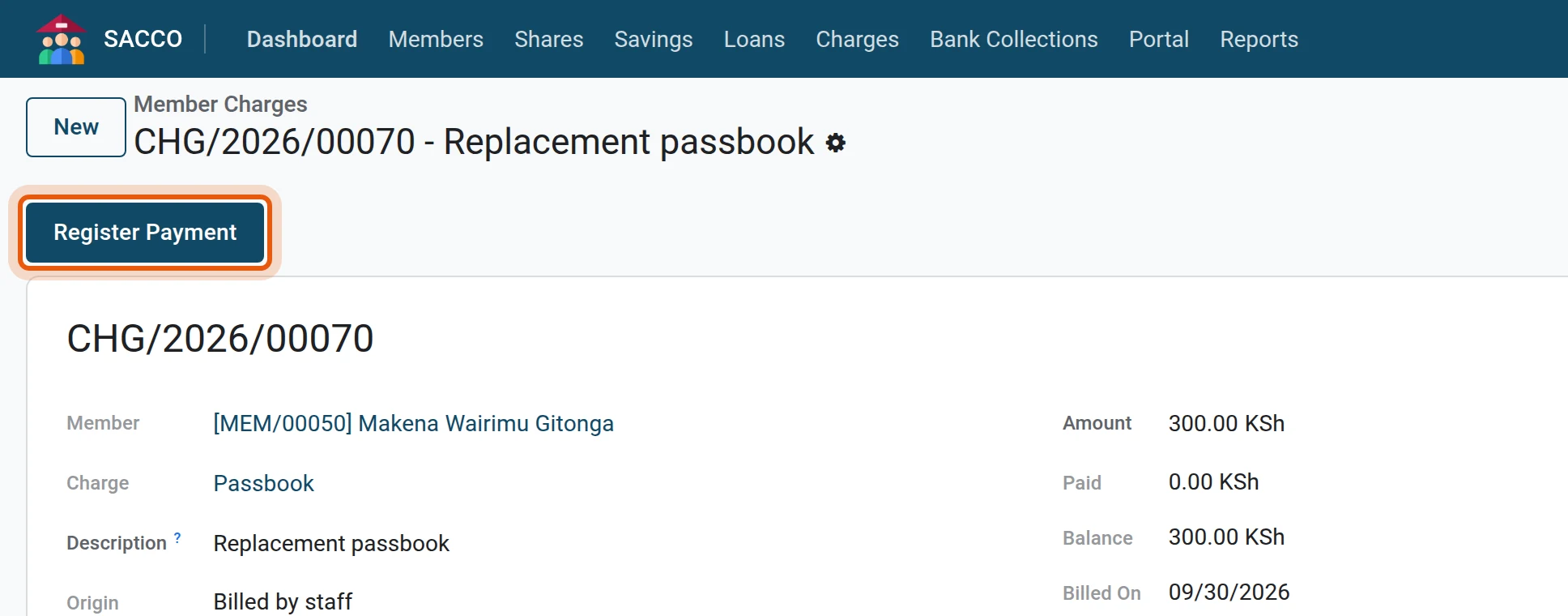
Press Register Payment.
3Amount and how it was paid
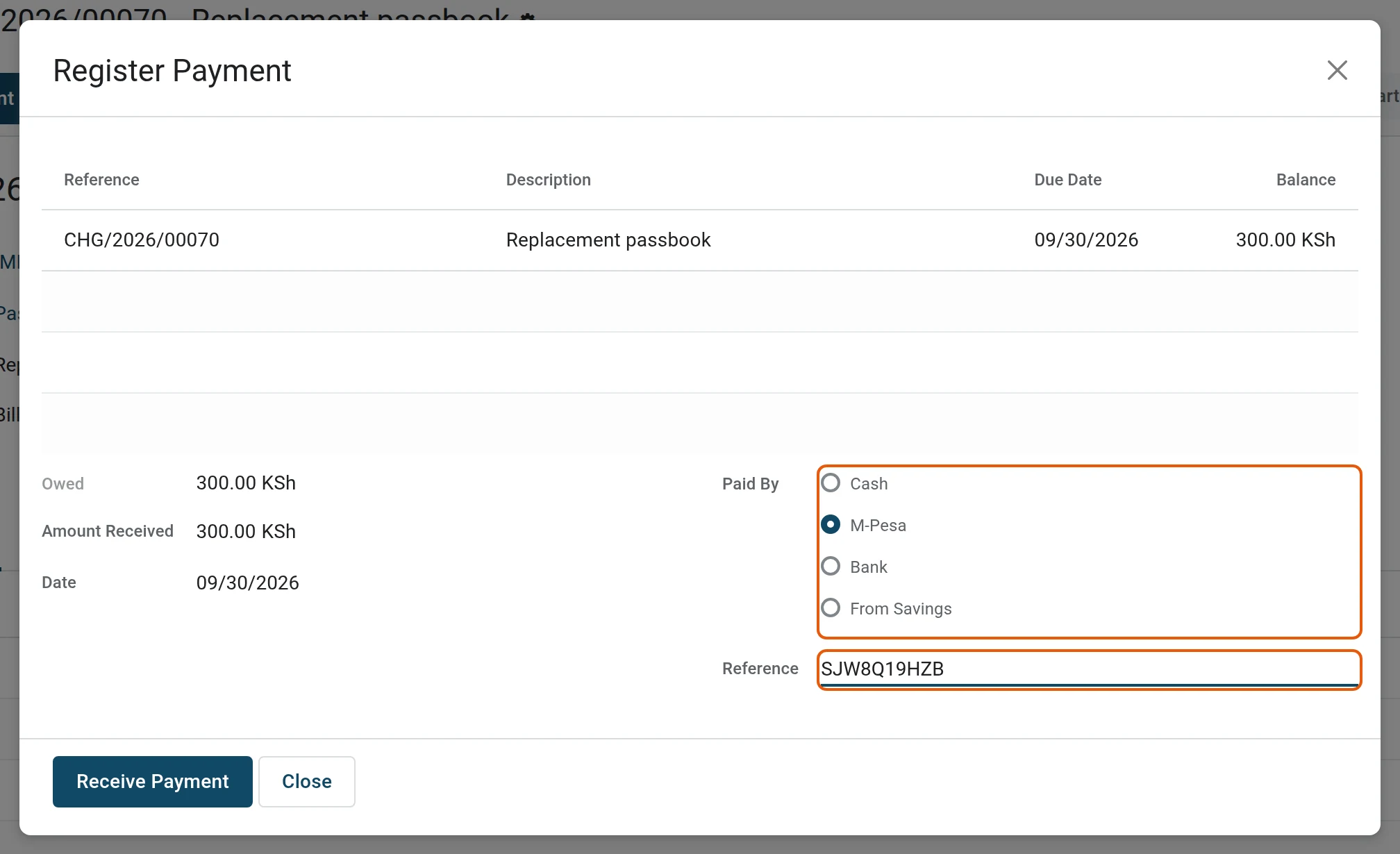
Amount Received proposes the balance; type less for a part payment. Pick Paid By and type the Reference (needed for M-Pesa and bank). With From Savings choose the member’s account instead: the amount is taken from it.
4Receive Payment
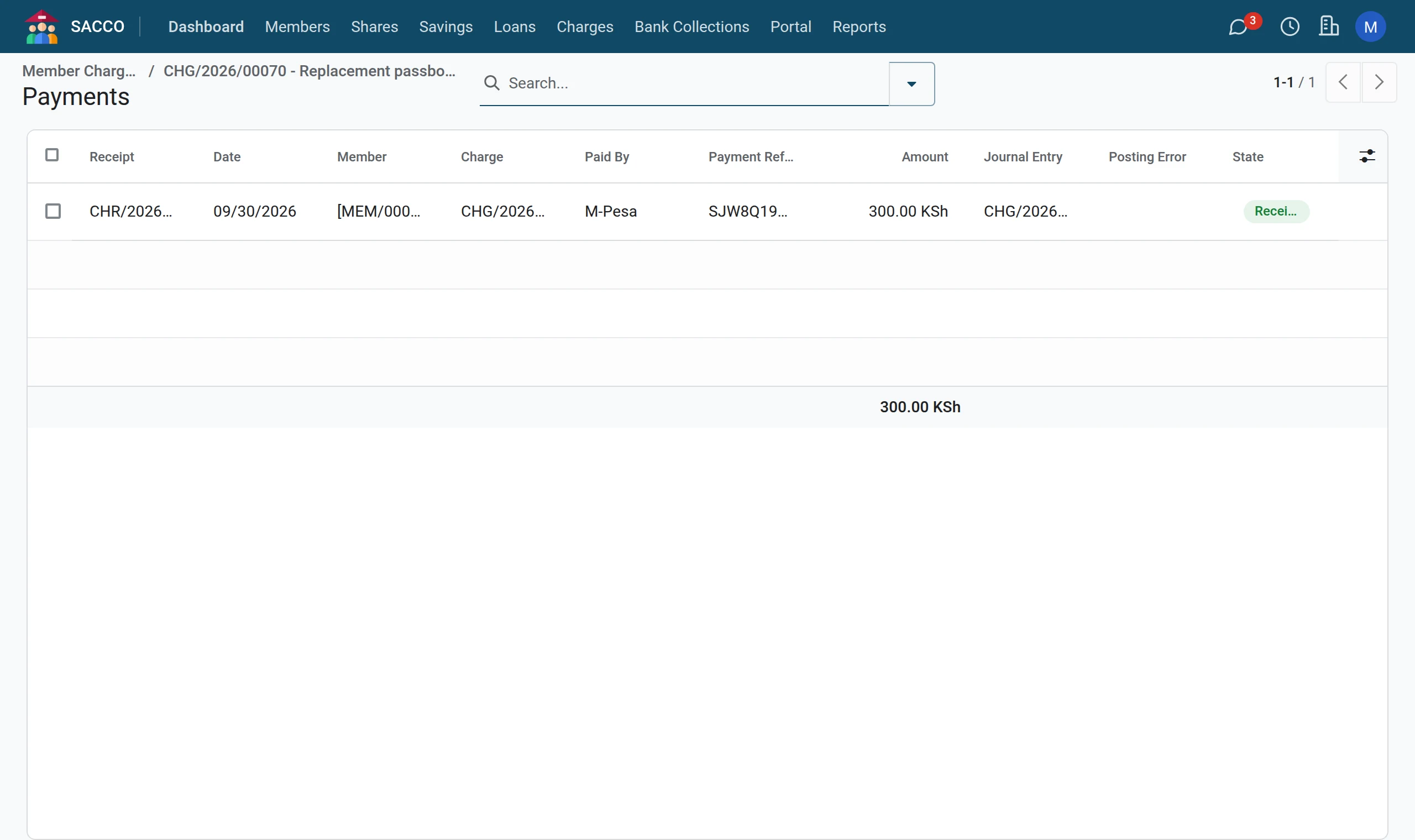
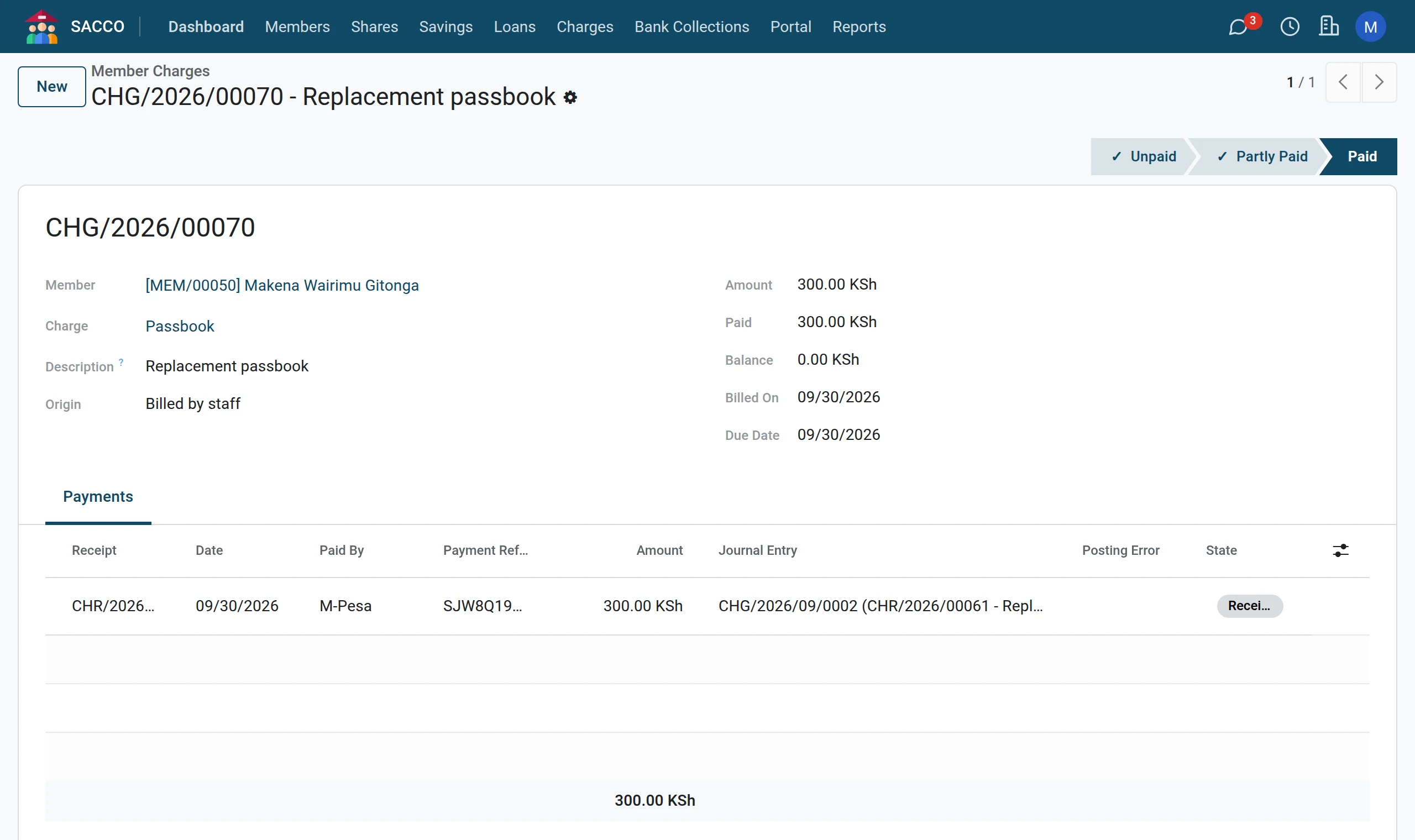
Press Receive Payment. The receipt opens in the list of payments of this bill, with the journal entry it posted.
5Back to the bill
Click the bill in the breadcrumb at the top left. It is now Paid (or Partly Paid after a part payment).
Waive a bill
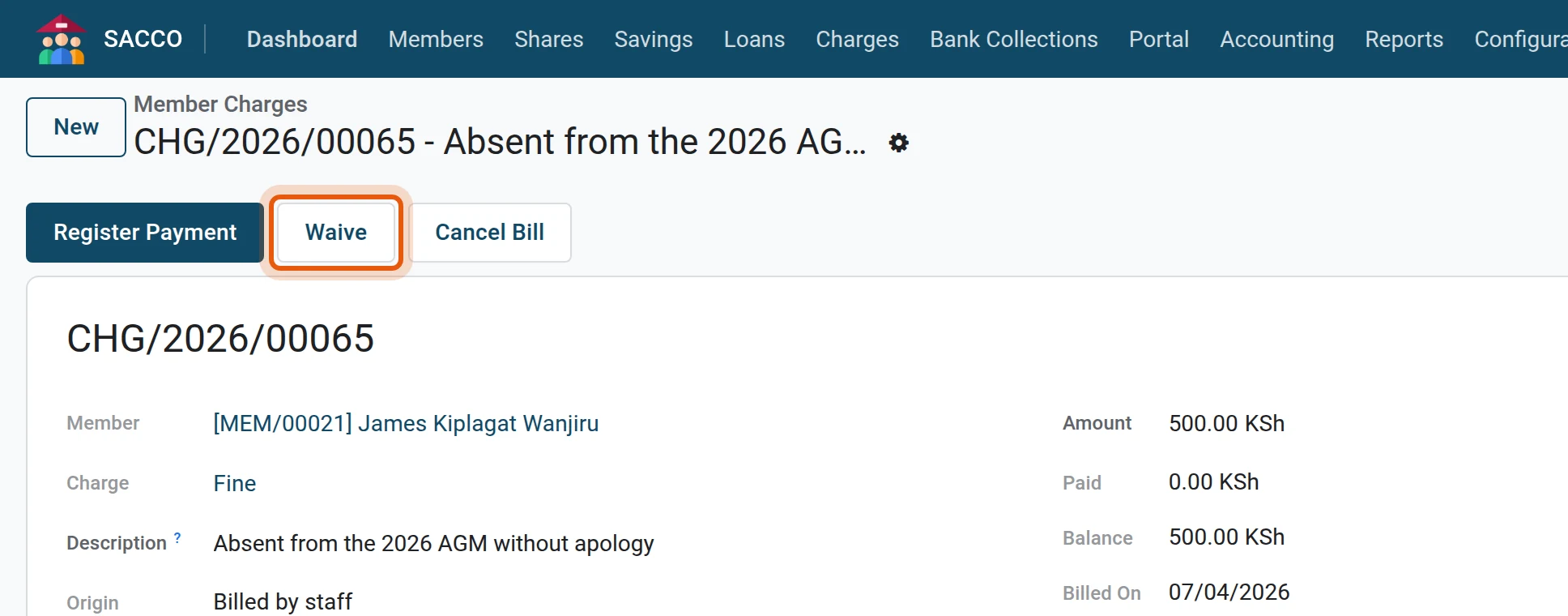
1Open the bill and press Waive
A manager opens the unpaid bill and presses Waive.
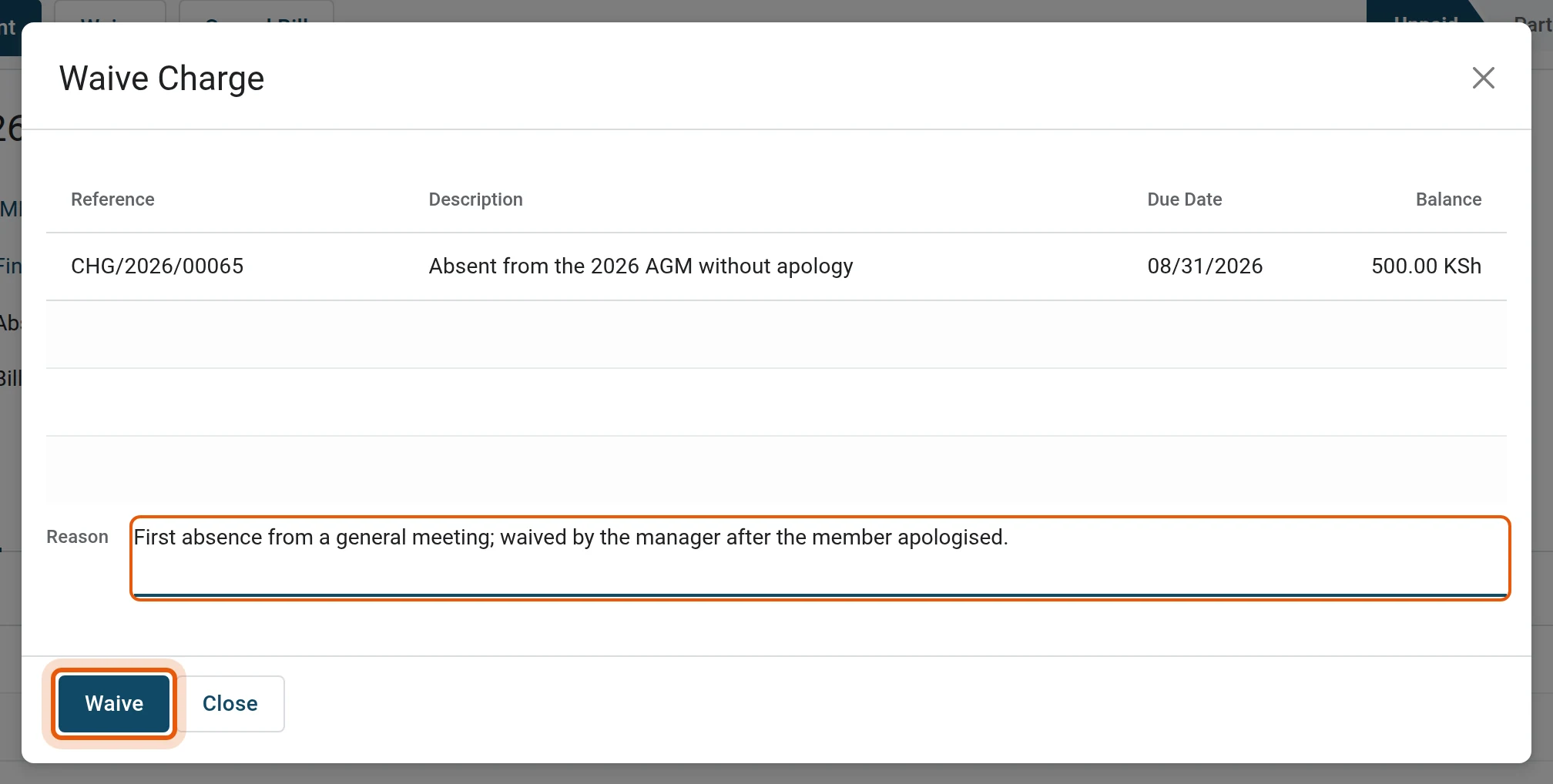
2Give the reason
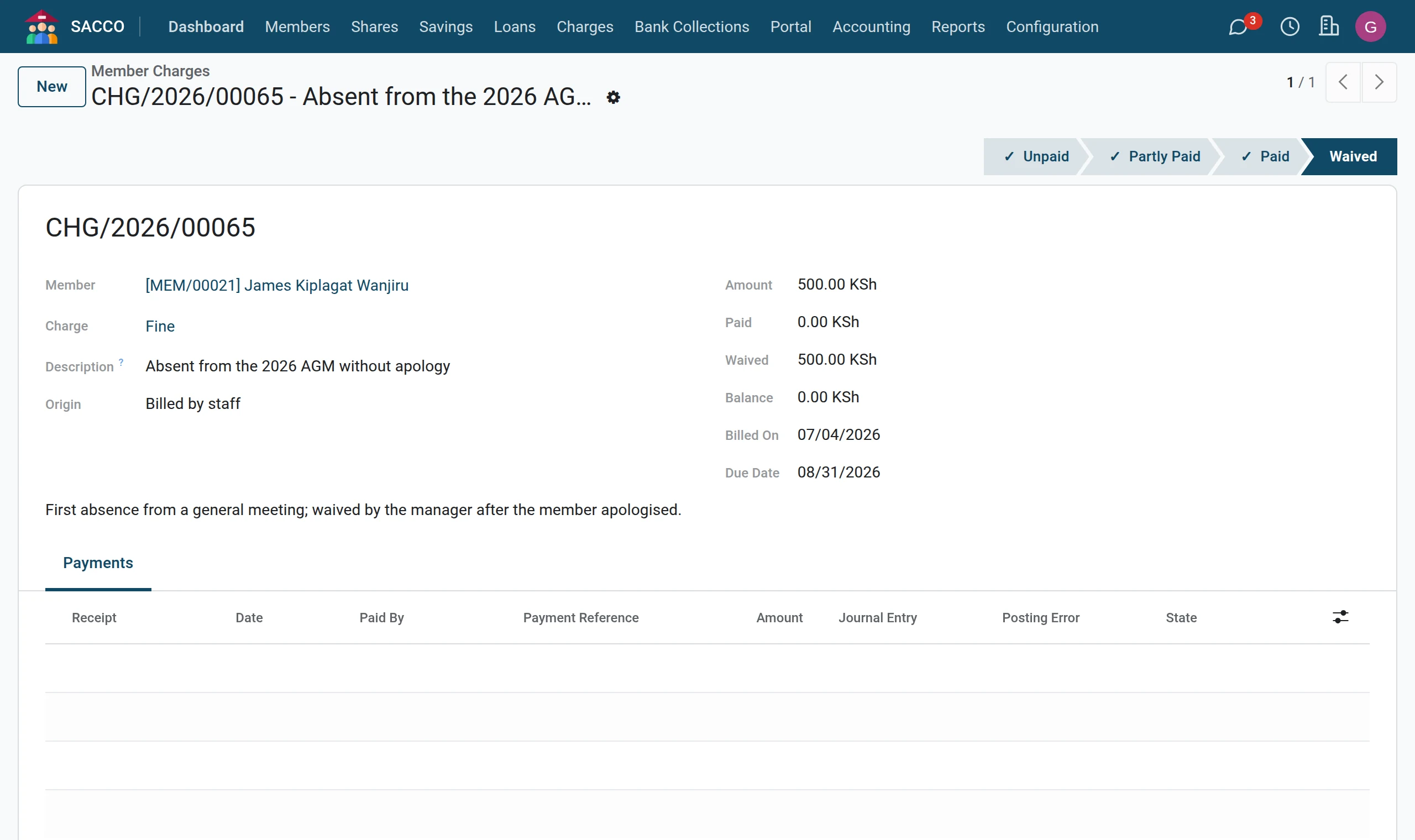
Write the Reason and press Waive. The balance is written off and the reason is kept in the history of the bill.
Cancel Bill works the same way, for a bill raised by mistake.
The payments received
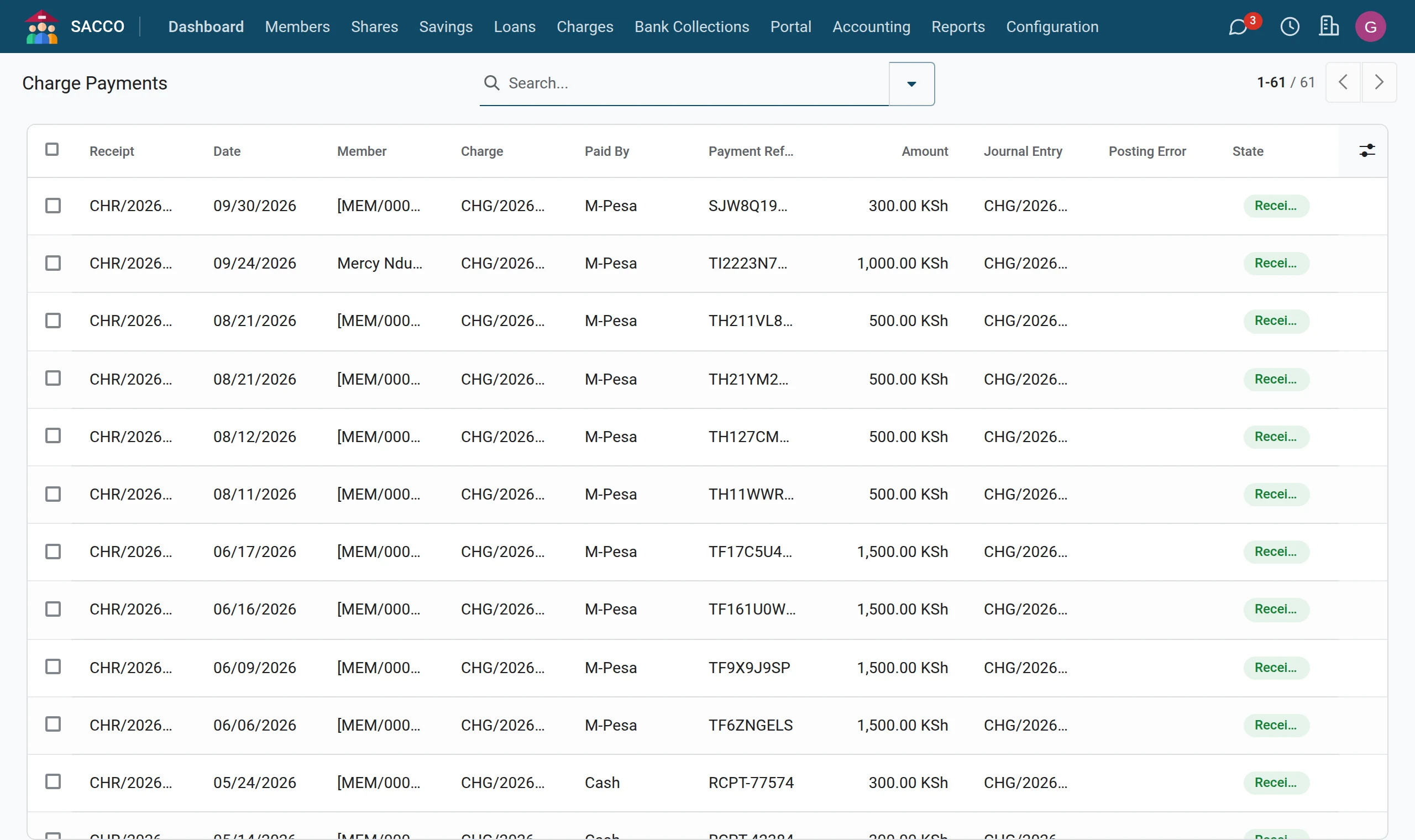
lists every receipt. To undo one, a manager opens it and presses Reverse: the bill becomes unpaid again. With SACCO Accounting each receipt carries its Journal Entry; if the posting failed (for example no income account), the reason shows under Posting Error and Post Entry tries again once the account is set.