

Your first 30 minutes — go-live checklist
This is the ordered checklist that takes a clean EduPrime install to a school you can actually run. Work top to bottom; each item links to a full configuration page where the detail lives.
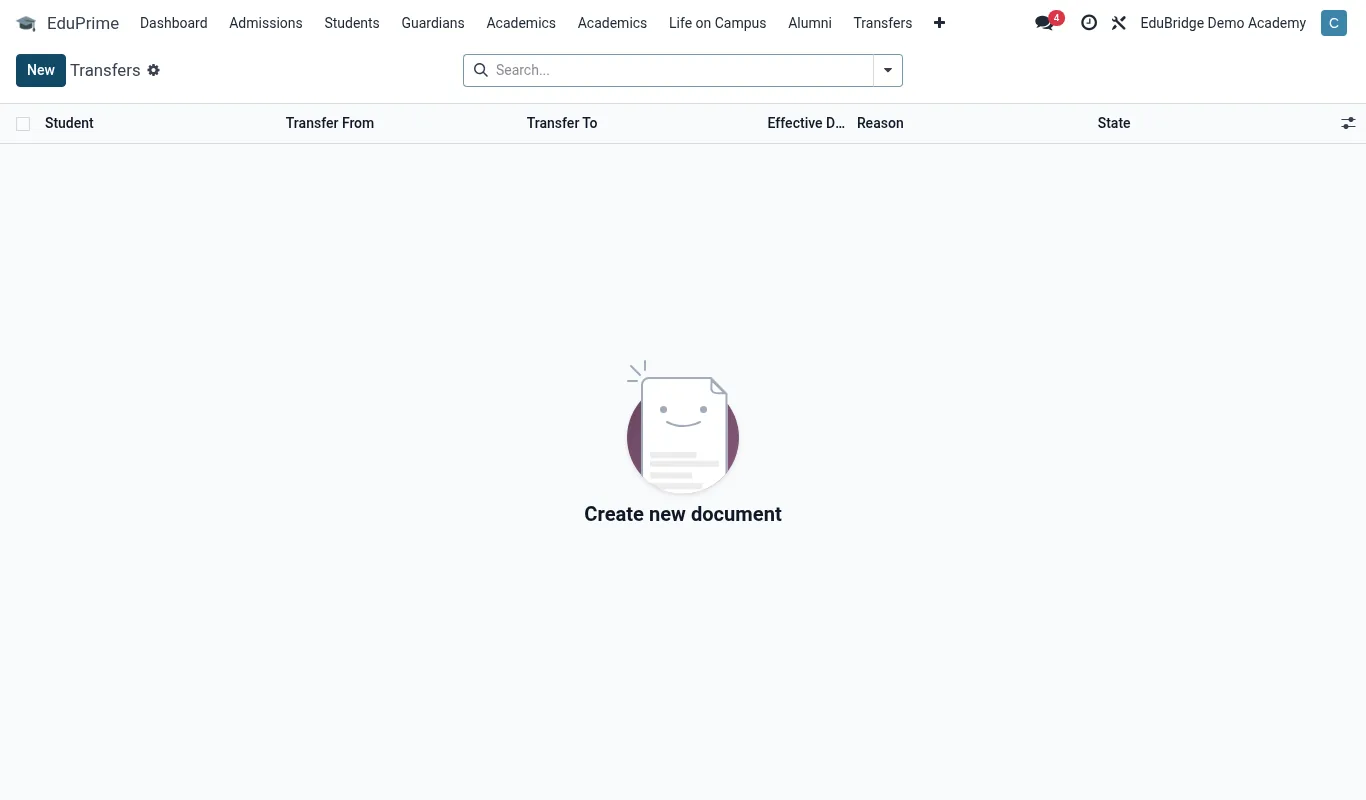
Where to find it — App drawer → EduPrime → Transfers.
Foundation (do these first)
- Set the school profile & branding — name, logo, address, currency, language and timezone. See Configuration → School profile & branding.
- Create the academic year, terms and sessions and mark the current one. See Configuration → Academic calendar.
- Build the class structure — classes/forms, streams, capacities, class teachers and boarding houses. See Configuration → Classes, forms, streams & houses.
- Define subjects and map curricula (CBC / Cambridge / IB) with the right grading scales. See Configuration → Subjects & curricula.
People & money
- Create staff users and assign roles; enable parent/student portal access. See Configuration → Users, roles & permissions.
- Set numbering for admission numbers, receipts and application references. See Configuration → Numbering & sequences.
- Configure email and SMS so notifications can go out. See Configuration → Communication channels.
- Connect payment rails (M-Pesa, Airtel, Flutterwave, Pesapal) in test mode first. See Configuration → Payment rails setup.
Tip — Keep payment rails in test mode until you have run at least one end-to-end test collection. Switch to live only when the callback and receipt both work.
Data & safety
- Import students and staff from your spreadsheets. See Administration → Bulk data import.
- Confirm backups are scheduled and test a restore. See Administration → Backups, restore & data retention.
- Set the password policy and enable 2FA for privileged users. See Administration → Security & audit.
- Run a first access review — confirm every user has the right role and nothing more. See Administration → Managing users & access reviews.
Important — Do not skip backups and security in the rush to go live. A school system holds children's personal data; losing it or leaking it is a far bigger incident than a late timetable.
Final pre-launch check
- Demo data is wiped from the live database.
- You can create a test student, raise a fee, take a test payment, and see a receipt.
- At least one parent portal login works end to end.
- A backup has completed and been restored successfully on a test database.
When every box above is ticked, EduPrime is ready for staff to use in earnest.
Related pages
Was this page helpful?