

Loading the demo school
EduPrime ships with a fully-populated demo school — students, staff, classes, fees, timetables and more — so you can explore every feature and train staff before entering any real data.
Why and when to use it
The demo school exists for two jobs: learning and training. Because every menu has realistic records behind it, you can click through admissions, billing, attendance and reporting and see exactly what each screen does with data already in place.
Loading it on a test database
The cleanest approach is to create a separate database purely for training, then load the demo into it.
- Create a fresh database (your platform's database manager has a Create Database option). Give it an obvious name such as
eduprime-demo. - Sign in to the new database as administrator.
- From the App drawer, install the EduPrime apps you want to demonstrate.
- Install the Demo Data app, or, where offered, tick Load demonstration data during install.
- Open Academic → the dashboard should now show populated students, classes and activity.
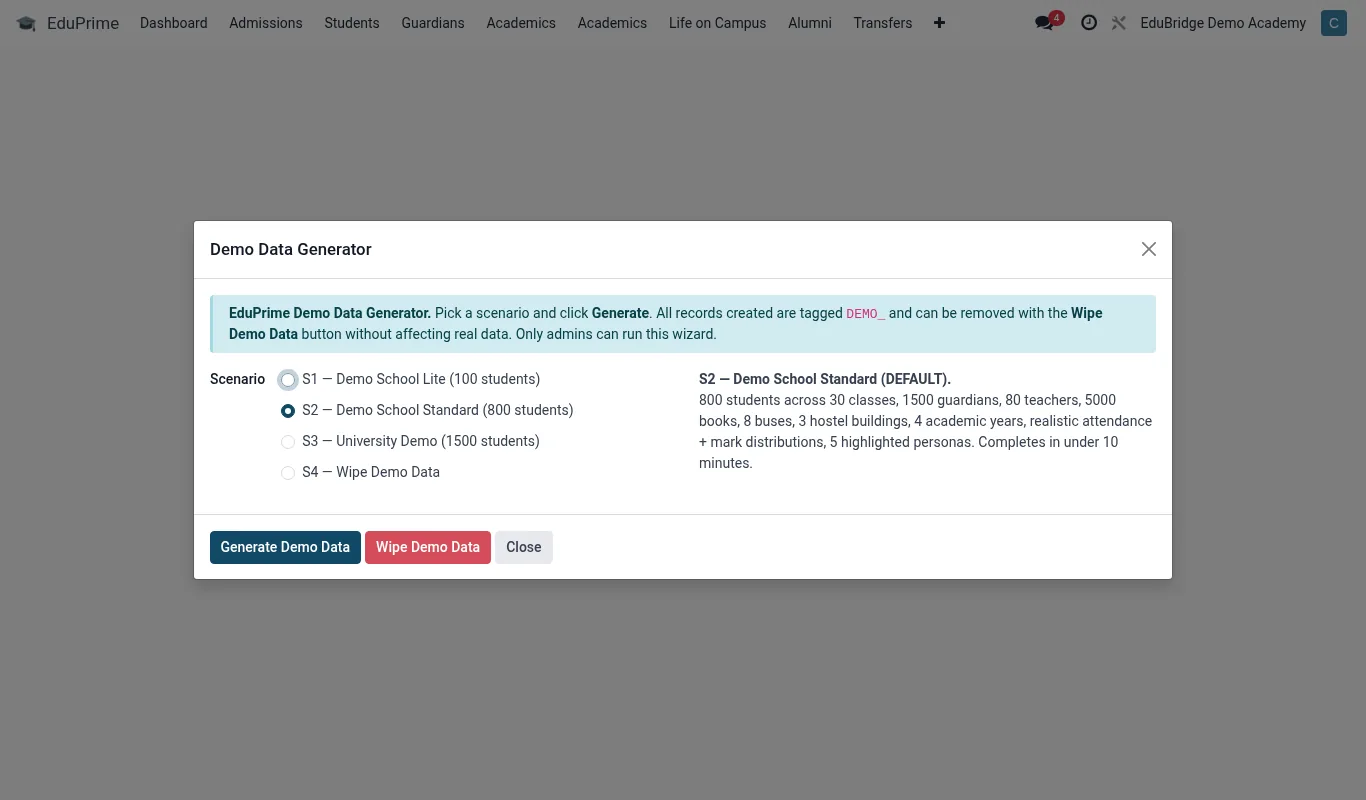
What the demo contains
- Several hundred demo students across CBC, Cambridge and IB programmes on a single roll
- Staff users for each standard role so you can test permissions
- An academic year with terms, classes, streams and a sample timetable
- Fee structures with sample invoices and mobile-money-style payments
- Library loans, transport routes, hostel allocations and meal plans
- Sample AI early-warning (Bria) signals on a handful of learners
Wiping before go-live
Your live database must contain no demo data. There are two safe paths:
- Preferred: build your live system on a separate, clean database that never had demo data installed. Keep the demo database only for training.
- If you did load demo data into what will become live, the most reliable course is to delete that database and start a clean one, then re-install apps without demonstration data.
Before you declare a database live, confirm the student list is empty (or contains only your real imports) and that no records carry the demo tag.