

First login & the workspace
Once EduPrime is installed, sign in and get your bearings. This page walks through logging in, the App drawer, switching between apps, global search and the user menu.
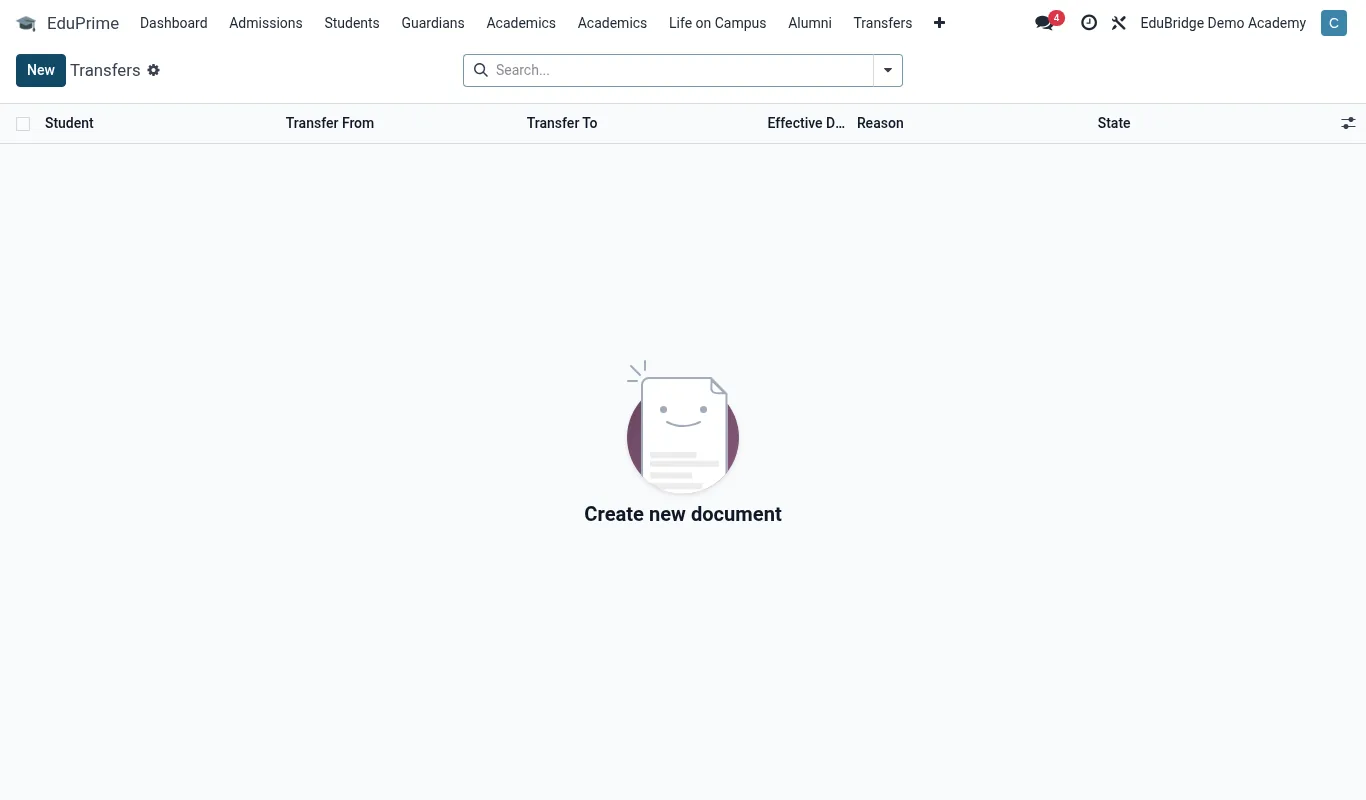
Where to find it — App drawer → EduPrime → Transfers.
Signing in
EduPrime is reached in a browser at your institution's address followed by /web/login — for example https://school.example.com/web/login.
- Open the login page in your browser.
- Enter your email or username and password.
- Click Log in. If two-factor authentication is enabled, enter the 6-digit code from your authenticator app.
Tip — Bookmark
/web/login and distribute it to staff. Parents and students use the same address but land on their portal because of their role.The App drawer
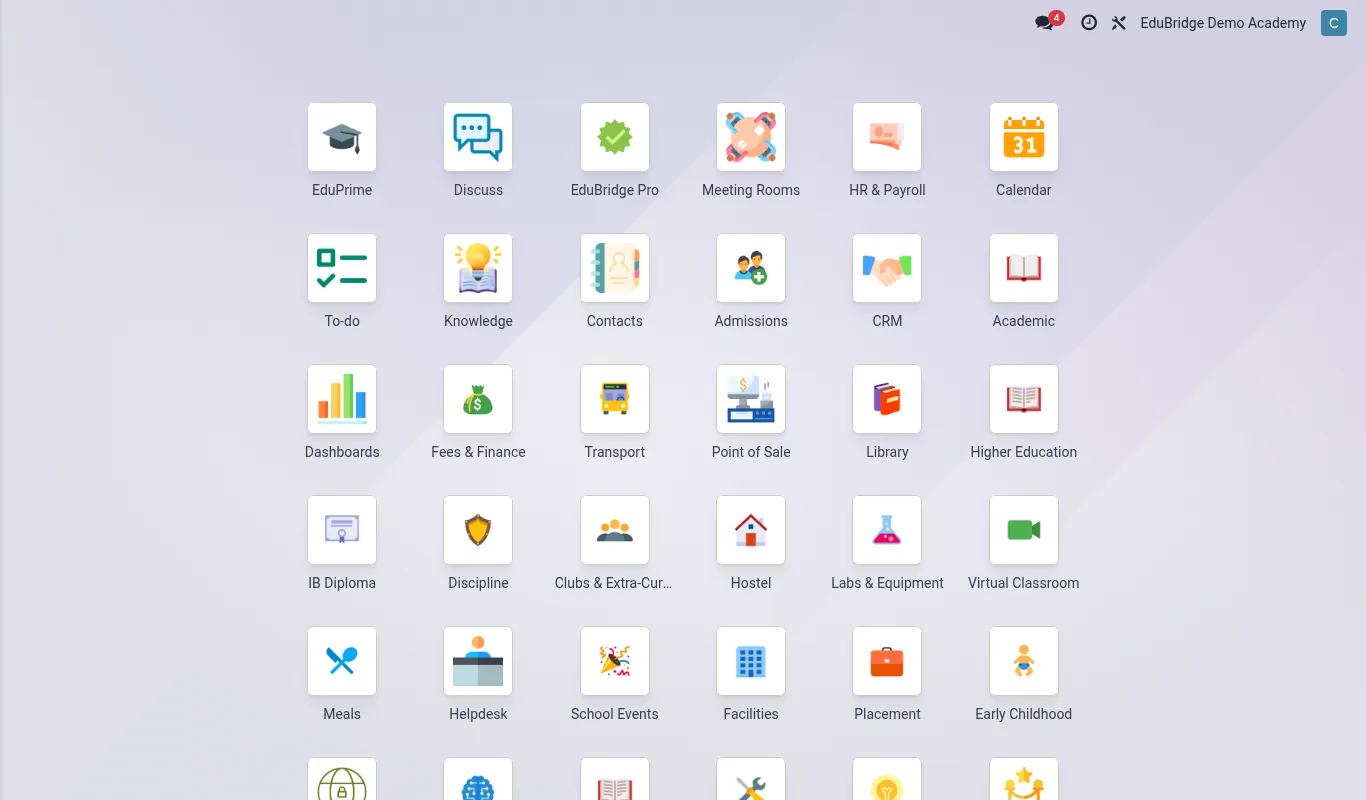
After login you arrive at the App drawer — the grid of tiles, one per installed app. Click any tile to enter that app. This is your home base; you return to it to switch departments.
Switching apps & searching
Inside any app, the top bar gives you everything you need to move around:
- App menu — the name at the top-left opens that app's menus (records, reports, configuration).
- App drawer button — the grid icon returns you to the drawer to switch apps.
- Breadcrumbs — show where you are; click an earlier crumb to step back.
- Search — every list has a search box. Type to filter, then use Filters and Group By to slice the data.
The user menu
Your name at the top-right opens the user menu. From here you can:
| Option | Use it for |
|---|---|
| Preferences / My Profile | Change your language, timezone, email signature and set up two-factor authentication |
| My Account / Security | Change your password |
| Documentation | Open these help pages |
| Log out | End your session — always do this on shared computers |
Important — Set your timezone in Preferences on first login. Attendance times, fee receipts and audit timestamps all follow each user's timezone, so a wrong setting makes times look off.
Related pages
Was this page helpful?