

Room allocation
Allocation places each boarder in a specific house, room and bed. Done well it balances houses, respects special needs, and gives roll call and welfare a reliable map of where every child sleeps.
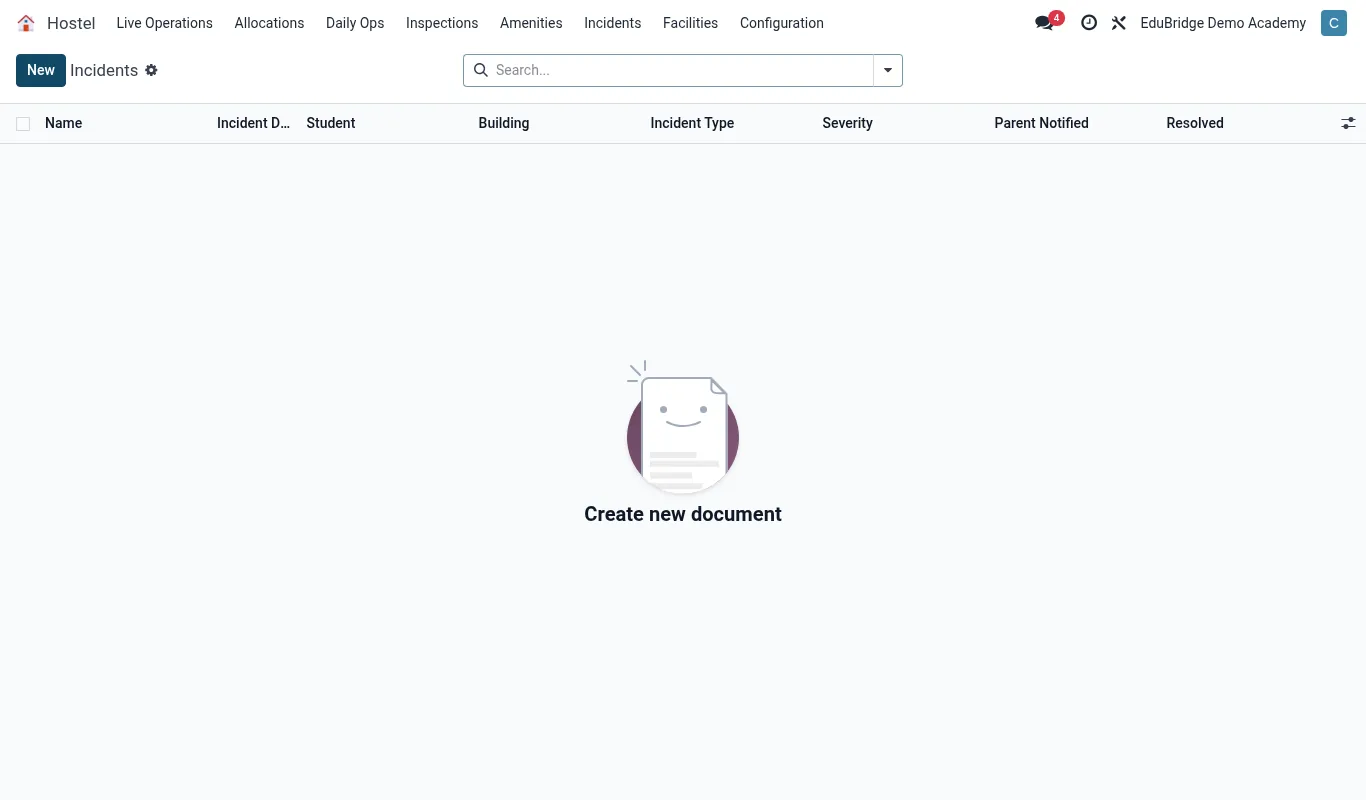
Where to find it — App drawer → Hostel → Incidents → All.
Allocating a student
Open Boarding → Allocations → New, or use the Boarding tab on the student profile.
- Pick the student.
- Choose a house consistent with the student's gender; the system filters out incompatible houses.
- Choose a room – occupancy is shown so you avoid full rooms.
- Pick a specific bed if your house numbers beds.
- Set the start date and save. The boarding fee posts to the invoice automatically.
Swaps & moves
Students move rooms for many reasons – friendships, behaviour, medical. Handle moves so occupancy and history stay correct.
- Open the current allocation and click Move.
- Pick the new room/bed; the old bed frees instantly and the new one is taken.
- Set the move date – a history line records where the student slept before.
| Action | Effect on occupancy | |
|---|---|---|
| Allocate | Bed marked occupied; fee billed | |
| Move | Old bed freed, new bed occupied | |
| End boarding | Bed freed; remaining term credited |
Capacity & special needs
The allocation screen will not let you overfill a room – the bed simply is not offered once a room is full. Beyond raw capacity, record requirements that should steer placement.
- Medical needs – flag a student who must be near a matron or ground floor (mobility, asthma).
- Special needs – link to the student's support plan so welfare staff are aware.
- Buddy / separation requests – note pairs to keep together or apart.
Tip – Allocate students with medical or accessibility needs first, before the rooms fill, so the right beds are still available for them.
Important – Always end an allocation with an end date rather than deleting it. The date frees the bed, credits the fee correctly, and preserves the record of where the student slept – which matters for any later welfare or safeguarding query.
Related pages
Was this page helpful?