

Keyboard shortcuts & tips
Work faster across EduPrime with keyboard shortcuts, smart search and bulk actions. A few minutes learning these saves hours over a term.
Where to find it — App drawer → EduPrime → Configuration → Tips of the Day.
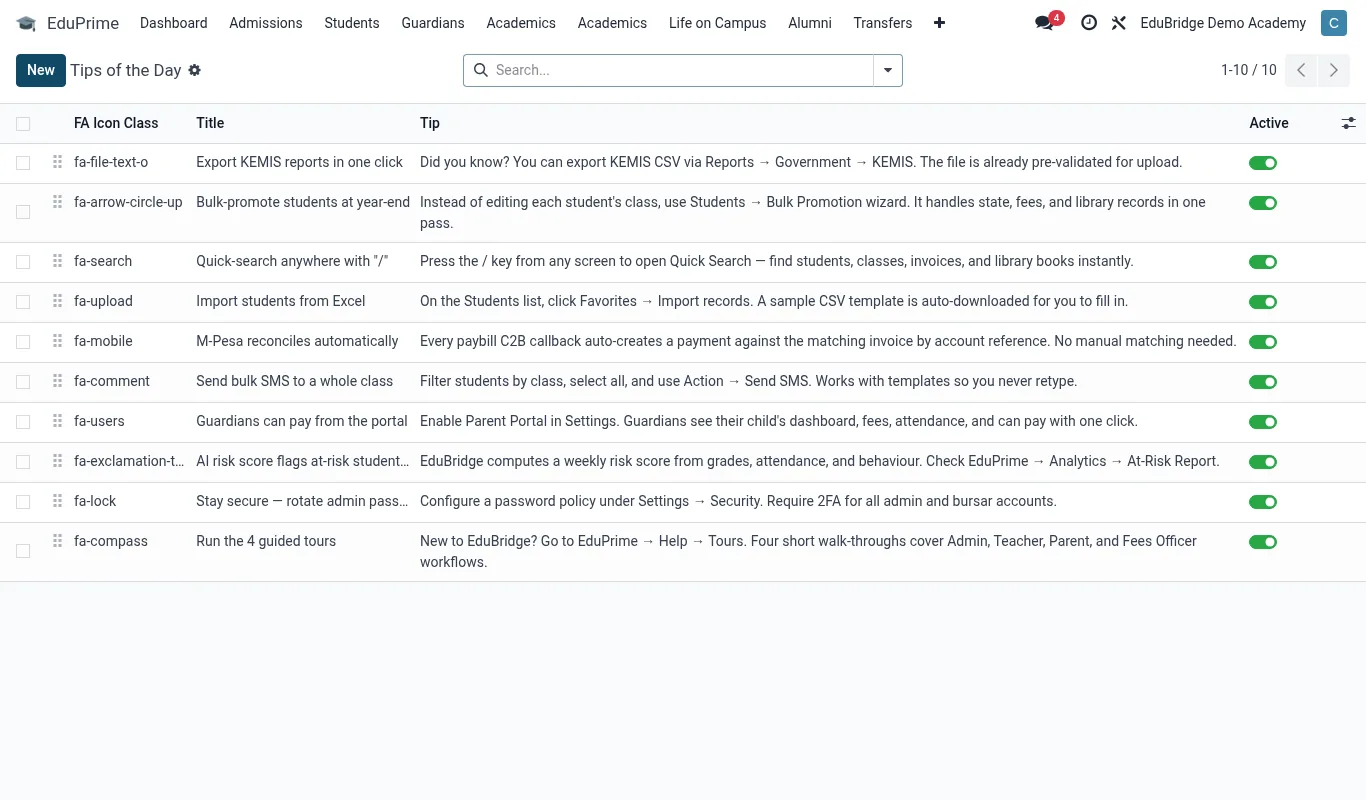
Keyboard shortcuts
| Shortcut | Action |
|---|---|
Alt + C | Create a new record on the current screen |
Alt + S | Save the current record |
Alt + J / Alt + K | Discard / go back without saving |
Alt + N / Alt + P | Next / previous record in a list |
/ (forward slash) | Jump to the search box |
Enter in search | Apply the typed filter |
Esc | Close a dialog or clear the current field |
Tip — Hold
Alt on any screen to reveal the underlined access keys on buttons and tabs – a quick way to discover the shortcuts available right where you are.Search operators
The search box does more than match text – it builds filters as you type:
- Type then pick a field – type a student name and choose “Search Student for …” to filter by that field specifically rather than everywhere.
- Stack filters – add several filters and they combine with AND (e.g. programme = BSC-CS and standing = probation).
- Filters in the same group use OR – two values of the same field widen the result (e.g. Form 1 or Form 2).
- Group By – segment results live (e.g. group invoices by aging band) without leaving the list.
- Save as Favourite – keep a frequently used search one click away, and share it with your team.
Bulk actions
Most repetitive work is a bulk action away. In any list:
- Tick the checkbox at the top of the list to select all on the page (or tick individual rows).
- Use the Actions menu that appears to act on the whole selection – export, send a message, archive, or run a workflow.
- For mass edits, use multi-edit: change a field on one selected record and apply it to all selected.
| Bulk action | Use it for |
|---|---|
| Export to spreadsheet | Pulling a selected set for a board pack or return |
| Send message / email | Notifying a filtered group of parents or students |
| Archive | Retiring old courses or graduated cohorts safely |
| Apply workflow | Promoting a cohort, issuing certificates, raising invoices |
Important — Bulk actions apply to every selected record – including ones on pages you did not scroll to if you chose “select all matching”. Check the selection count before you confirm a destructive action like archive or delete; there is no undo for a mass change.
Related pages
Was this page helpful?