

Reservations, overdues & fines
When every copy of a popular title is out, holds keep things fair; when books come back late, fines keep them moving. This page covers reservations, overdue handling, fines on the student statement, and writing off lost items.
Where to find it — App drawer → Library → Circulation → Reservations.
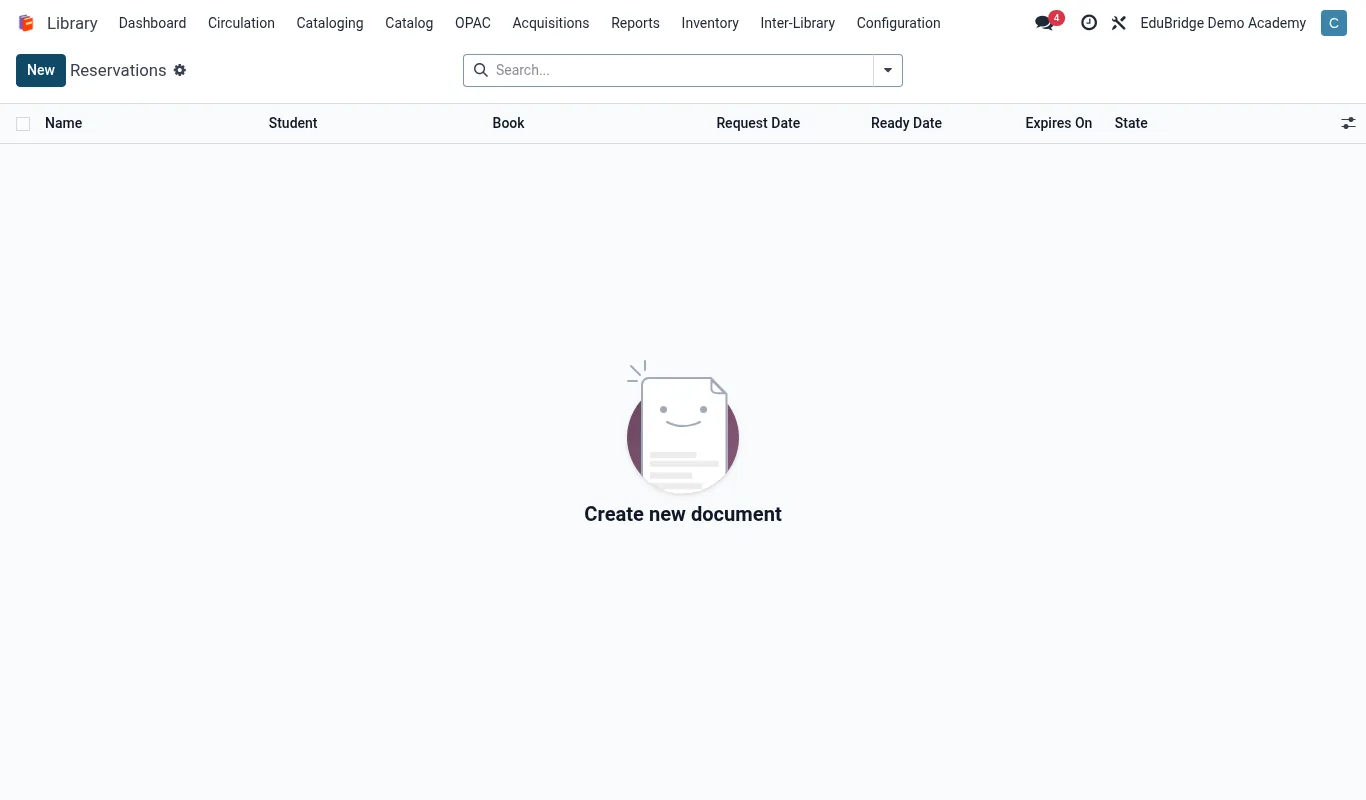
Reservations & holds
A hold reserves the next available copy of a title for a specific borrower. Holds can be placed by staff at the desk or by the borrower from the OPAC.
- Find the title and click Place hold, choosing the borrower.
- The borrower joins the hold queue in order of request.
- When a copy is returned, the desk flags it for the first borrower in the queue and the copy moves to On hold shelf.
- The borrower is notified (portal + email/SMS) and has a configurable pickup window – typically 3 days – before the hold lapses to the next person.
Overdue handling
EduPrime watches due dates and escalates automatically. Open Circulation → Overdues for the live list.
| Stage | Trigger | Action |
|---|---|---|
| Reminder | 2 days before due | Courtesy notice to borrower |
| First overdue | Due date passed | Notice + fine accrual begins |
| Escalation | 14 days overdue | Guardian notified, borrowing suspended |
| Lost | 30 days overdue | Copy marked Lost, replacement charged |
Fines on the student statement
Every fine raised in the library posts directly to the student's financial profile. There is no separate library till.
- The fine appears as a line on the student statement next to tuition and other charges.
- It shows on the student profile under Account → Charges.
- Payment is collected through the normal fees channels (cash, M-Pesa, card) and reconciled by the bursar.
Tip – Because fines live on the student statement, you can configure a rule that blocks results slips or exam clearance until library charges are settled – a strong incentive for prompt returns.
Lost & damaged items
When a copy will not come back, close it out cleanly so stock figures stay honest.
- Open the loan and click Declare lost.
- The copy status changes to Lost and is removed from available stock.
- The replacement charge (cost + processing fee) posts to the student statement.
- If the book later turns up, click Found to reinstate the copy and reverse the charge per your refund policy.
Important – Never delete a lost copy – declaring it lost preserves the audit trail and the charge linkage. Deleting orphans the fine and breaks the student's history.
Related pages
Was this page helpful?