

Security & audit
EduPrime holds children's personal data and money flows, so it must be locked down and auditable. This page covers the password policy, login security, the audit log, who-can-see-what, and protecting confidential welfare data.
Password policy
Set a minimum standard for every account under Settings → General Settings → Permissions.
- Set a sensible minimum password length (12+ recommended).
- Require users to set their own passwords via reset links — never share passwords.
- Encourage a password manager; discourage reused or guessable passwords.
Login security
- Serve EduPrime only over HTTPS; redirect any plain-HTTP access.
- Keep the platform behind a reverse proxy with rate-limiting to blunt brute-force attempts.
- Set sessions to expire after inactivity so unattended machines log out.
- Remind staff to log out on shared computers via the user menu.
The audit log
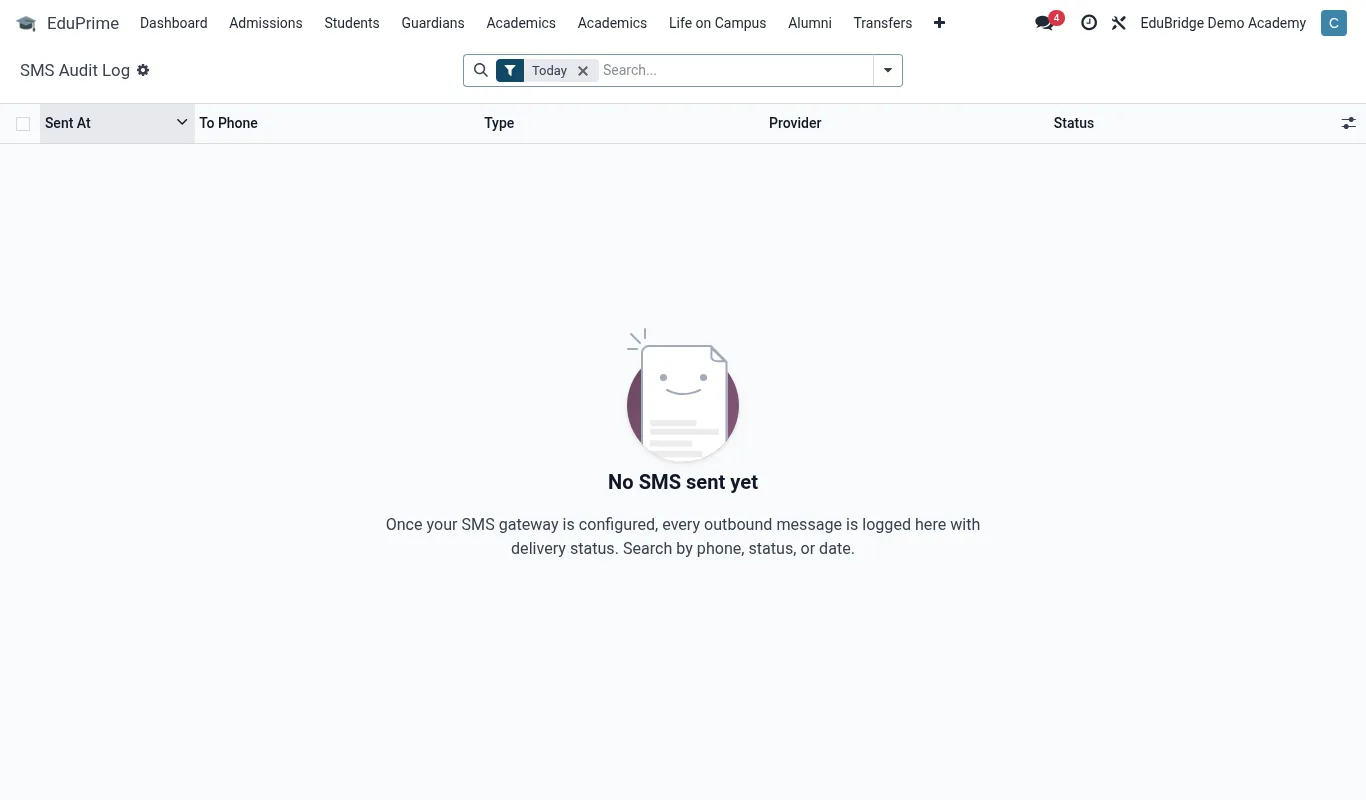
EduPrime records who created or changed important records. Two layers help you answer “who did this?”
| Source | Shows |
|---|---|
| Record history (chatter) | The change log and messages on each student, invoice or application |
| Logging rules (Technical) | Administrator-defined audit of create/write/delete on chosen models |
| Login history | Successful and failed sign-ins for investigating suspicious access |
- To enable extra auditing, open Settings → Technical → Audit/Logging rules.
- Choose the models to watch (for example grades, fees) and the actions to record.
- Review the resulting log periodically and after any incident.
Who can see what
Visibility follows roles and record rules (see Configuration → Users, roles & permissions). The principle is least privilege: each person sees only the records their job needs. Verify it by signing in as a test Teacher account and confirming they cannot reach finance configuration or another class's grades.
Confidential welfare data
Counseling notes, safeguarding flags and medical history are the most sensitive data in the system.
Treat any access to welfare data as auditable. The combination of restricted roles, logging and 2FA is what keeps this data both available to the right people and safe from everyone else.